


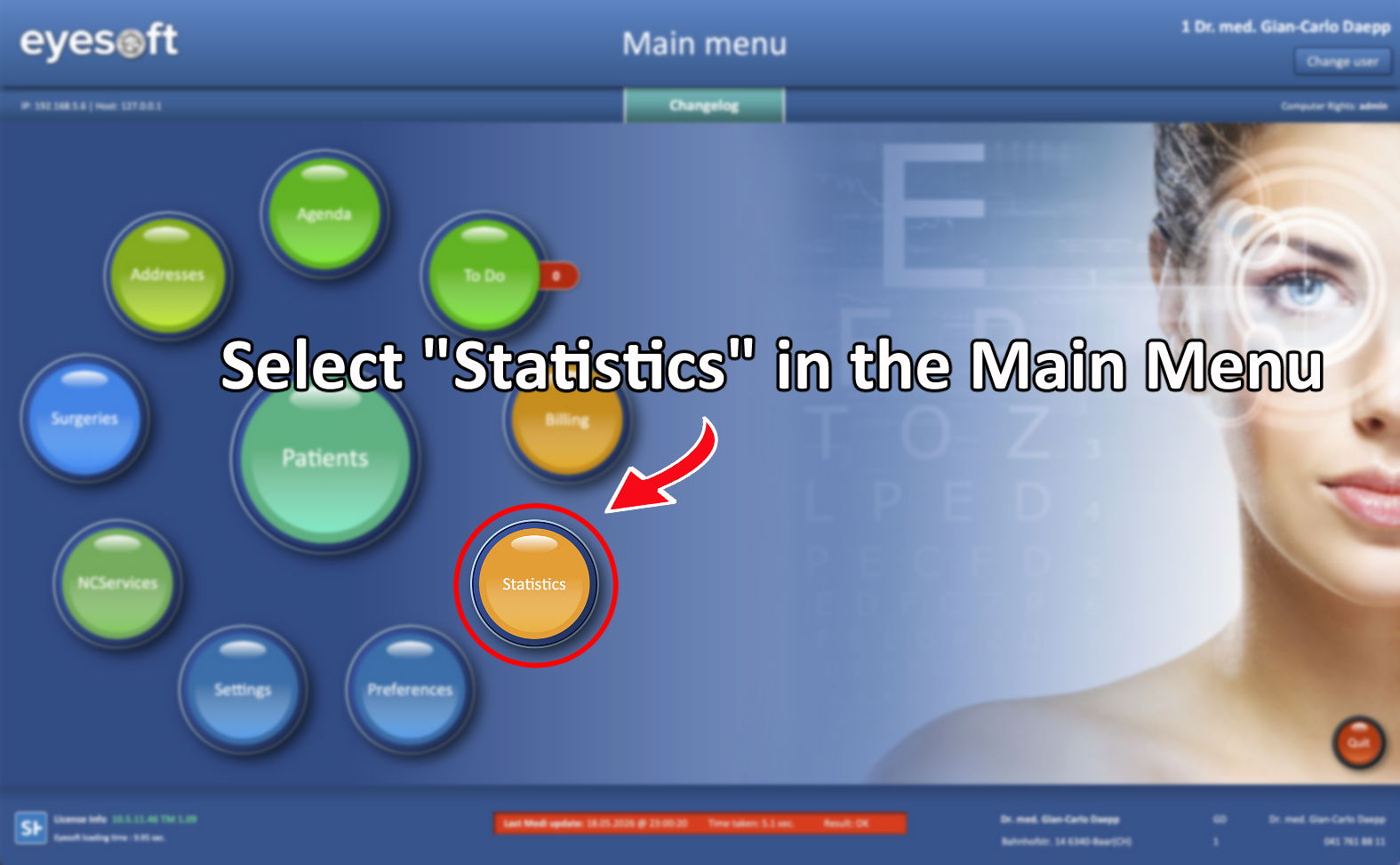
From the Main Menu, select Statistics.
This guide will focus on the Search Payment function.
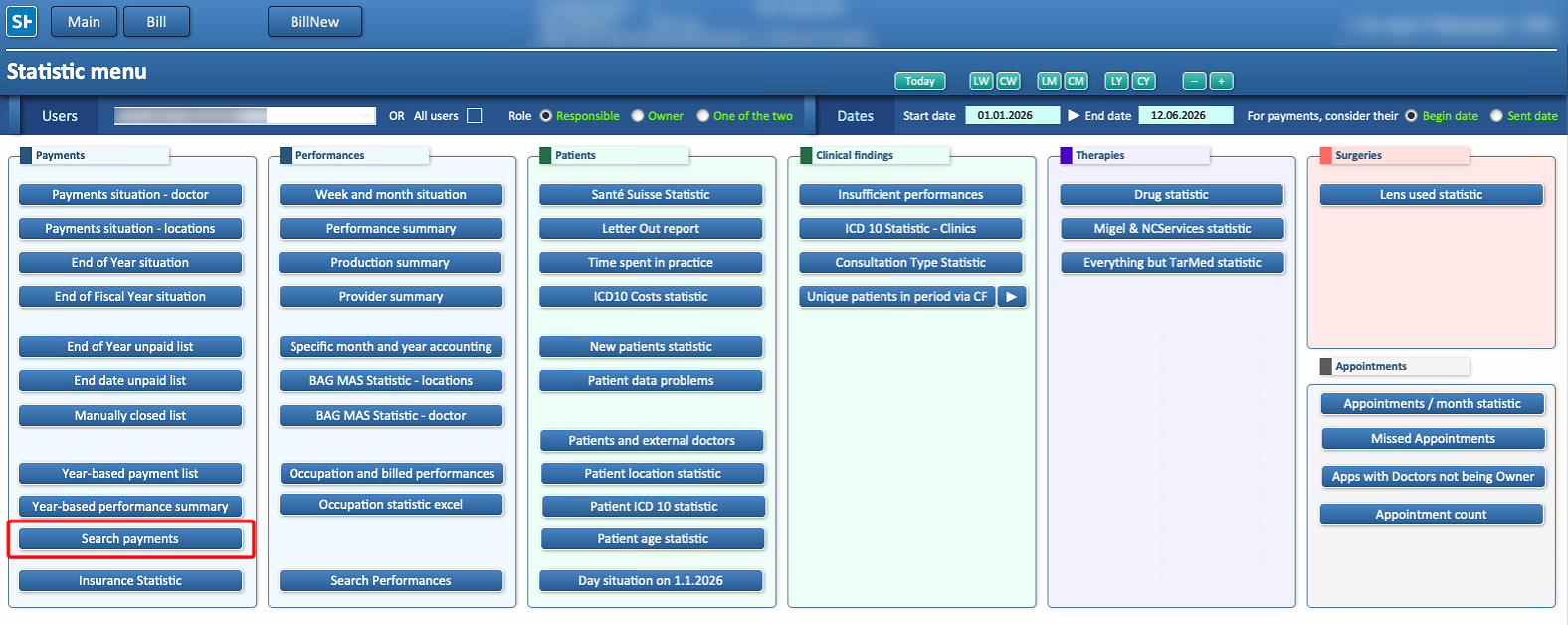
The Search Payments function allows users to search for specific payment records using various search criteria. The results can be reviewed as individual detailed records or as a complete list, which can also be exported in different formats.
Performing a Payment Search
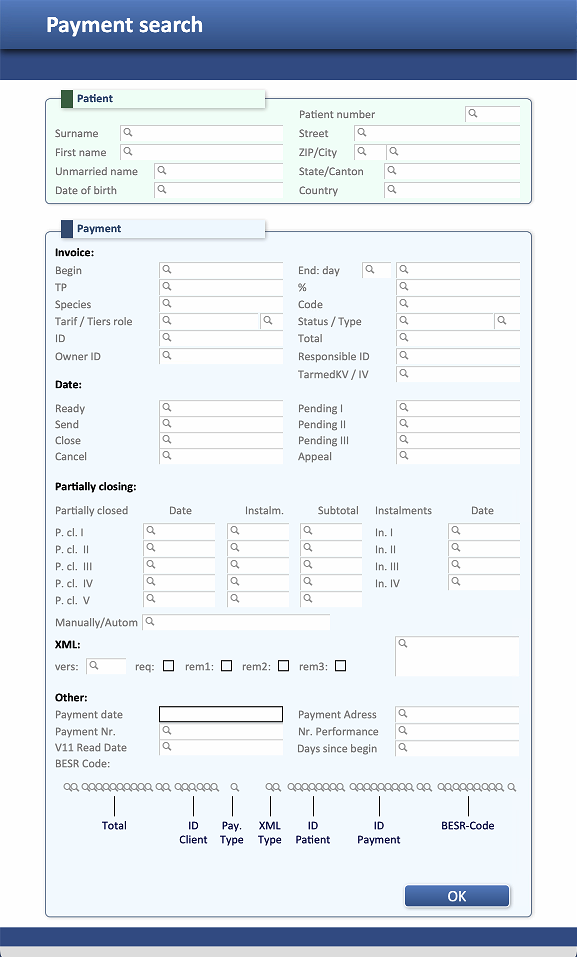
After selecting Search Payments, a search window will appear where users can enter the desired criteria to locate one or multiple payment records.
The search can be performed using different parameters, including:
- Patient information (e.g., name, surname, patient number)
- Location information (e.g., country, canton)
- Payment dates or timeframes
- Invoice or payment details
- Instalment information
For example, searching only by a patient's name and/or surname will display all payments associated with patients matching those details. If the name is common and more precise results are required, it is recommended to include the Patient Number to retrieve payments belonging to a specific patient.
Once all relevant search fields have been completed, click OK to execute the search and display the matching payment records.
It's important to not that:
- It is not necessary to complete every field. Only fill in the fields relevant to the desired search.
- At least one search criterion must be entered; an empty search cannot be performed.
- Using more specific criteria will produce more accurate search results.
Viewing Search Results
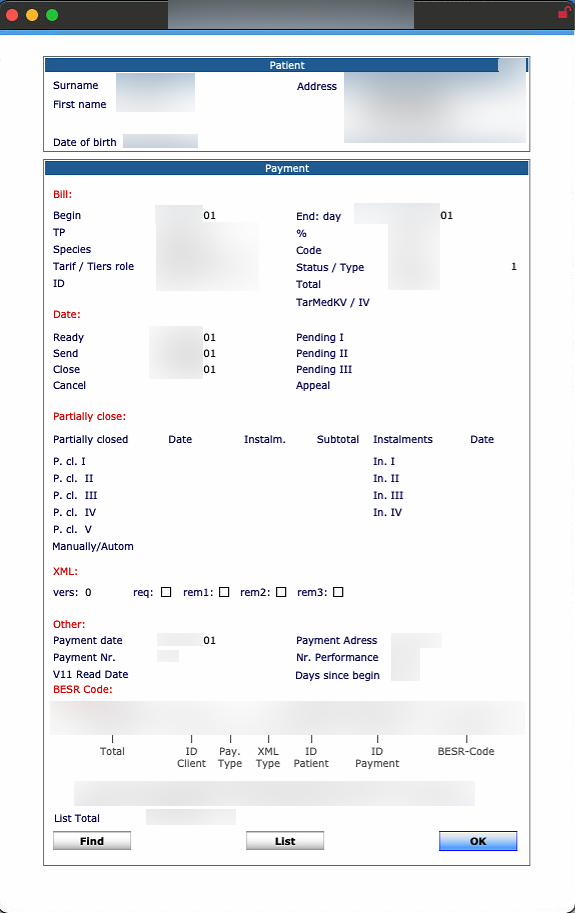
After executing the search, the system will display the first payment record that matches the selected search criteria.
In this view, it is not possible to navigate through all matching records directly. To access the complete list of results and browse through all matching payment records, click the List button located at the bottom center of the window.
The list view allows users to review all results returned by the search and select the desired payment record for further consultation.
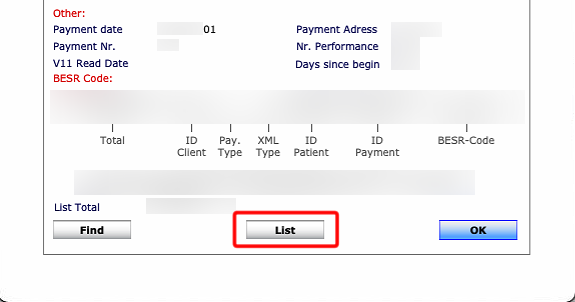
After selecting the List button, a new window will appear allowing the user to choose the preferred format for viewing or exporting the search results.
Select the desired output format and confirm the selection to display or download the list of payment records accordingly.
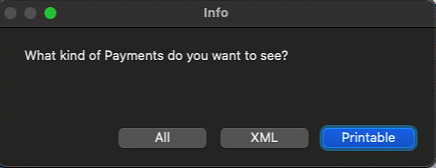
- All
shows all the payments that are avaliable with the searched criteria - XML
creates an XML file of the payments found from the search - Printable
shows only the payments set as To Print.
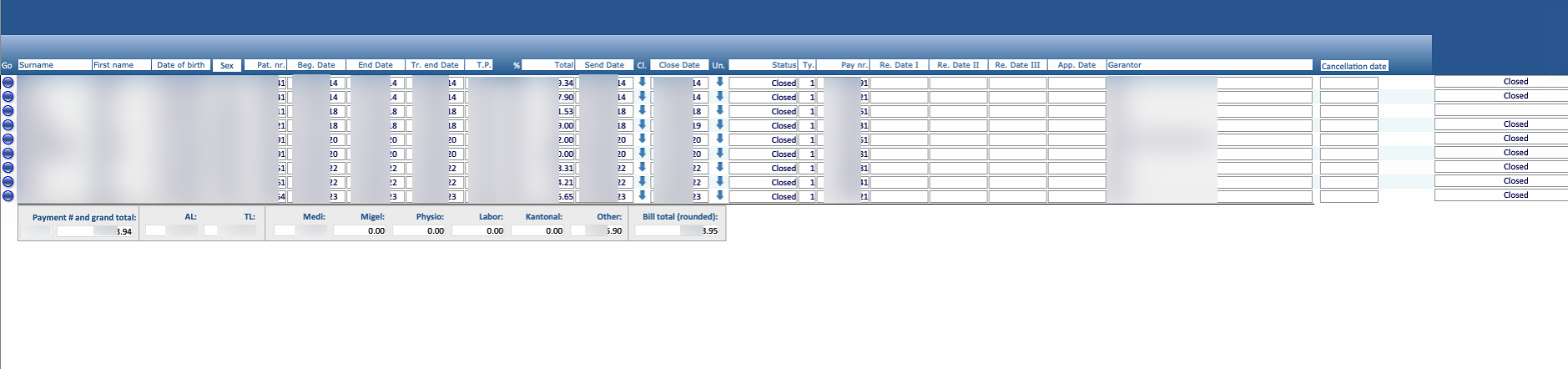
By clicking the blue circle next to each list entry, it is possible to open and view the corresponding payment record in detail.
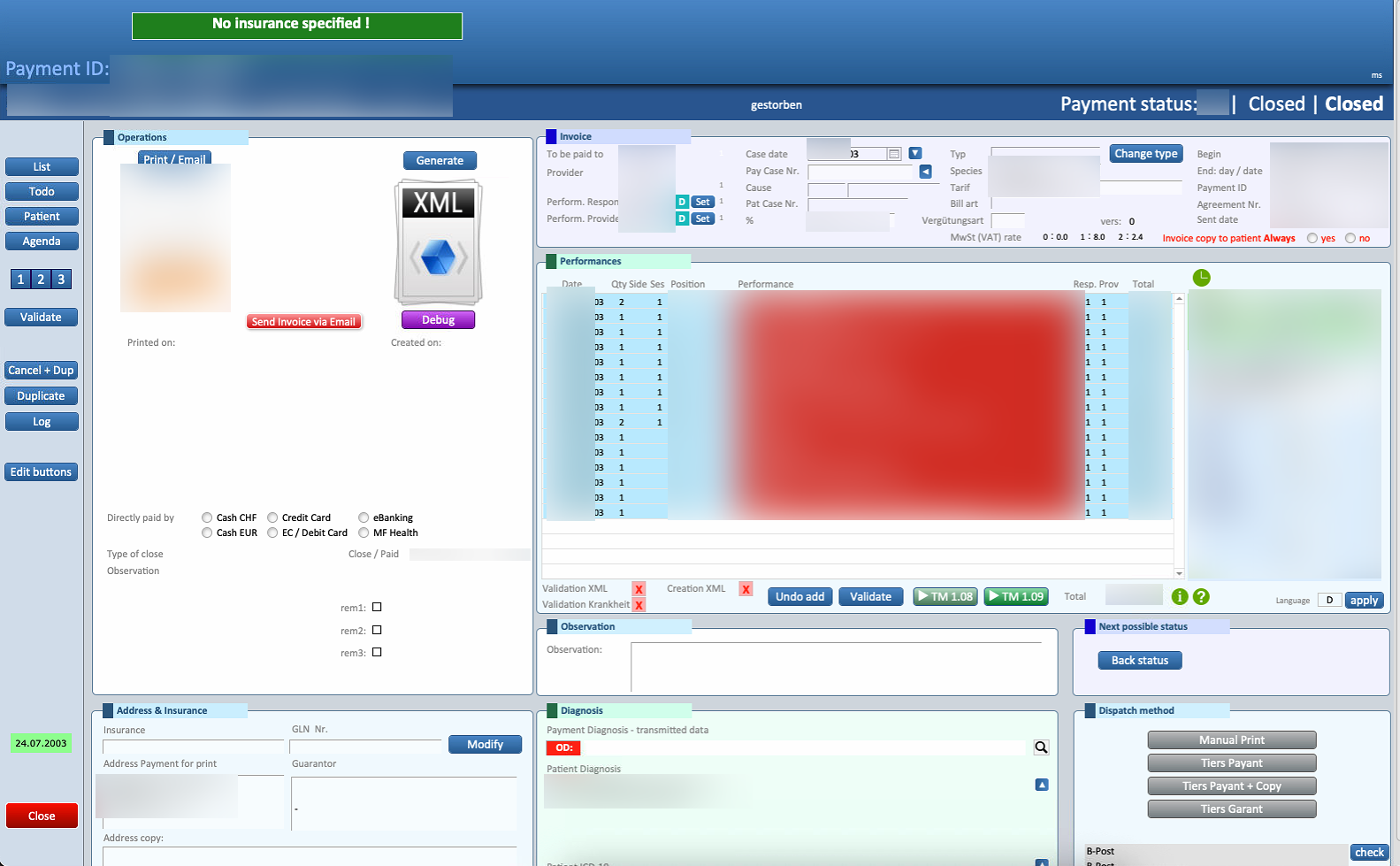
By selecting the List button located on the side of the payment window, it is possible to return to the complete list of search results.
Important: Selecting Close will close all open payment search windows. To view other payment records again, a new search must be performed.
All search results can be printed or exported in different formats, such as XML or Excel, depending on the stage of the available options in the current view.

