


E/G - NCservices

Mar 09, 2026
 44
44
1. What Are NC Services
- NC Services are additional services that users can create or modify in the system.
- They are used for services or items that are not included in the standard system lists, such as:
-
Tarmed
-
Tardoc
-
Compendium
-
Other predefined system options
-
- Some NC Services are already included by default in the system.
- Each user can create, modify, or customize their own NC Services at any time.
- NC Services can represent different types of items, for example:
-
Medical services
-
Operating room materials
-
Medications
-
Implanted materials for patients (for example, artificial lenses)
-
1. Creating an NC Services
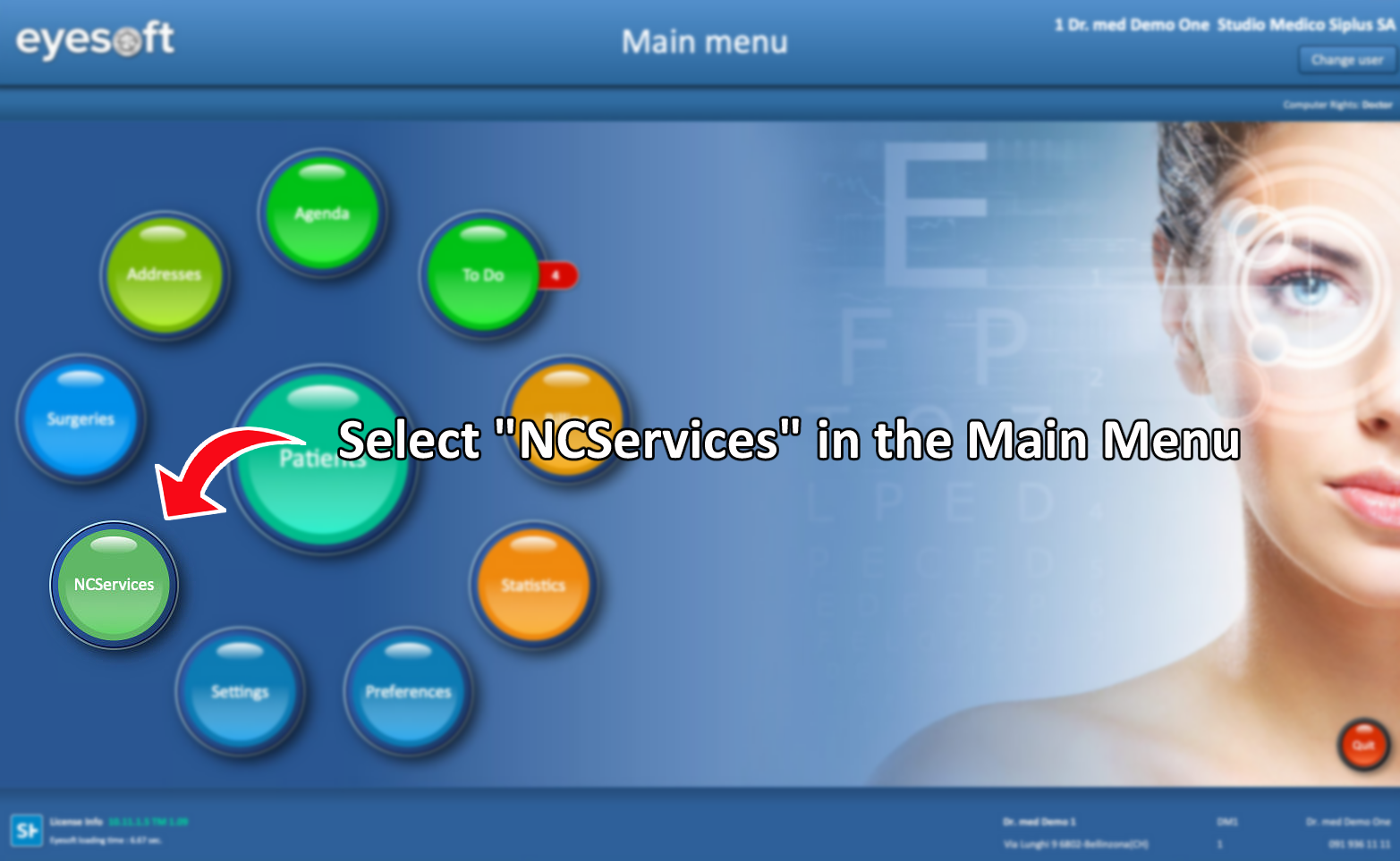
- In the Main Menu, select NCServices
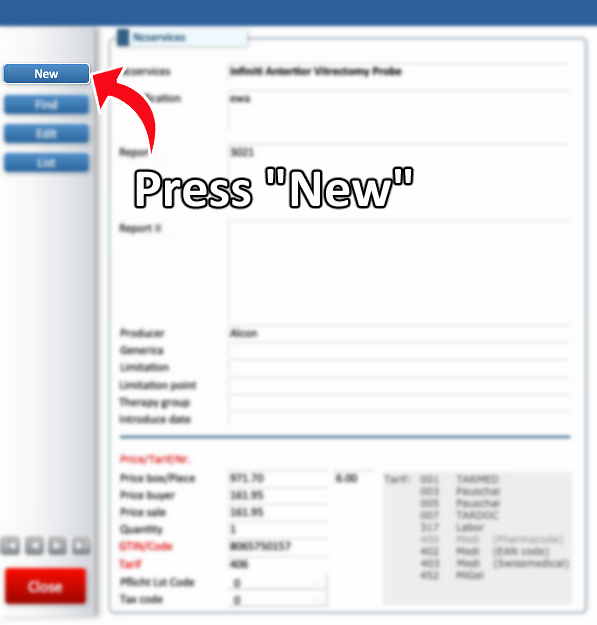
- Click the New button. A new empty NC Service form will open
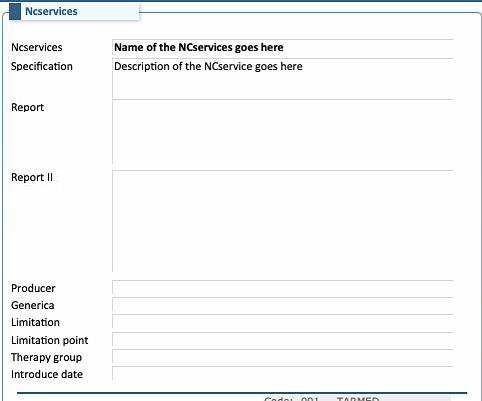
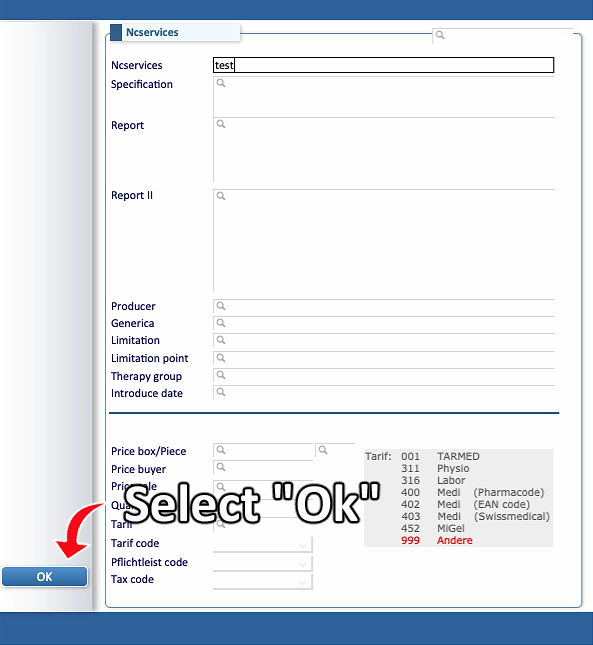
- Enter the required information in the upper part of the form.
- NCServices refers to the name of the service you are creating. This name will also appear on the invoice.
- Specification is a description of the service or item.
- The Report and Report II fields are additional fields that can be used for extra descriptions or notes.
- Producer refers to the manufacturer or producer of the item listed in the NC Service
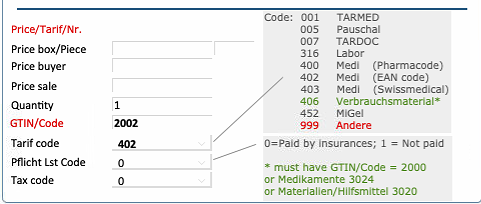
- Fill the fields on the bottom part with the pricing and codes
- Price sale is the final price charged to the patient.
- GTIN/Code is the international identification code for the item. If the item exists in the Compendium, use its official GTIN code. If the item is not listed, use these default codes:, use the code 2002 for general services, code 3024 if it's a medication, and code 3020 for materials
- Tarif code indicates the category under which the item is regulated. Use 406 for general services (do not use 999). For other specific services, refer to the examples provided.
⚠ The fields in red are mandatory and needs to be filled with the right information in order for an NCservice to function properly.
The GTIN codes can be found on the Compendium website
The Tarif Code can be found here
- After filling in all required fields Click OK. The new NC Service will be created and saved.
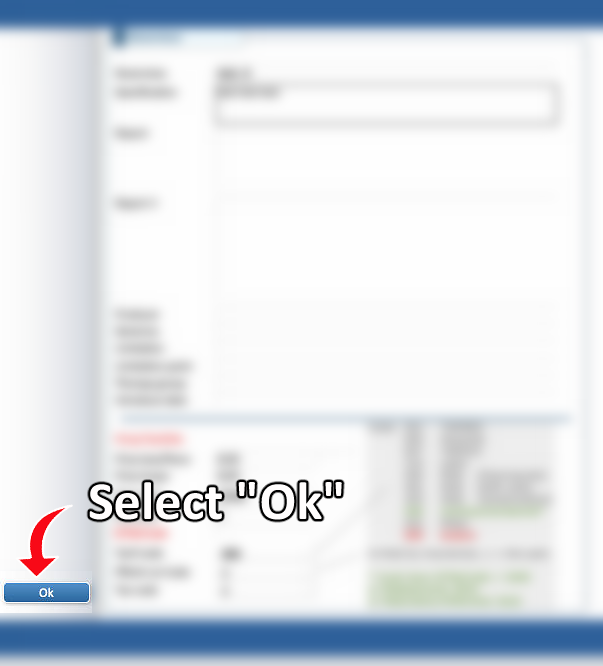
2. Editing an NC Services
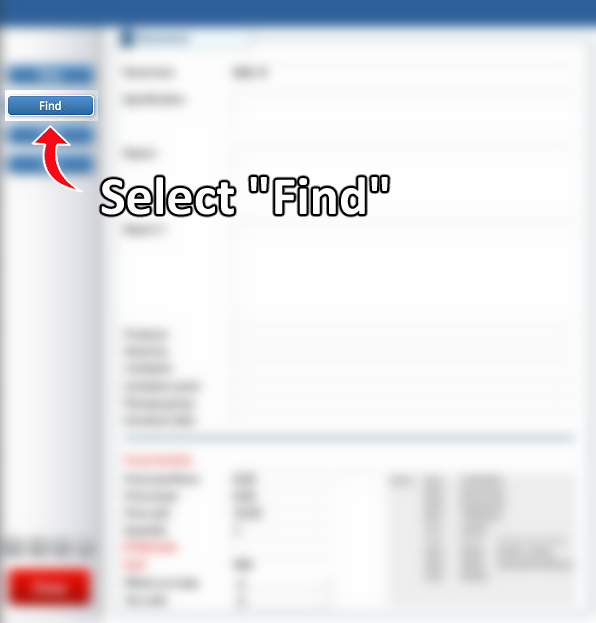
- To change a detail in an NCService, first select the Find button
- Enter the relevant search information and click OK or press Enter
- You can browse the results in two ways:
- Use the arrow buttons to move between results
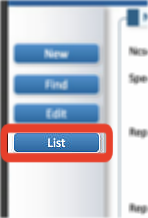
- Click List to display all results and choose the correct one.
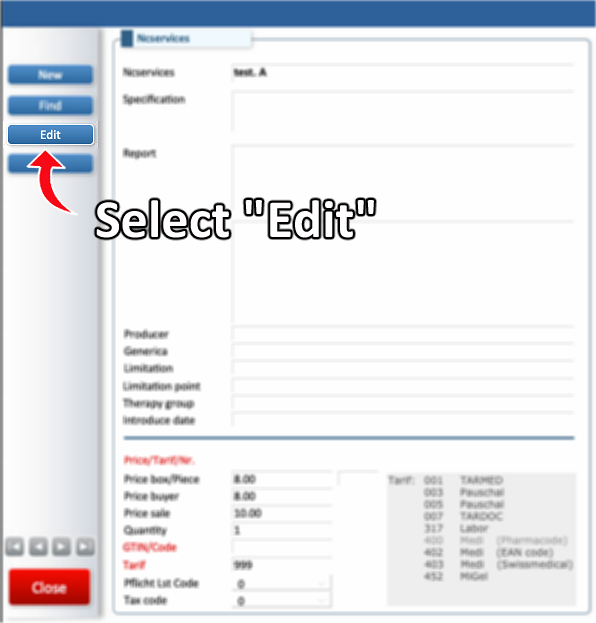
- Select the NC Service you want to change and click Edit
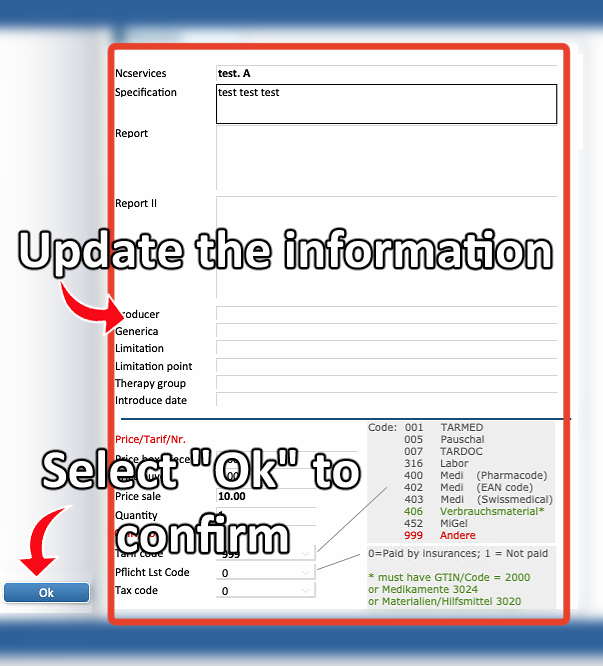
- Once the information are updated, click OK to confirm and save the modifications.
⚠ WARNING
Only user-created NC Services can be edited.
Default services provided by the system, such as:
-
Tardoc
-
Tarmed
-
Copendium
cannot be edited.
For information on managing buttons associated with NCServices, refer here.

