


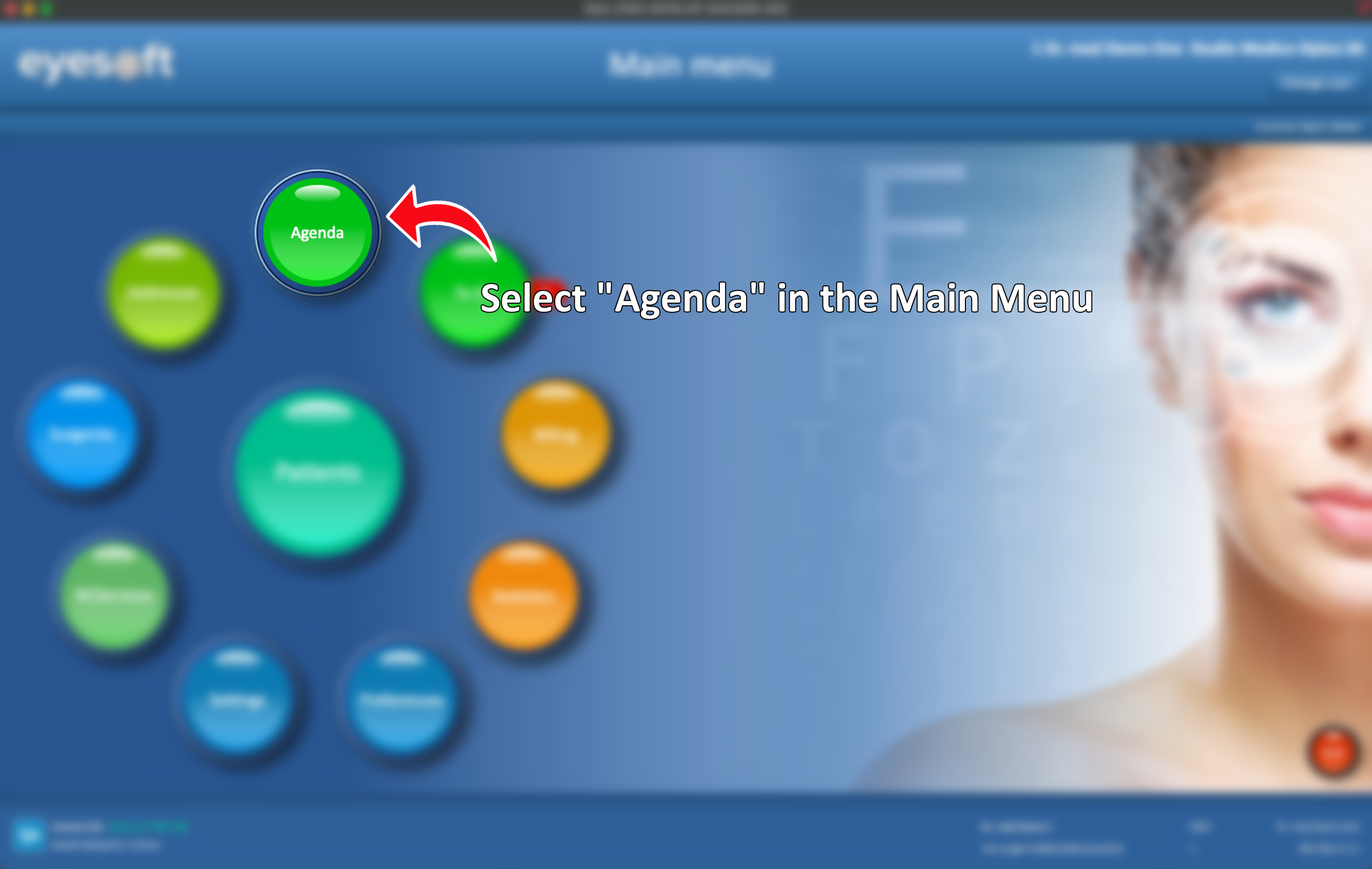
- To access the Reminders menu, the Agenda option needs to be selected from the Main Menu first.
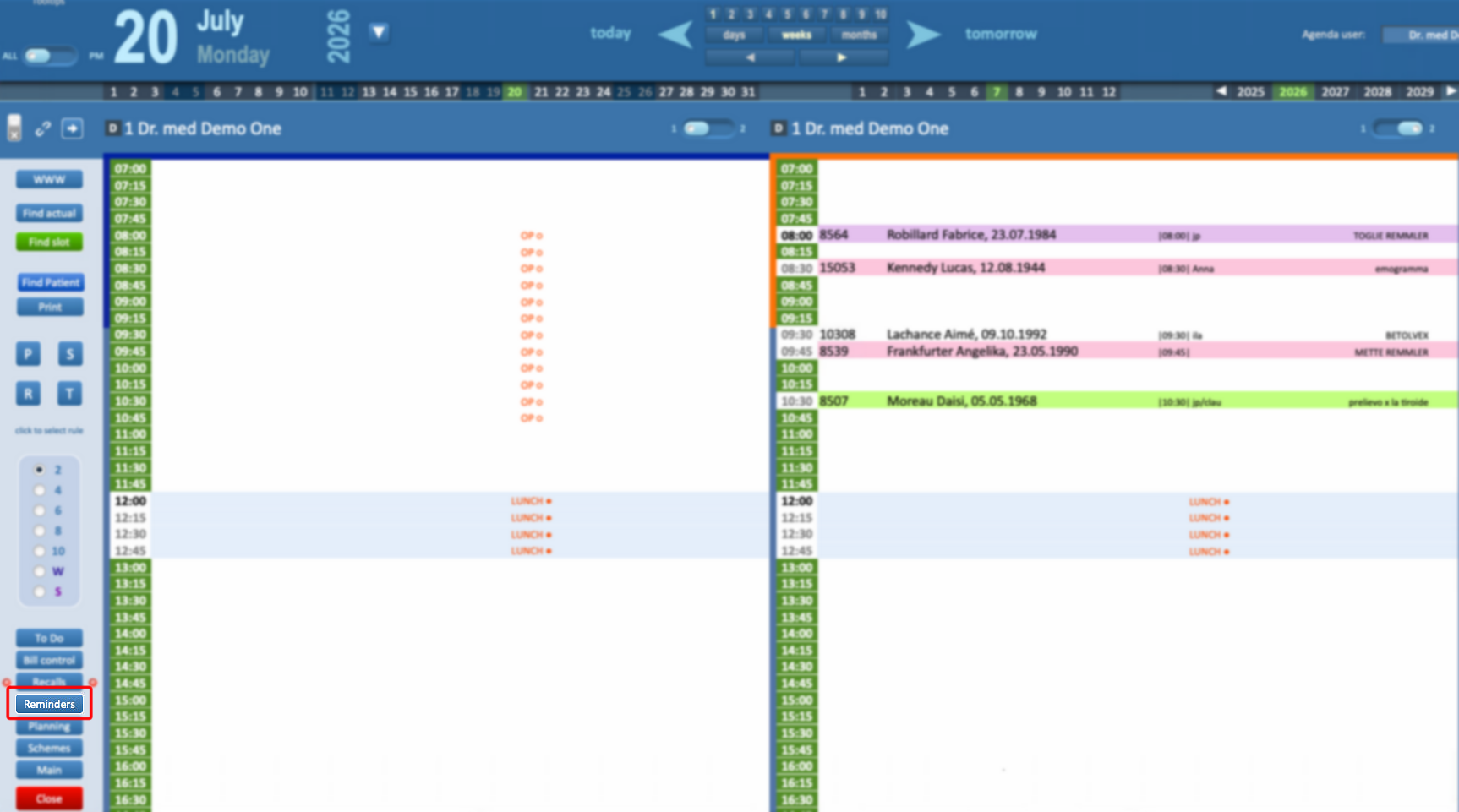
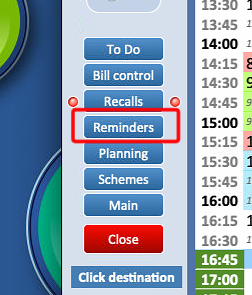
- From the Agenda section, the Reminder option located on the left side of the screen needs to be selected.
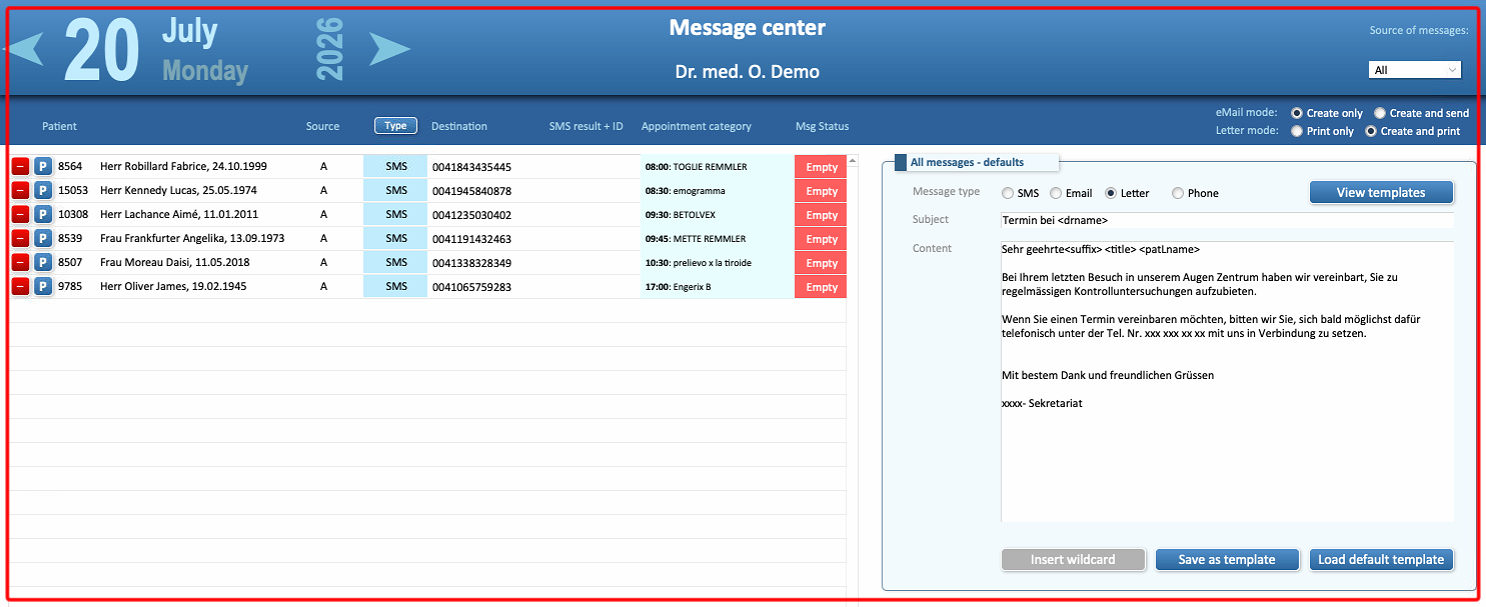
- A window named Message Center will open.
- It is important to note that this window is different from the Recalls Message Center, despite having the same name.
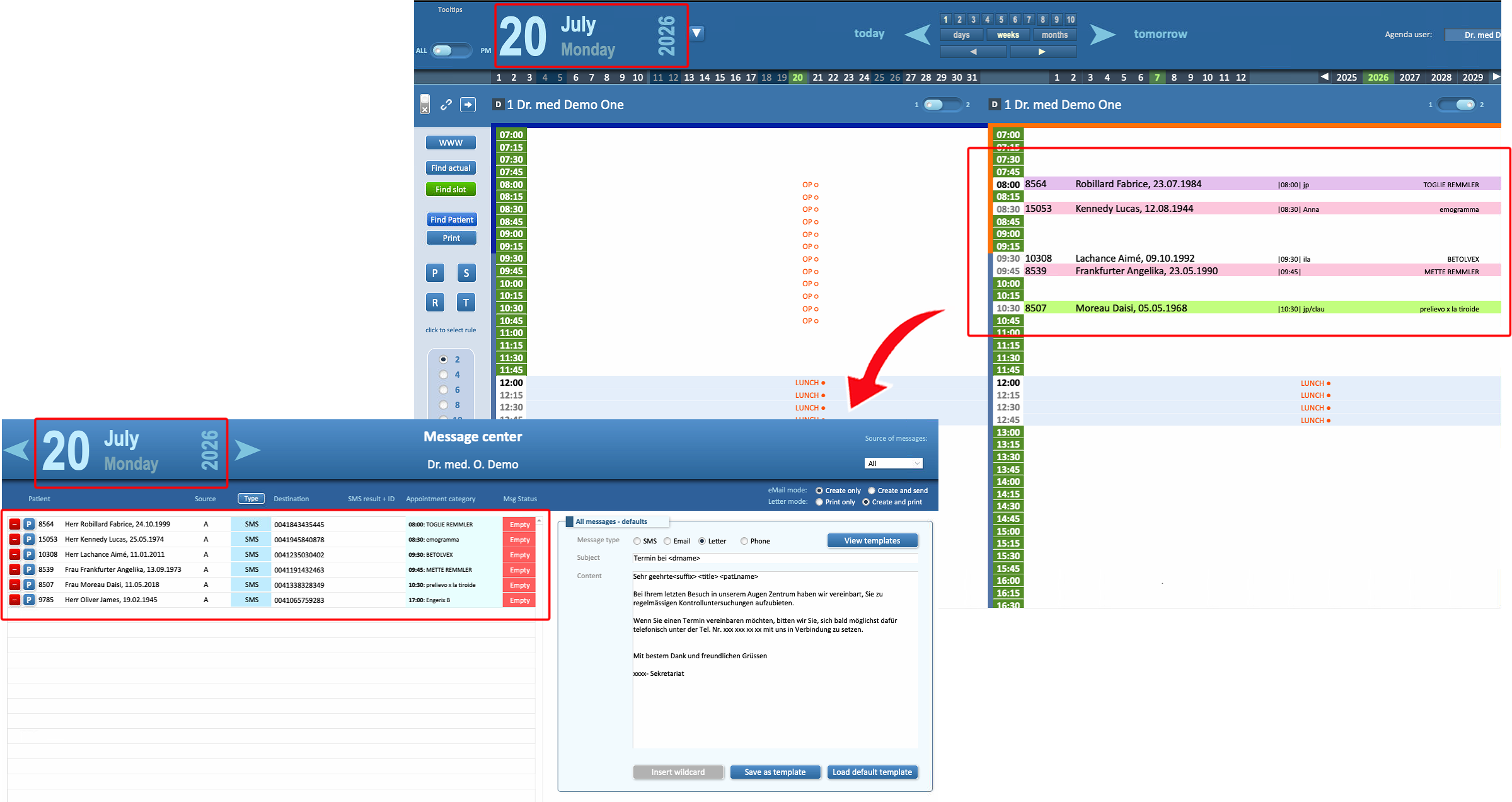
- Reminders directly refer to the day currently displayed in the Agenda. For example, if the Agenda is displaying July 27th, the Reminder list will contain all appointments scheduled for that day.
- Reminders are automatically generated for all appointments entered during the selected day.
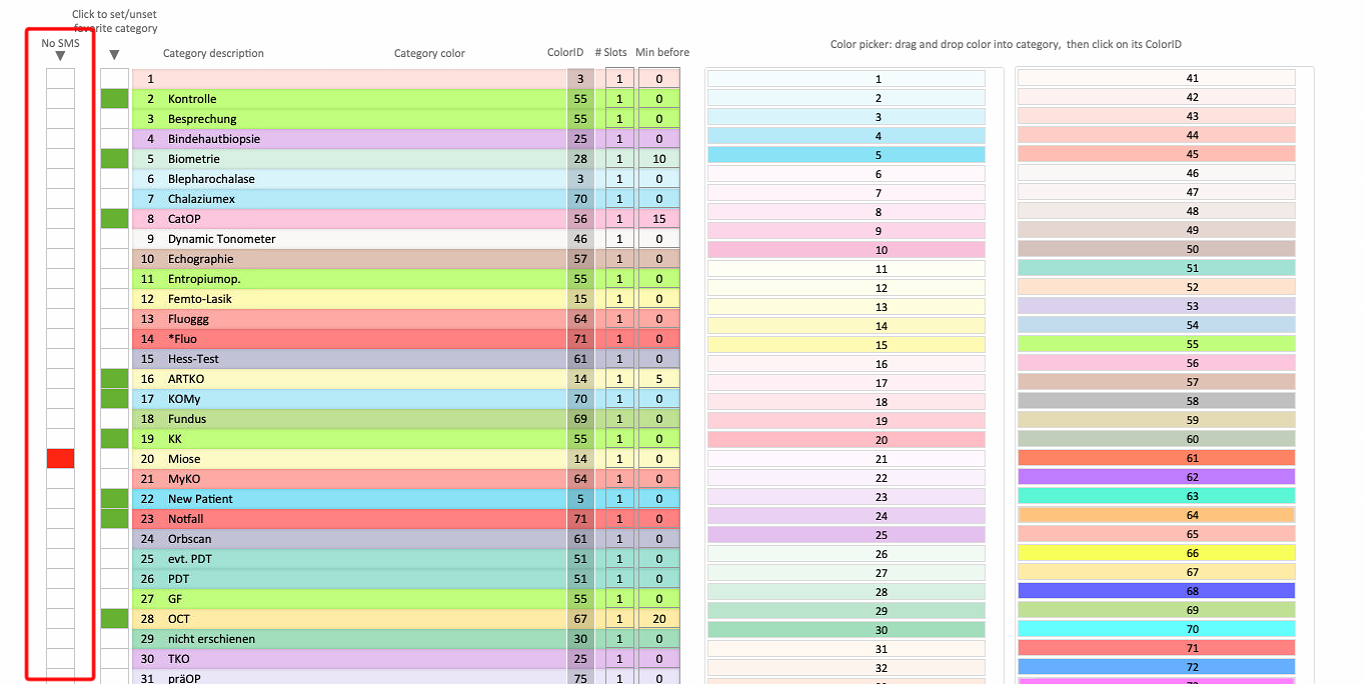
- The only exception preventing the automatic generation of a Reminder is the use of an Agenda category with the NO SMS option enabled.
The day displayed within the Reminder Message Center can be changed in different ways:
- by changing the day directly in the Agenda and reopening the Reminder window;
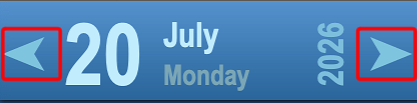
- by using the navigation arrows within the Message Center to move forward or backward between dates;
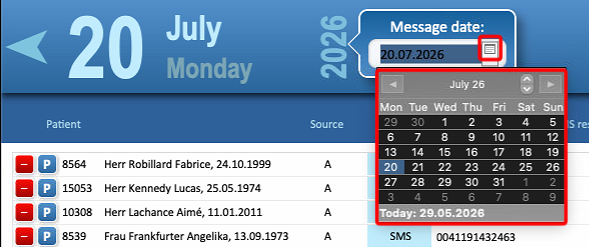
- by clicking on the displayed date and manually entering the desired date.

- by selecting the calendar icon and selecting the desired day
Creating Reminders for a Specific Day Without Existing Reminders
In some cases, it may be necessary to generate reminders for specific dates where reminders have not been automatically created. To complete this process, the following steps need to be followed:
- Open the day for which the Reminders need to be generated in the Agenda
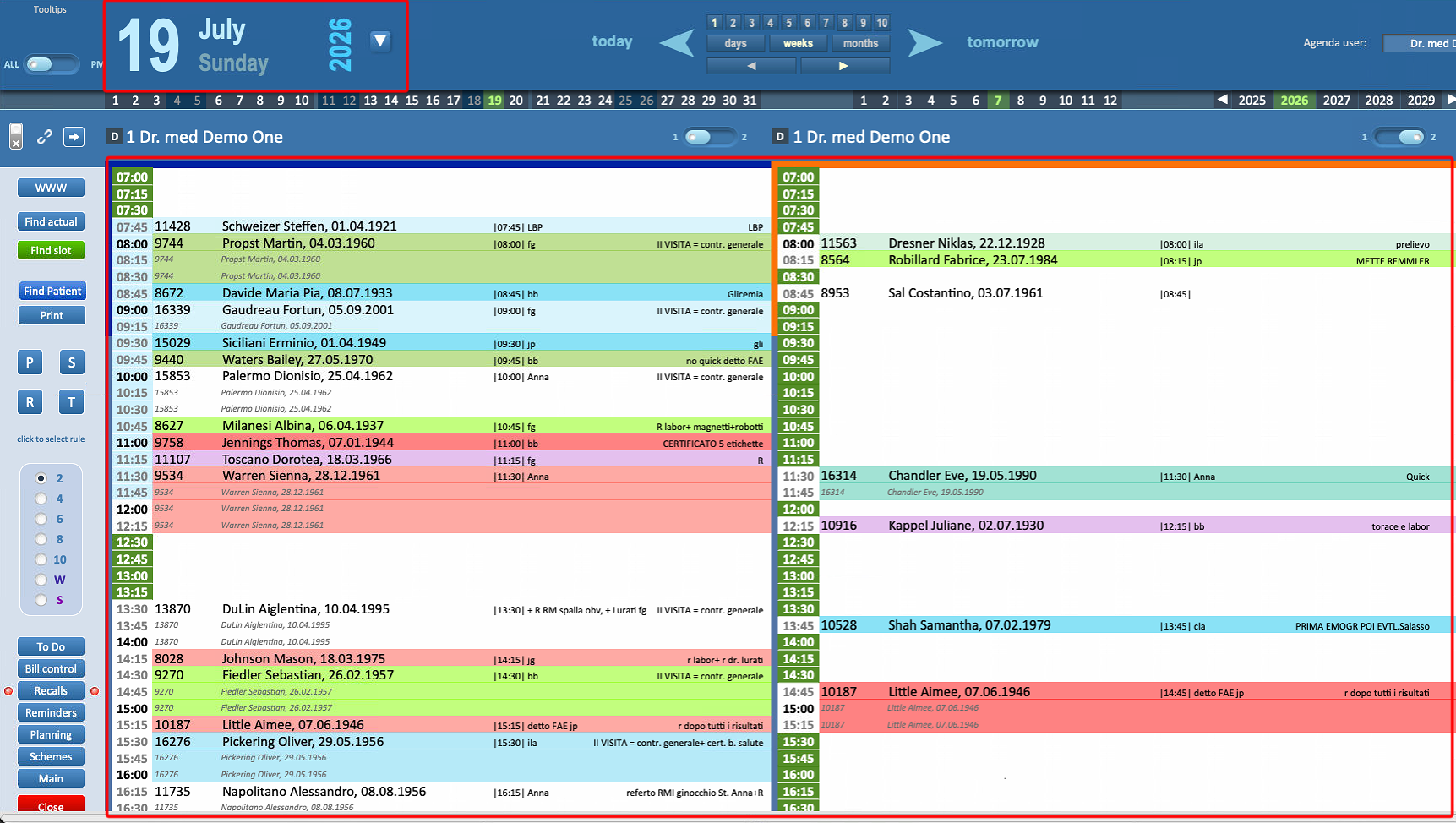
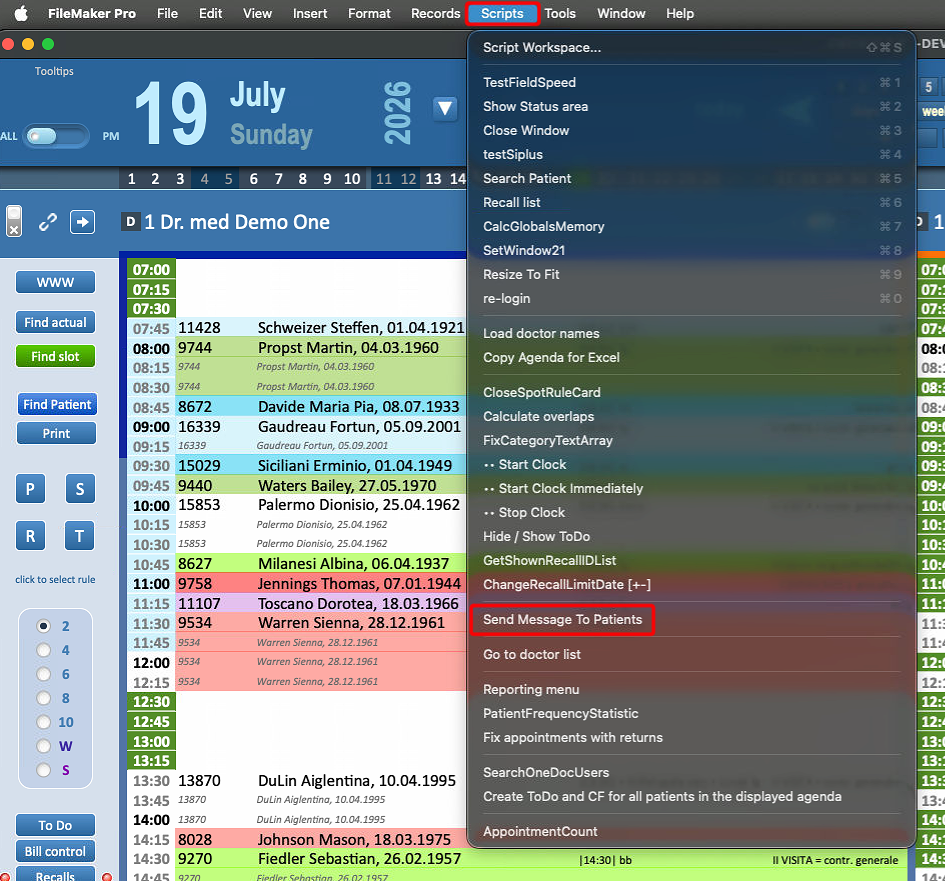
- In the top section of the screen, select the Scripts option from the menu, then select Send Message to Patients.
- The Message Center will automatically open, displaying all appointments scheduled for the selected day.
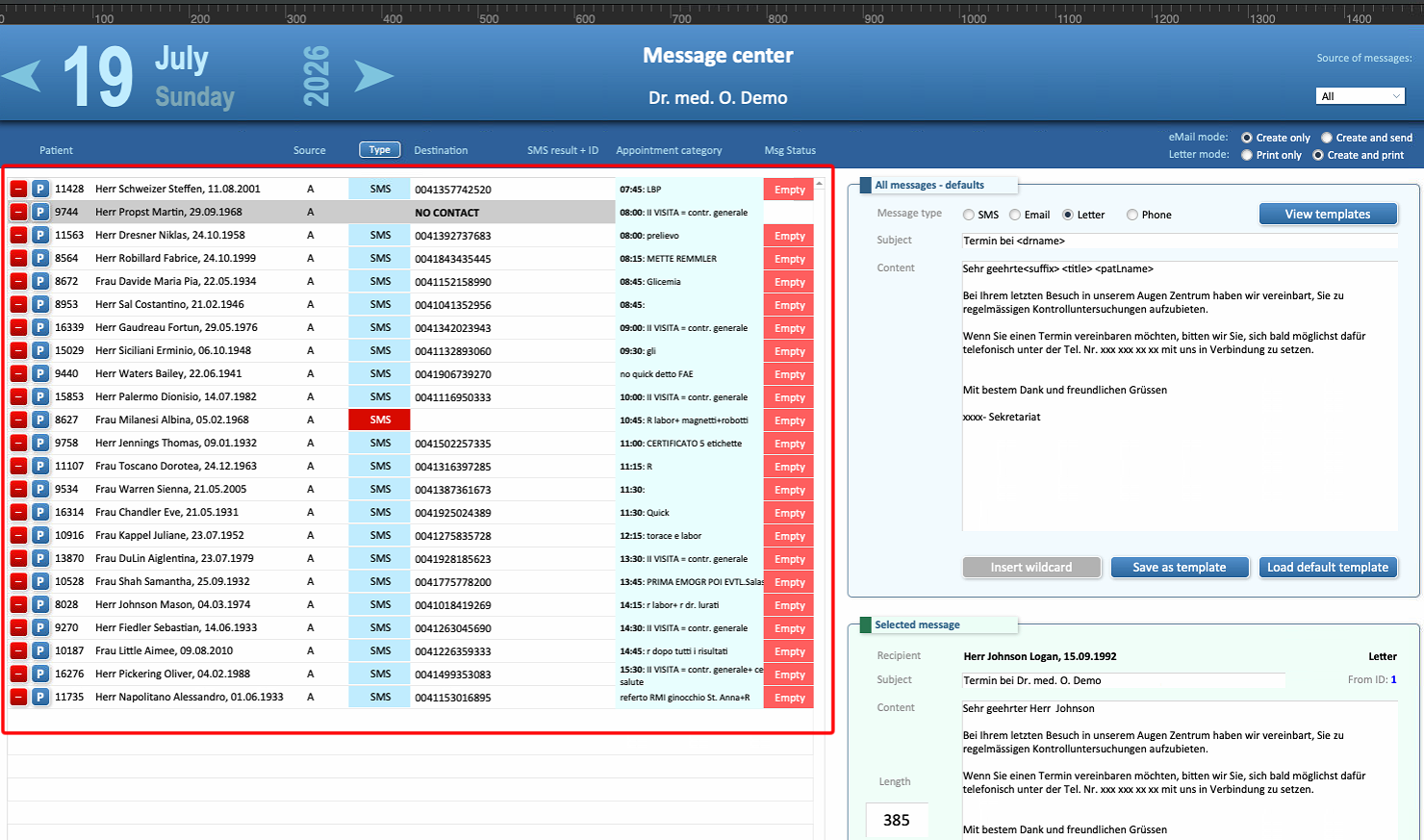
It is important to note that only appointments belonging to the currently visible Agendas will be generated. Therefore, if reminders need to be sent for multiple doctors, all relevant Agendas must be visible at the same time, or the process needs to be completed separately for each doctor.
Automatic Reminders
If the automatic SMS function has been configured in Eyesoft, Reminders will be automatically sent each day for all categories where the option remains enabled.
To verify whether the messages have been sent, the Log File can also be reviewed. A new Log File is generated once per day whenever the automatic Reminder process is executed.
To view the Log Files:
- Open the Reminders section inside the Agenda.
- Scroll down.
- Select View Log Files.
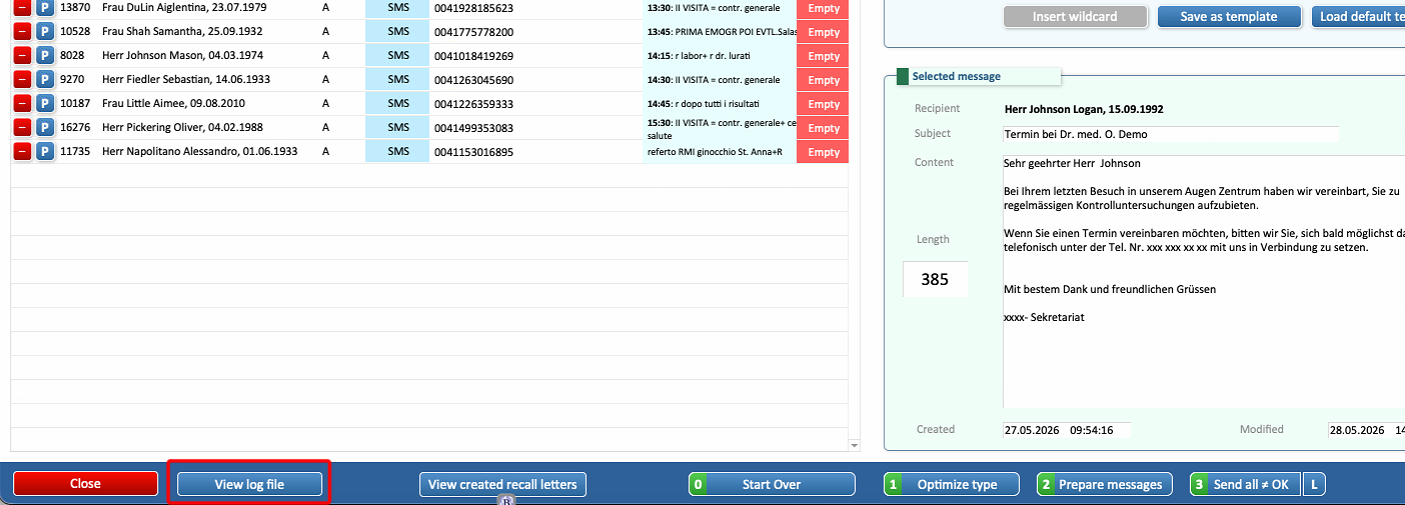
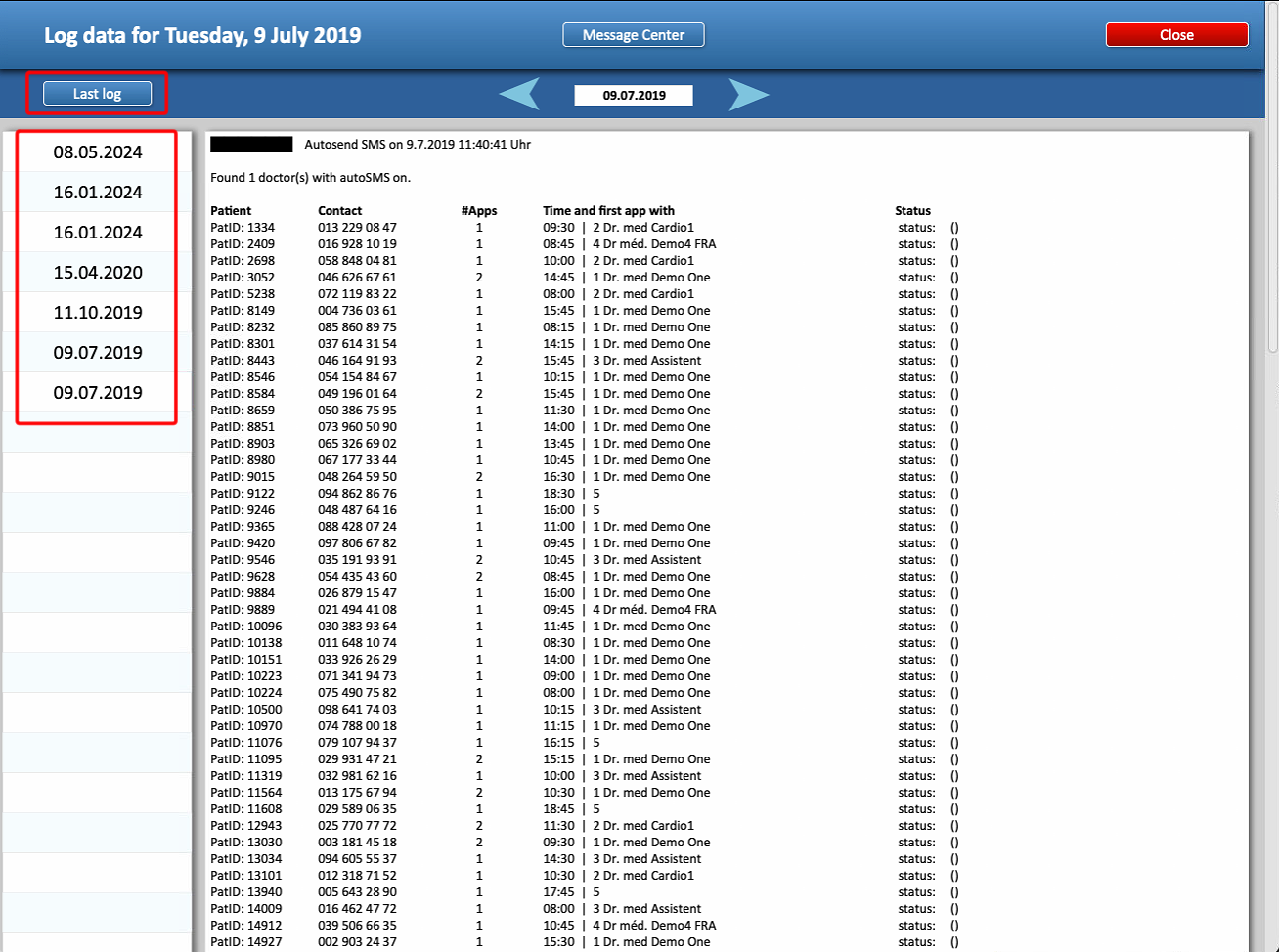
The window that opens allows all Log Files generated since the activation of the automatic SMS function to be viewed.
- On the left there's a list showing all the days in which the log files were generated
- Last Log on the top left will automatically move to the most recent log created
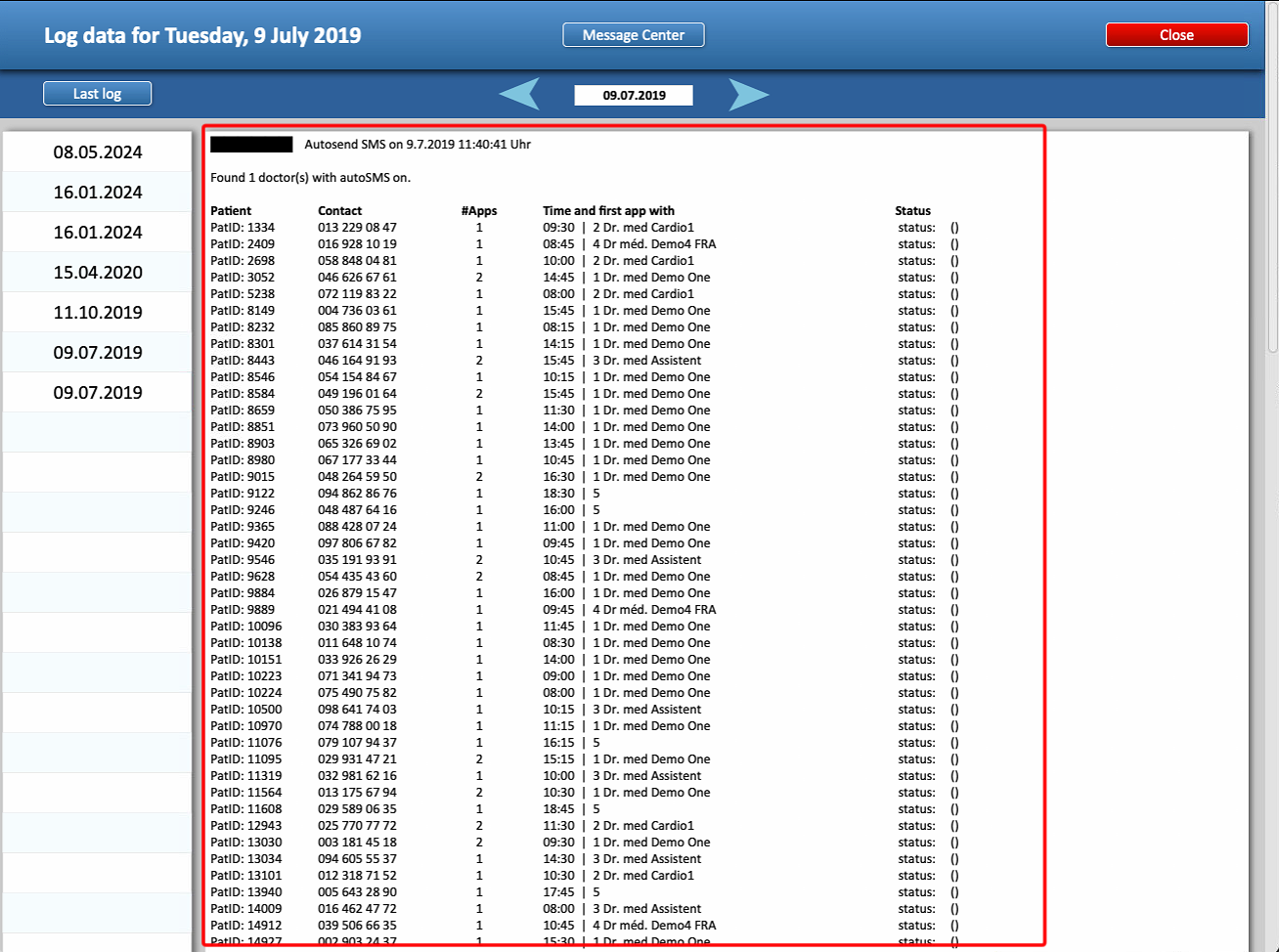
- The list displayed in this section will show all phone numbers to which messages have been sent.
- A Log File is created only when the operation is performed automatically. When messages are sent manually, including bulk operations, no Log File will be generated.
The instructions continue inside the Message Center specific guide. For further instructions on how to modify the automatic messages, and how set up templates inside the Message Center, please consult THIS GUIDE

