


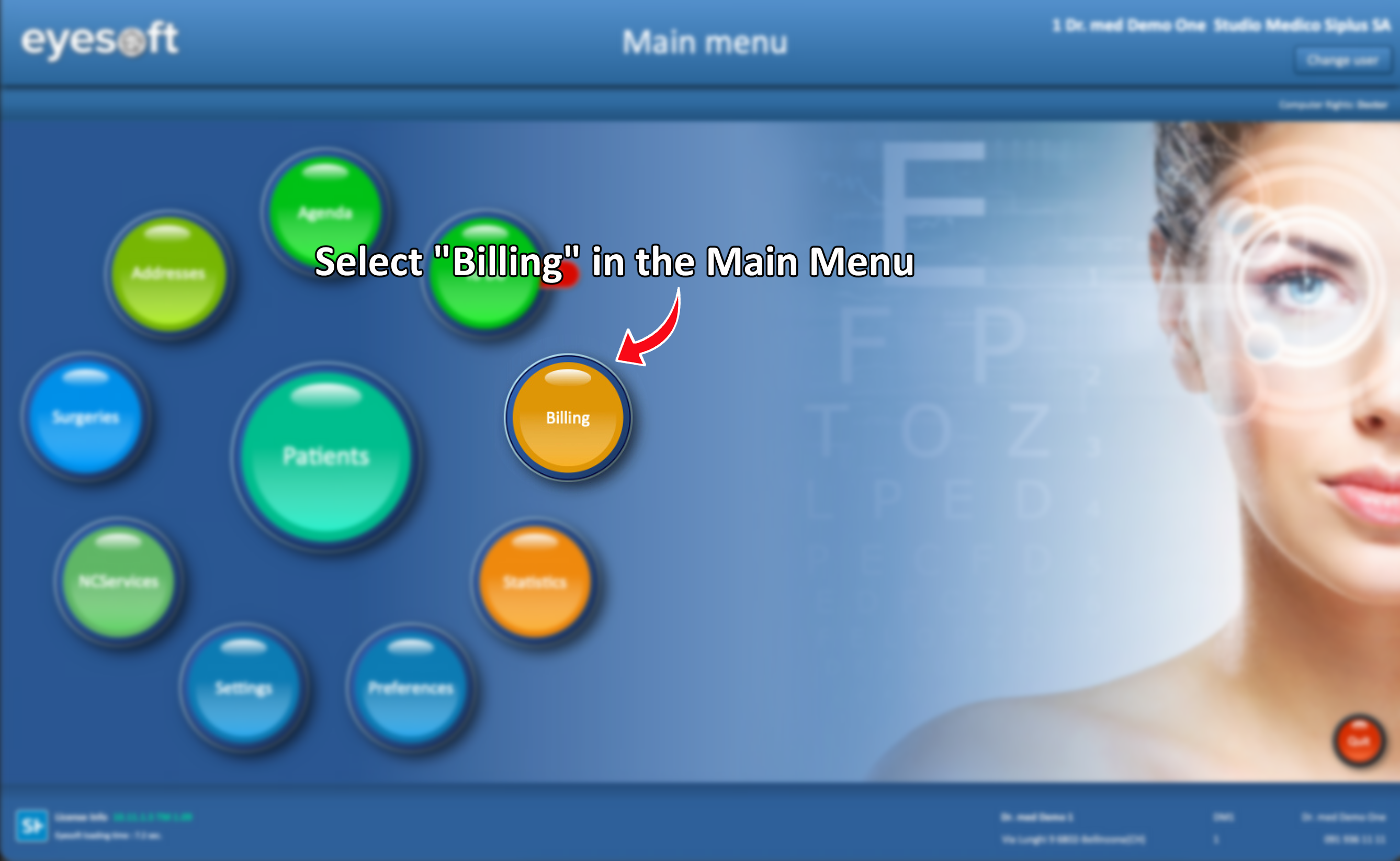
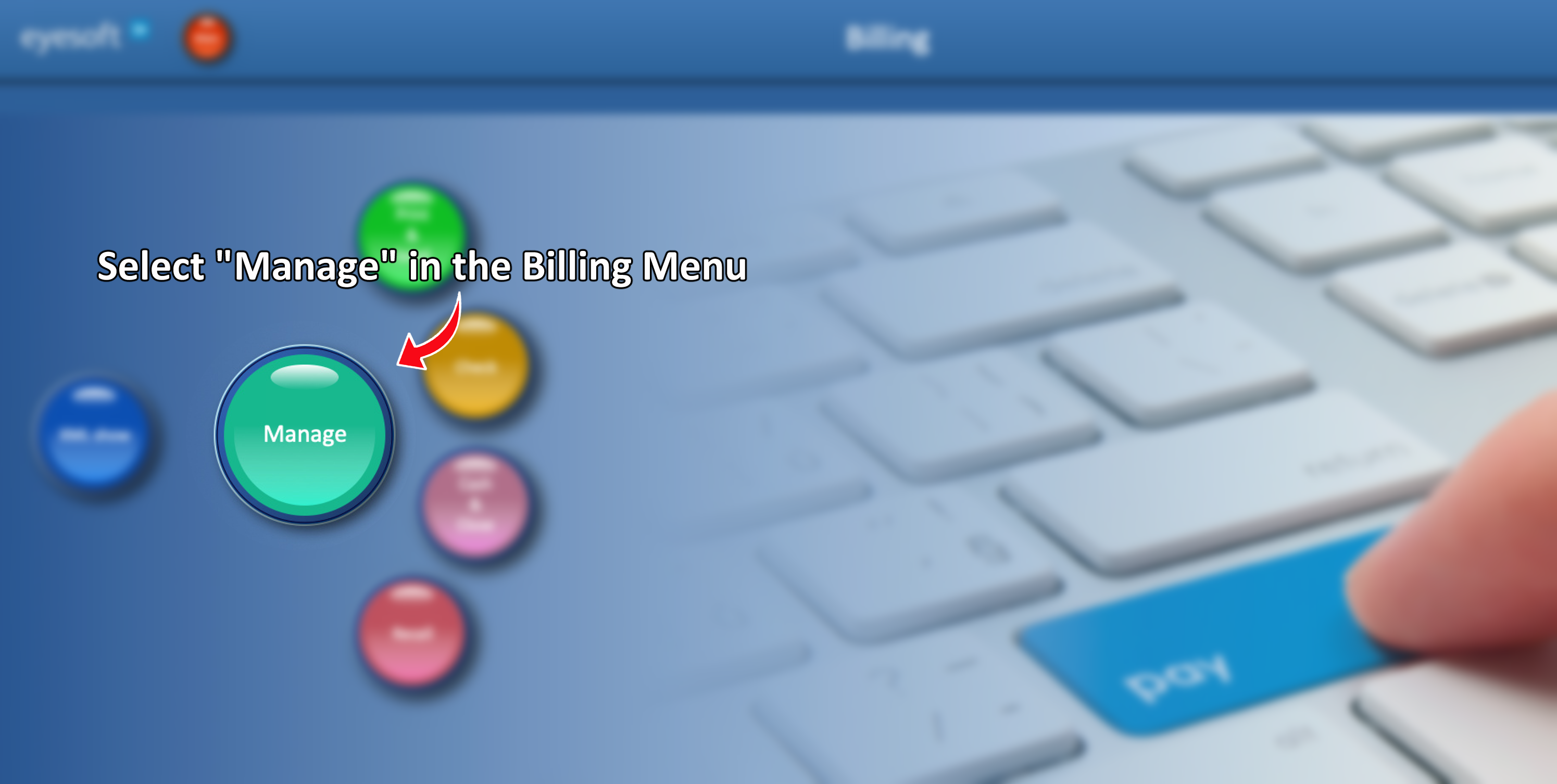
1. Locate the Billing Menu
- Go to the Main Menu
- Click on Billing
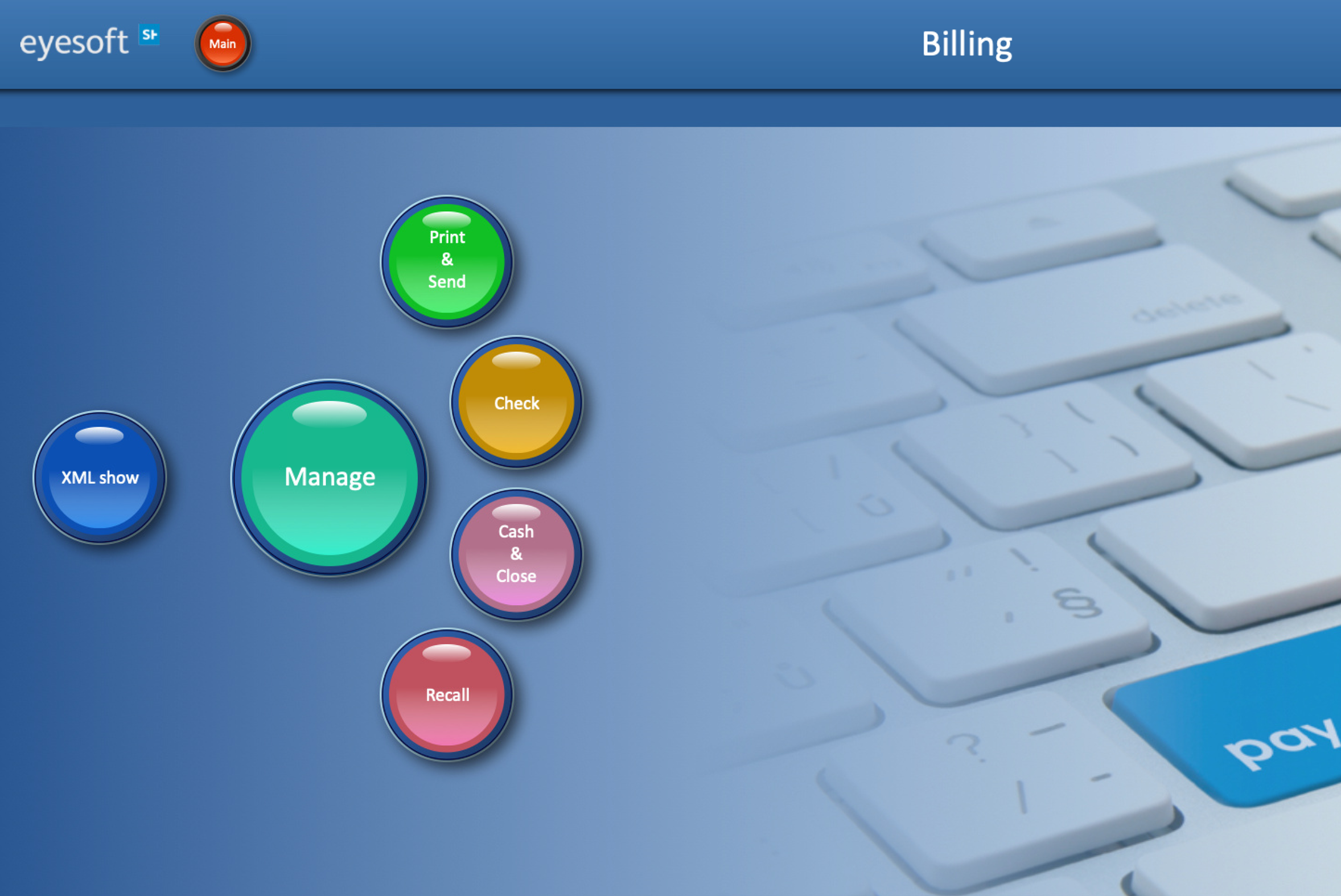
The Billing menu contains several sections. This guide covers the following:
- Manage
- Print & Send
- Check
- Cash & Close
2. Invoices flow
Statuses
Statuses represent the current stage of an invoice.
- Open
The invoice is still in draft and isn not yet ready for sending - Ready
The invoice has been finalized and is ready to be sent to the recipient. Invoices in this status can no longer be edited. - Transmitting
The invoice has been sent and is waiting for confirmation from an invoice center, such as invoice service, trust center or the insurance company. -
Transmitting Error
An issue has occurred during transmission, typically related to invoice services or trust center. This is usually followed by an email or message describing the problem.
A dedicated guide, specific for MediData errors is available at THIS LINK - Sent
The invoice has been successfully transmitted and correctly received. - Pending
The invoice has not yet been paid. In some cases, this may also indicate that payment reminders have been issued. - Closed
Payment has been received and processed. The invoice is marked as closed and will no longer appear in the active invoice list.
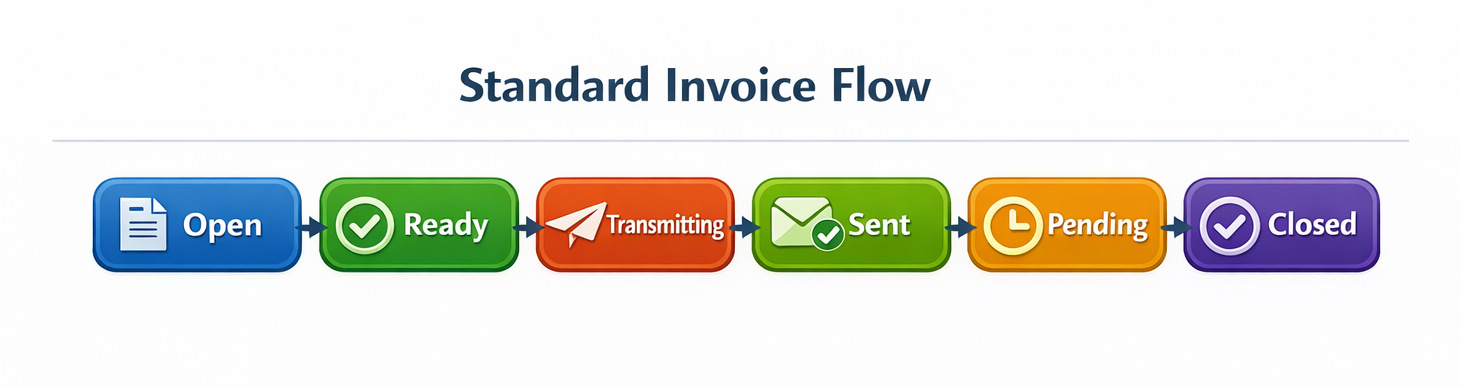
Standard Invoice Flow
As shown above, this is the standard invoice status sequence
Open → Ready → Transmitting → Sent → Pending → Closed
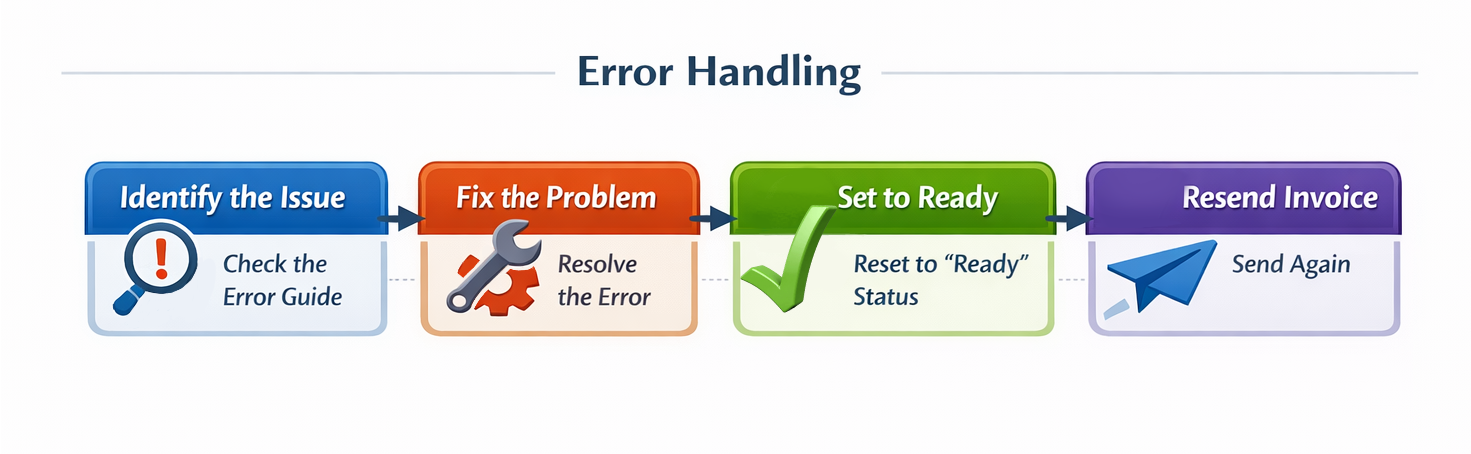
If an error occurs, usually these are the steps to follow:
- Identify the type of error
- Fix the issue
- Set the invoice back to Ready
- Send it again
3. Manage
- Click on Manage
- A list of all active invoices will appear
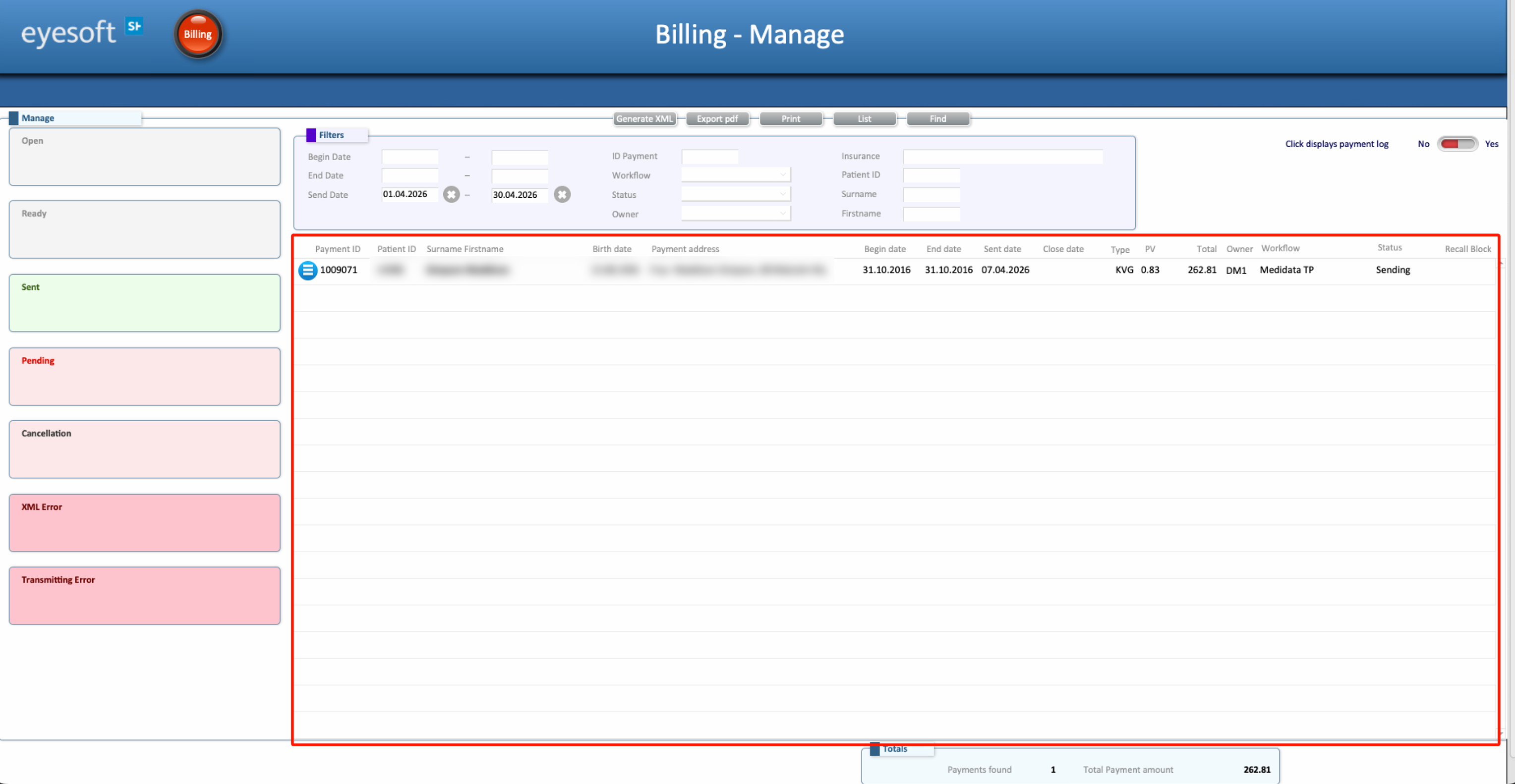
This layout allows the user to:
- Quickly view all invoices
- Check the current status of each invoice
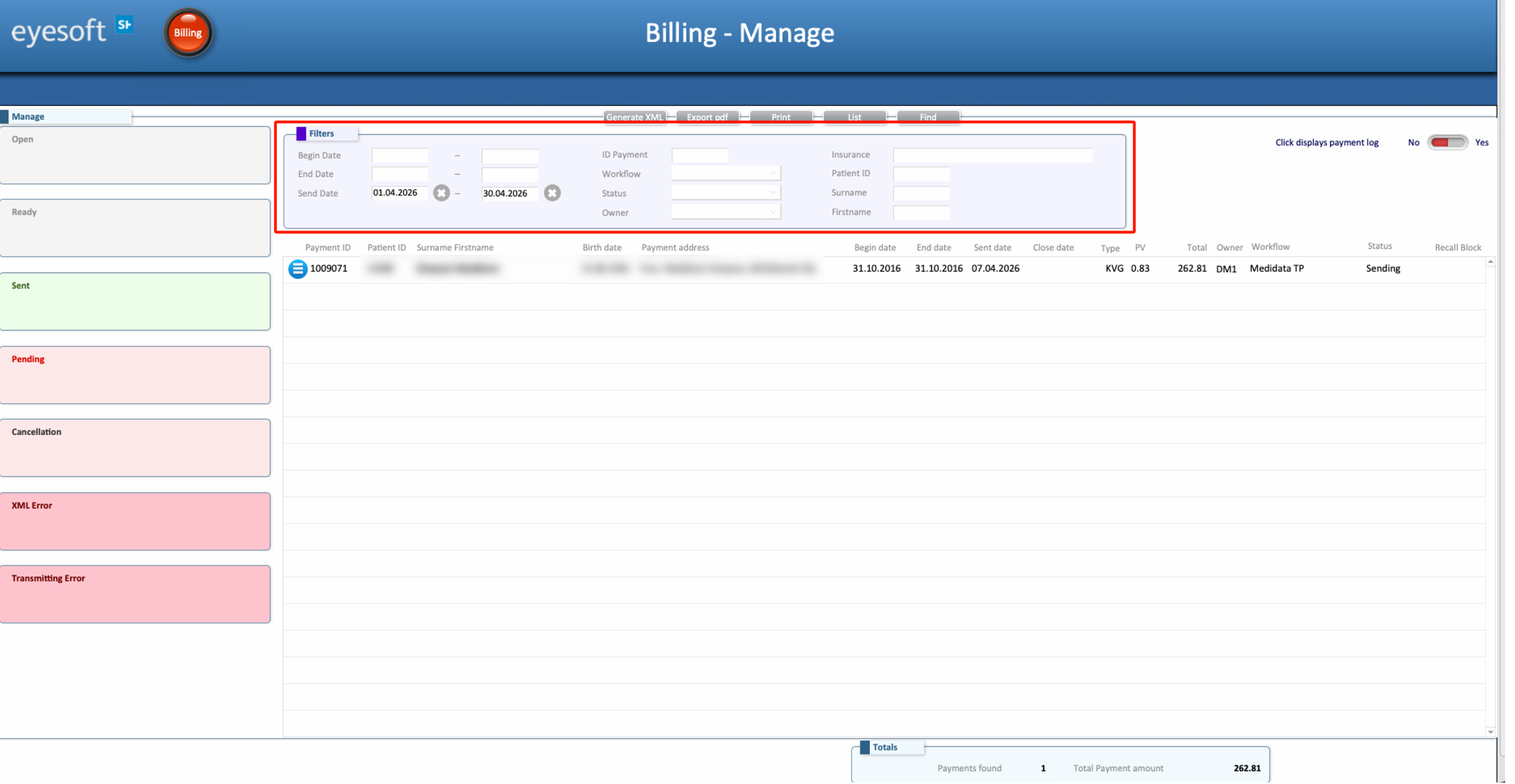
Filters
Filters allow the user to narrow down invoices for a more focused view.
The filter section, located at the top centre of the screen, supports filtering by:
- Timeframes
- Payment IDs
- Invoice status
- Specific insurance providers
- Patient name, surname, or ID
On the left side of the screen, selecting a specific status will automatically filter the list to show only invoices with that status. The active filter can be confirmed by checking the Status filter field at the top.
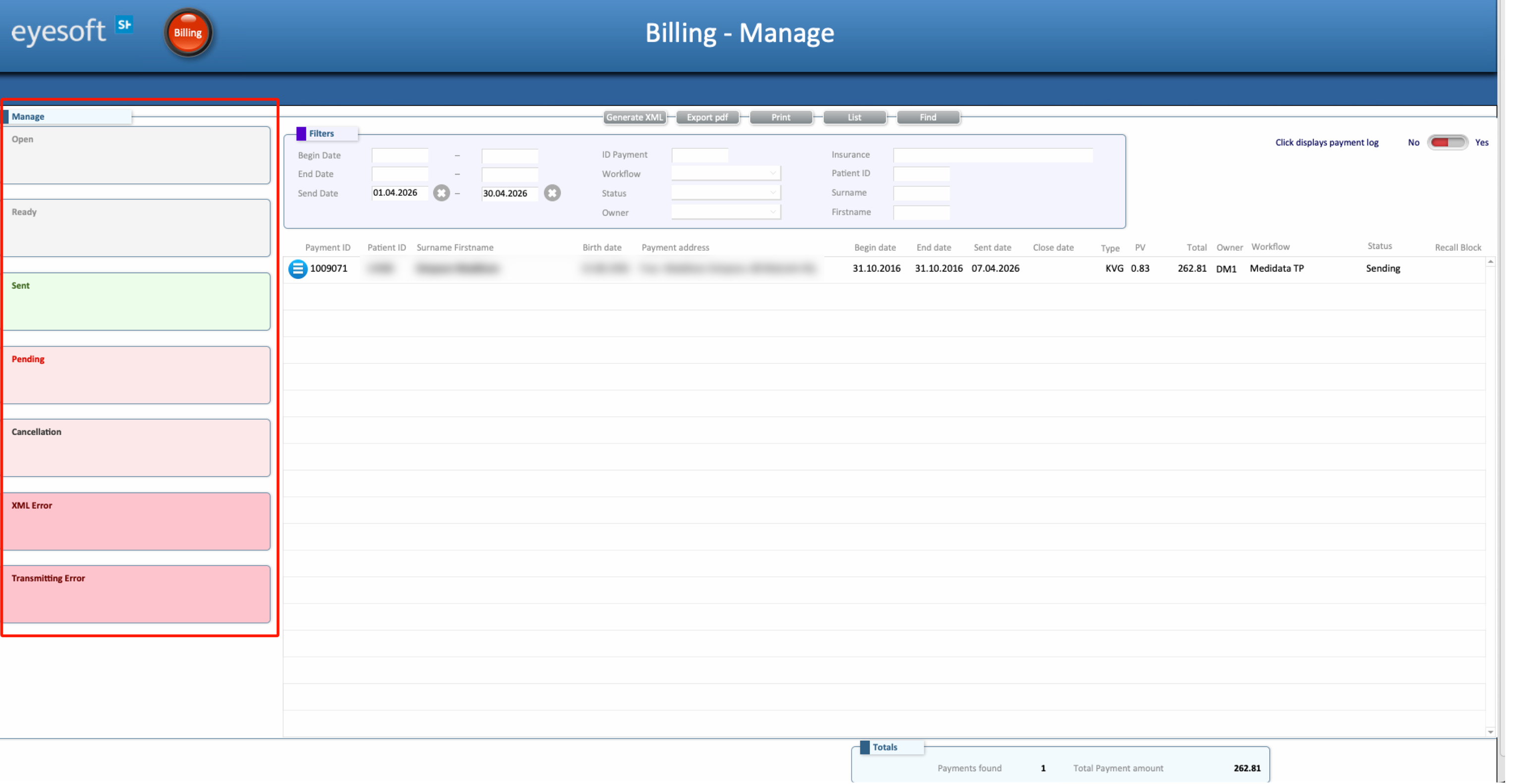
To return to the full list of active invoices, remove the status filter. This step is also required when switching between status views.
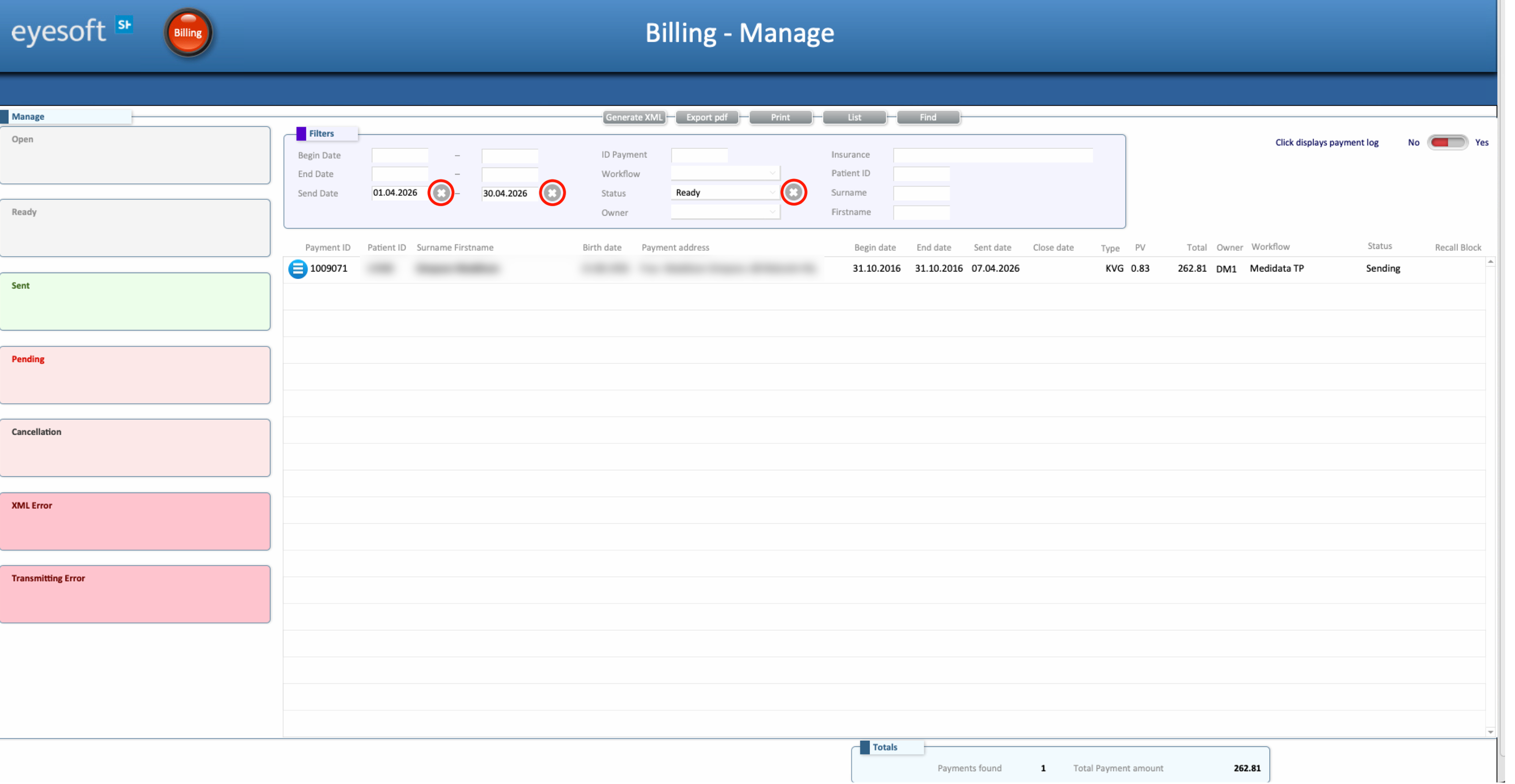
Note:
- If a filter is active, the invoice may disappear from the list if the new status does not match the current filter
- If no filter is active, the updated status will remain visible in the list
Invoice Options
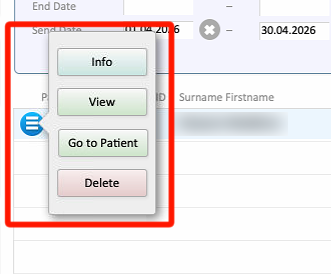
By clicking the menu icon next to an invoice, the following options are available:
- Info
Opens a read-only overview of the invoice. This can also be accessed by clicking the invoice number directly. - View
Opens the Payments section within the Patient’s record. - Go to Patient
Opens the patient’s profile. - Delete
Permanently deletes the invoice.
Additional Buttons
At the top of the screen, above the filters, the following buttons are available:
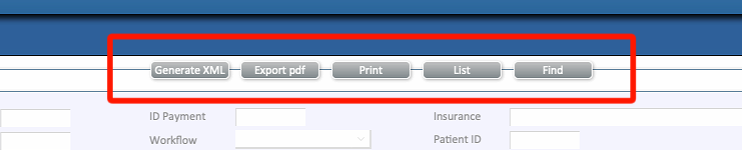
-
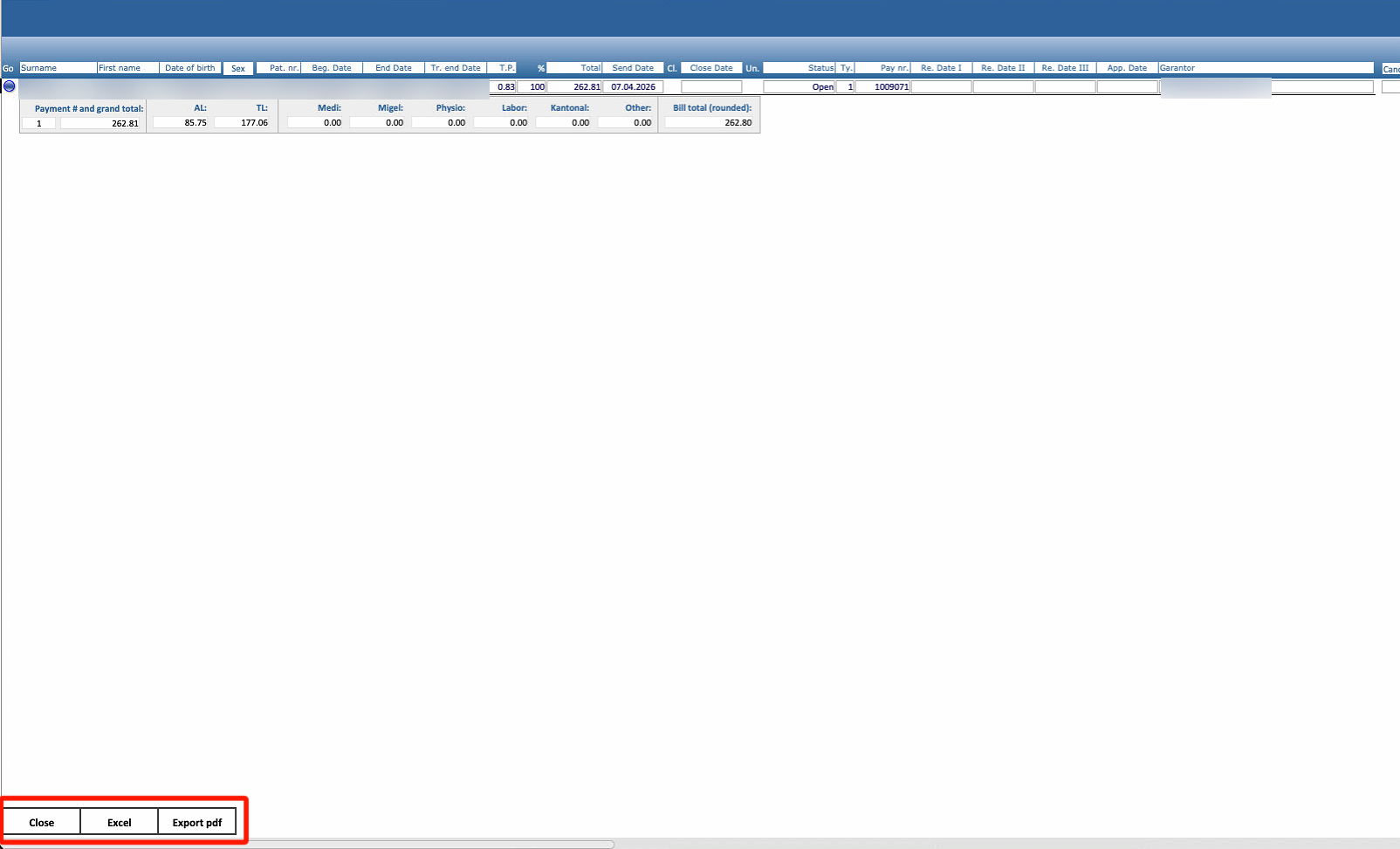
List
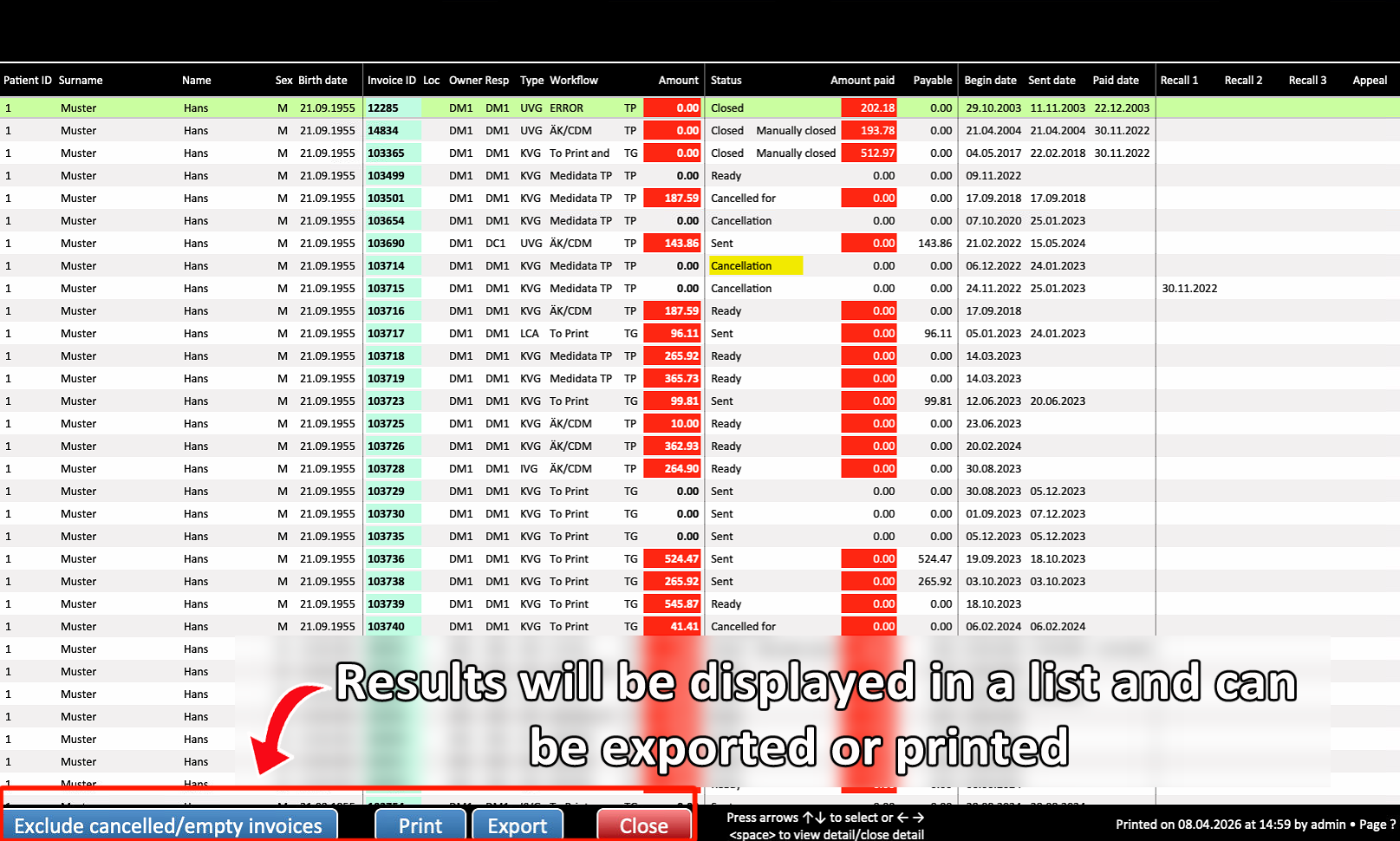
Opens a list of the selected invoices. From this window, the list can be printed, saved as a PDF, or exported to Excel. Click Close to exit the window.
-
Find
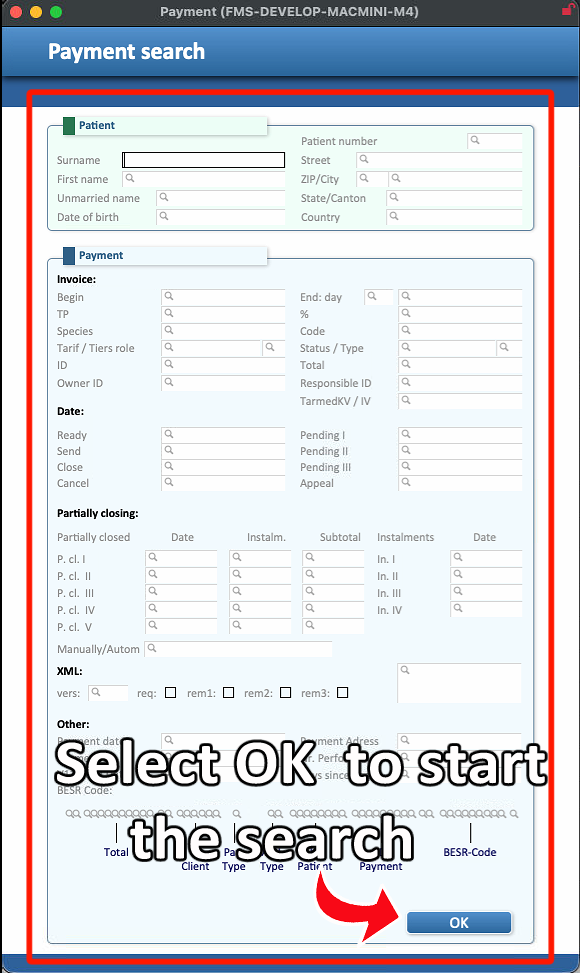
Opens an advanced search tool for more detailed filtering. This includes search criteria such as street, city, patient date of birth, and other fields. Results from this search can be printed or exported.
4. Print & Send
This section displays all invoices that are ready to be sent or printed. It provides an overview of selected payments and allows the user to manage the sending process in bulk or individually.
Only the invoices set as Ready will be shown in this layout
Filters
The filter bar at the top of the screen allows the user to narrow down the invoice list. The available filters are:
- Date
Allows the user to isolate invoices by specifying a timeframe, showing all invoices within that period. If only one date is entered, all invoices up to that date are displayed. - Type
Filters by invoice type, such as KVG or UVG. - Owner
Isolates invoices emitted by a specific doctor. - Workflow
Filters invoices by the external invoice service handling them (such as MediData, Curabil, or Pontenova), or by the phase the invoice is currently in within the workflow. - Insurance
Filters invoices by the insurance company the invoice is addressed to. - Status
Filters invoices by their current status in the invoice workflow (refer to Section 2). - Validation filter
Isolates the invoices according to the parameters below:- All Shows all invoices regardless of validation state.
- Error Shows only invoices where an issue has been detected. The invoice can still be sent, but it is strongly recommended to review it first, as there is a high likelihood it will be refused by the invoice service, trust center, or directly by the insurance company.
- OK Shows only invoices that have passed validation.
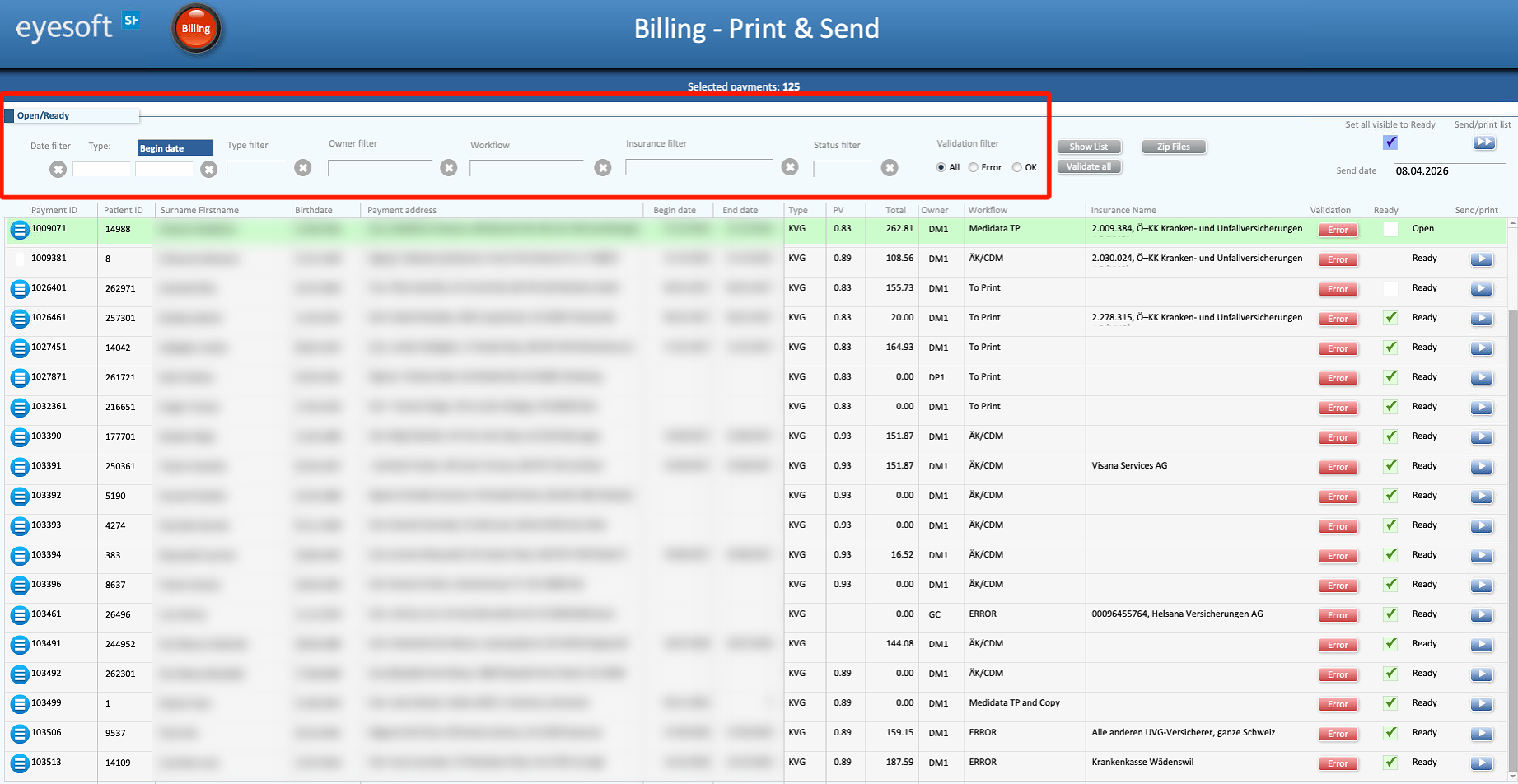
⚠ To remove an active filter, simply select the X button located near the filter to remove.

Fields
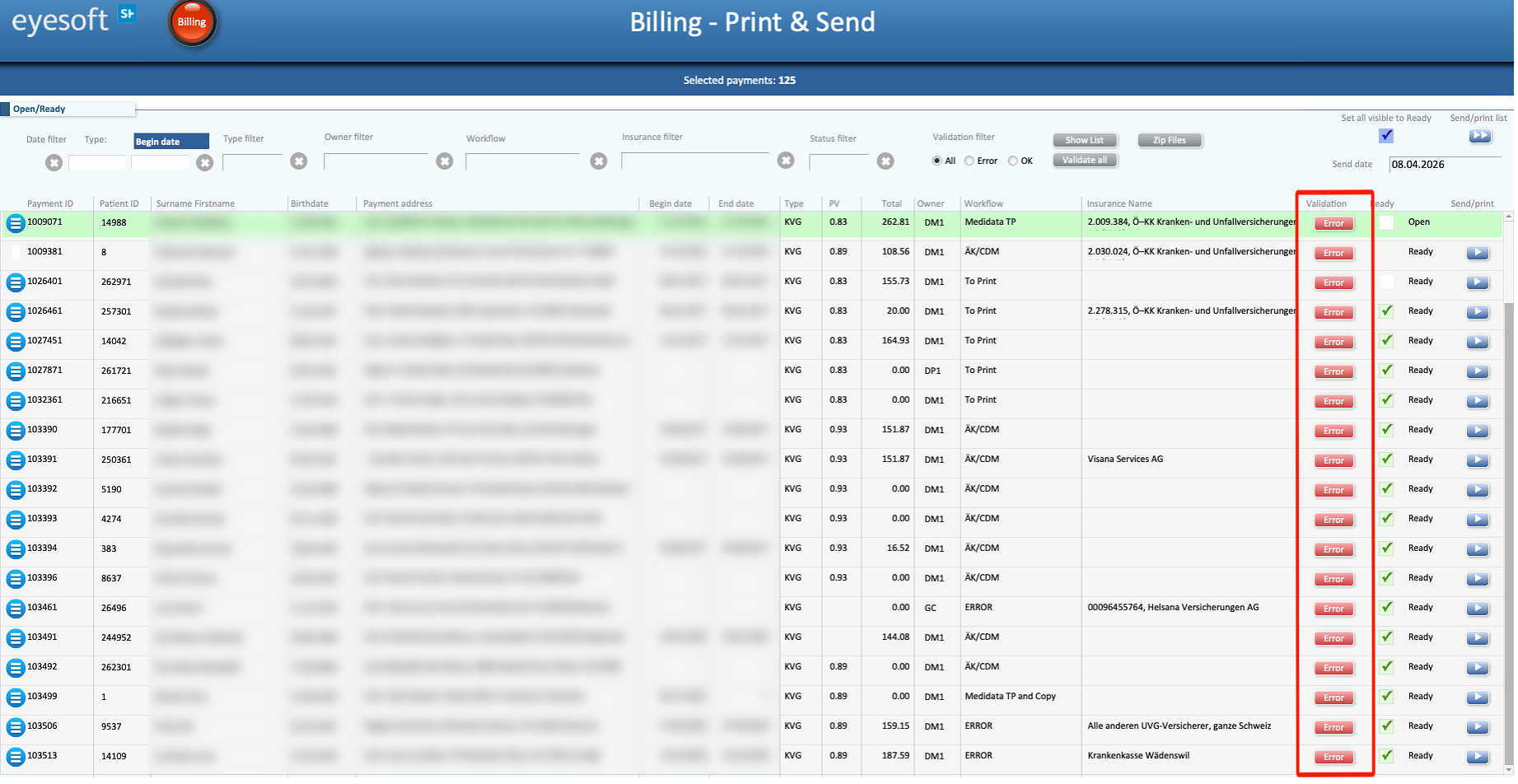
- White
If the field is completely blank, it means the system found no issues. - NV
If this message is displayed, it means the invoice was never processed through Eyesoft’s validator. - Error
This message indicates that the validator detected an inconsistency or error in the insurance data.
Additional Functions
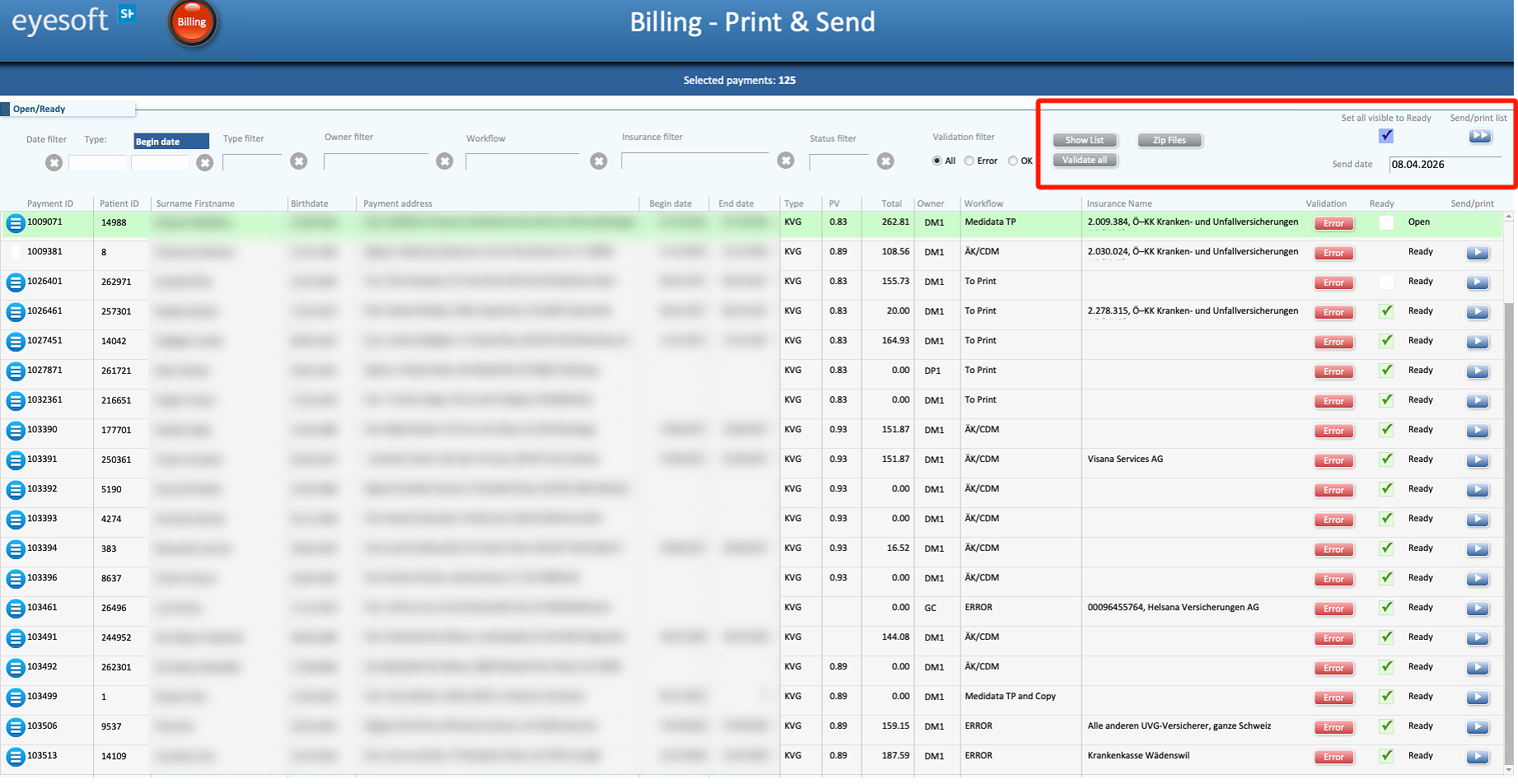
-
Set all visible to Ready
marks all currently visible invoices as Ready -
Send/print list
Processes all invoices currently shown in the list, by either printing them or sending them to the intended recipient.
⚠ before proceeding, it is strongly recommended to review the Validation column. If any invoice displays Error or NV, there is a high probability of error messages being returned by invoice service, or a refusal from the insurance company further down the line.
-
Send date
sets the date to be used for the sending action -
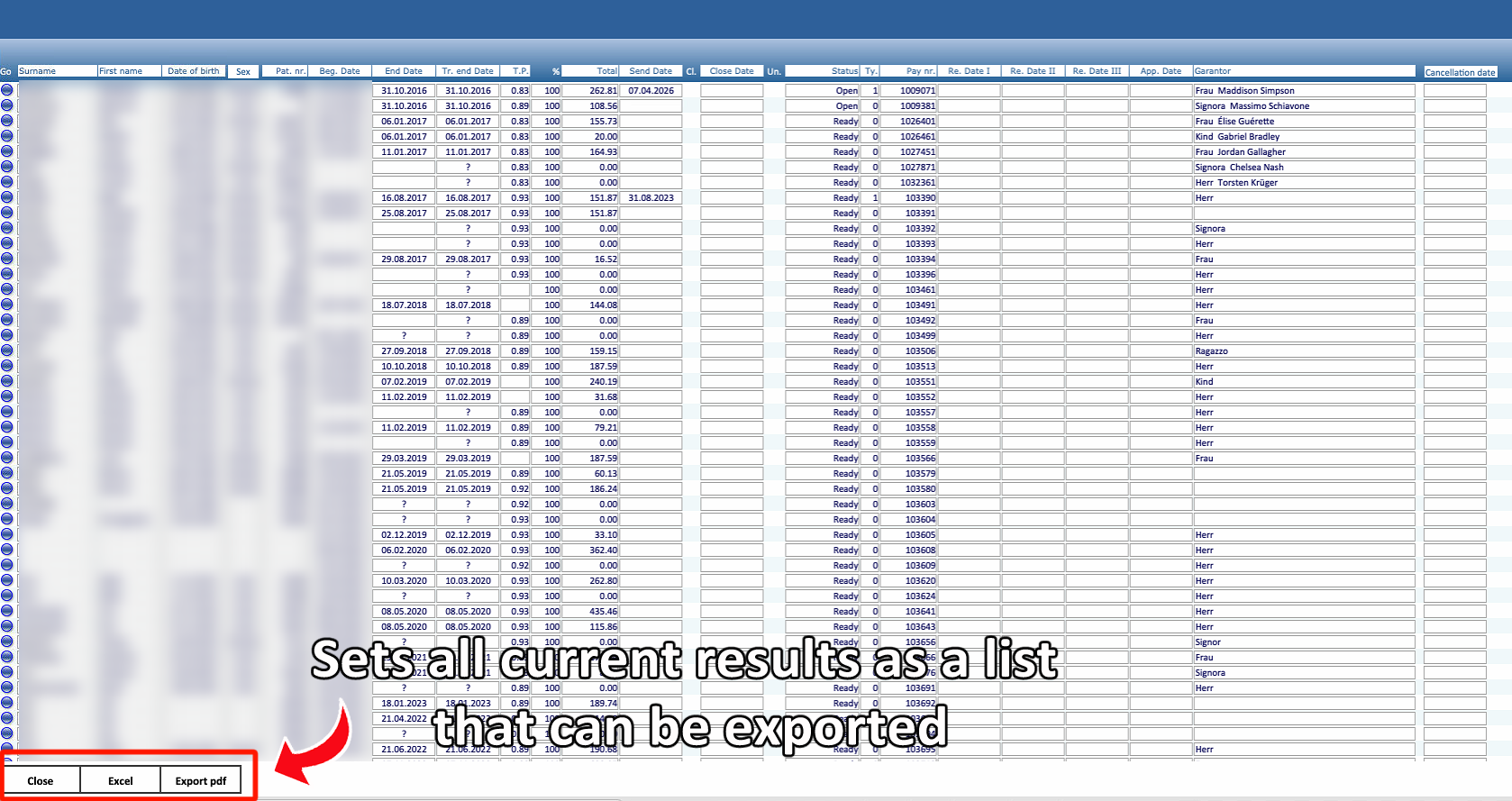
Show List
displays a summary list of the selected invoices
-
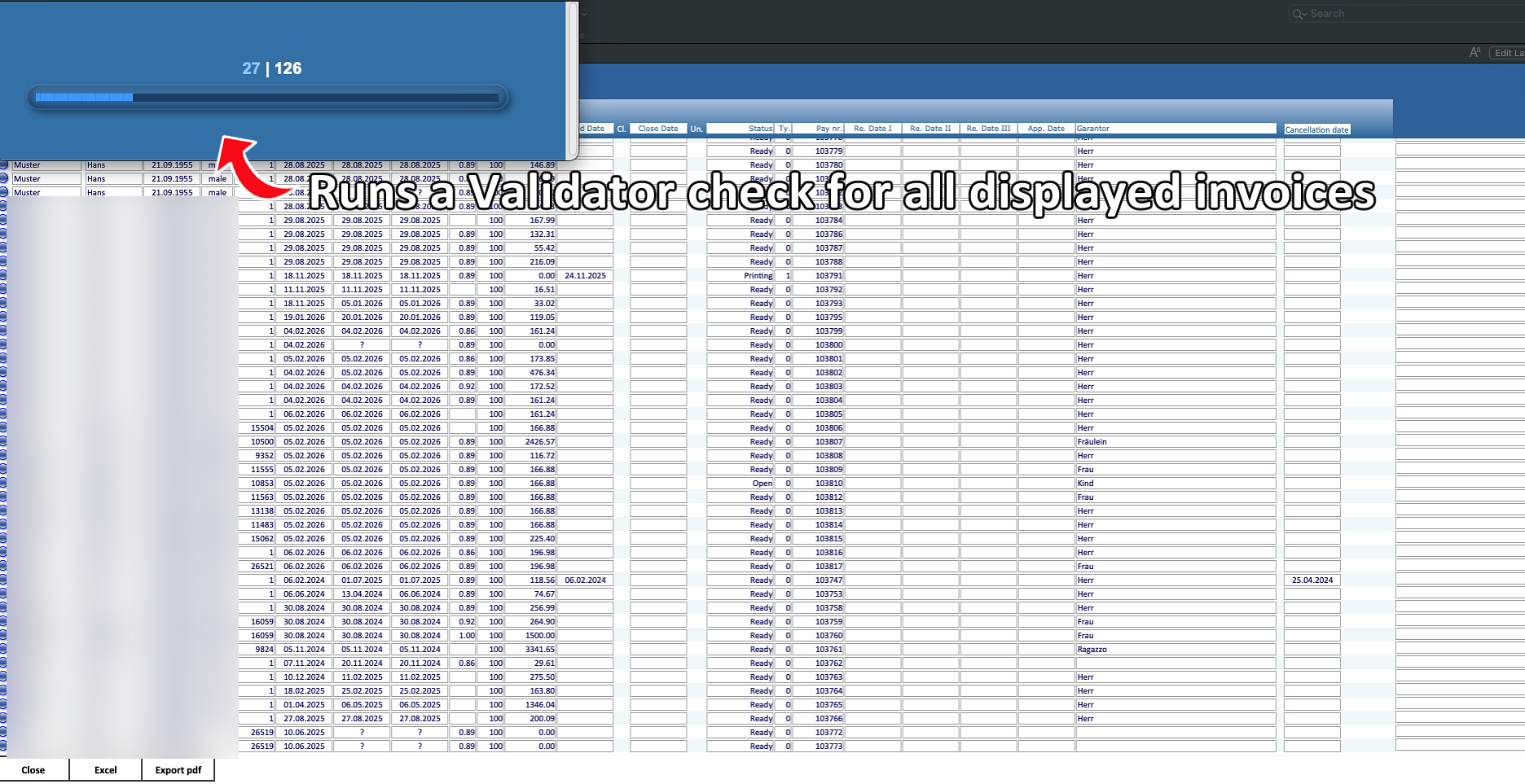
Validate all
runs a validation check on all invoices currently shown
5. Check
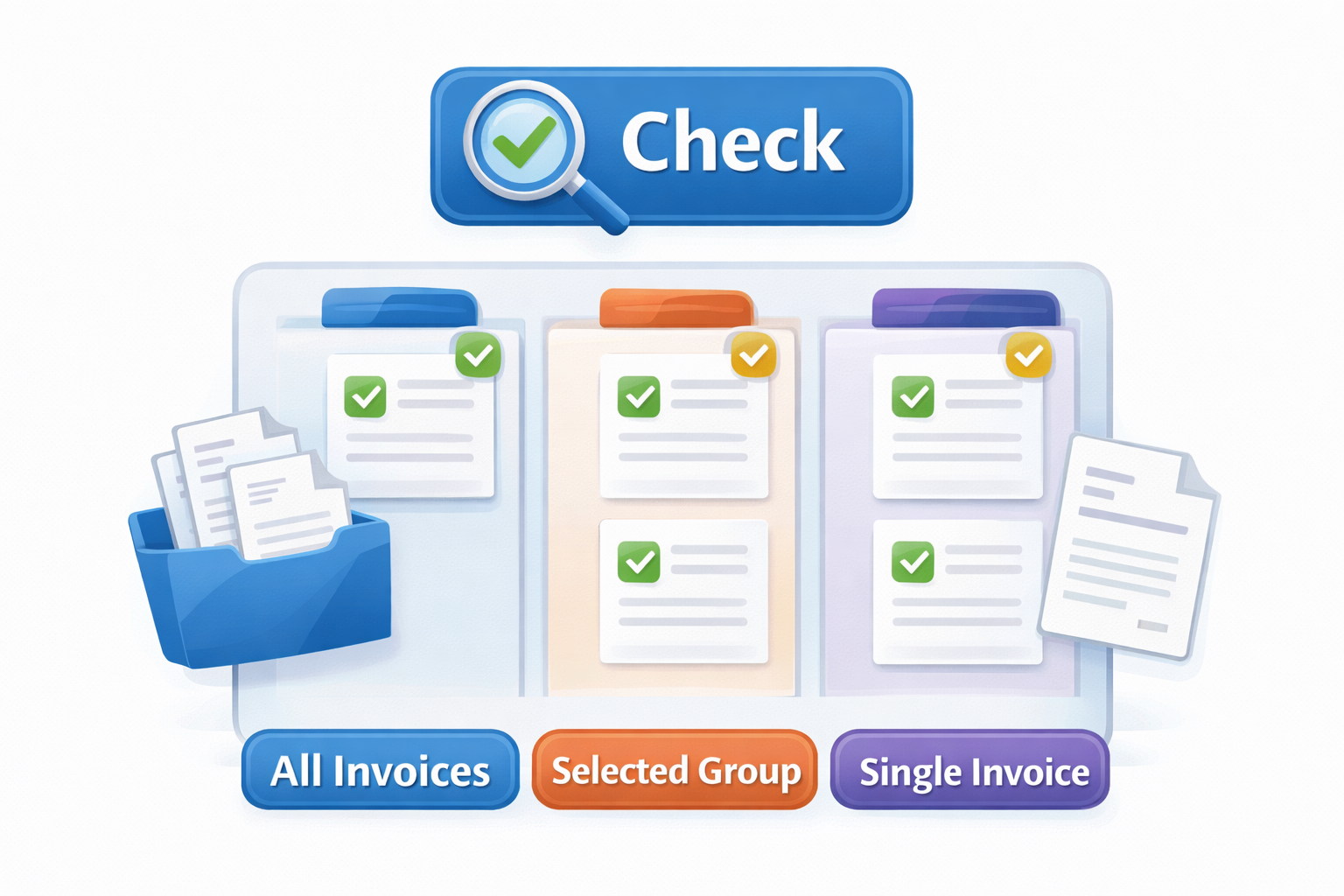
This section provides a detailed, action-focused view of all active invoices. It is best described as a task board for invoices, where the user can actively review and update the state of:
- All invoices at once
- A selected group of invoices
- A single invoice
Compared to Manage, this layout has fewer filters, but it provides more direct control over invoice statuses.
Main Functions
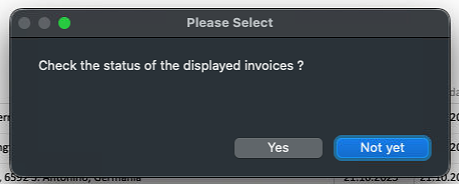
- When entering this section, a pop-up window will appear asking whether to run an initial check. Selecting Yes will automatically review all invoices in the list and attempt to resolve any errors found.
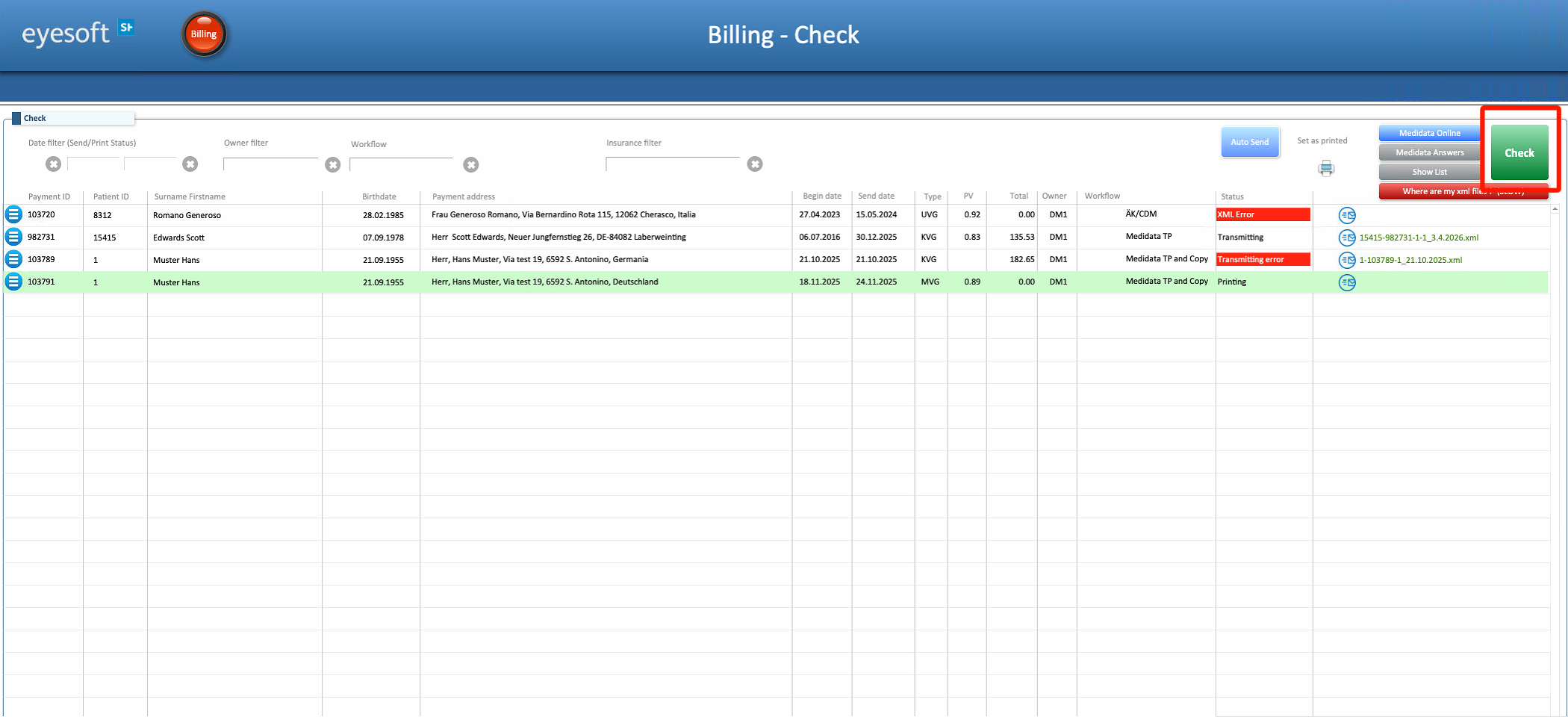
- The green Check button at the top right of the screen runs an additional check, or performs the initial check if it was skipped at entry.
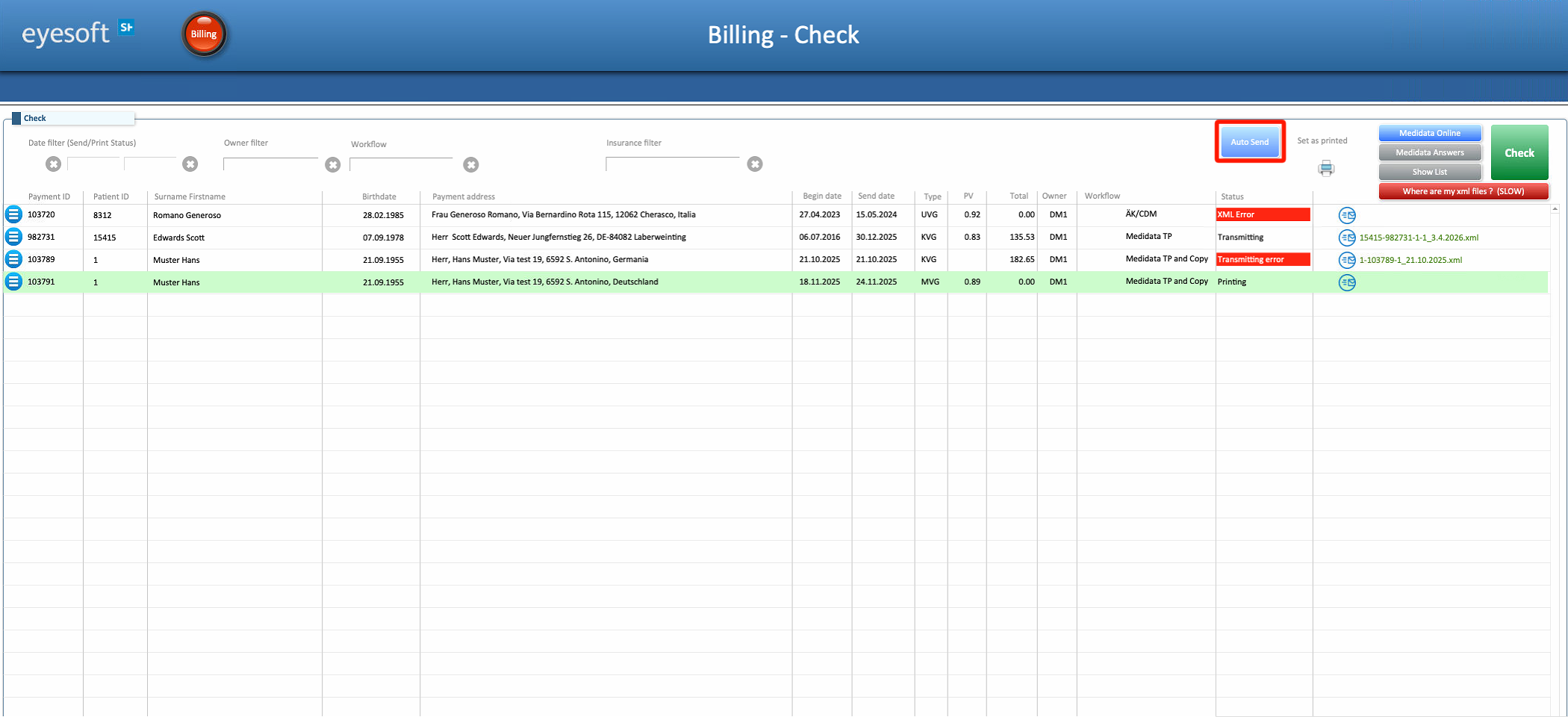
- The Auto Send button sends all invoices currently set to Ready. A pop-up window will report any errors encountered during the process.
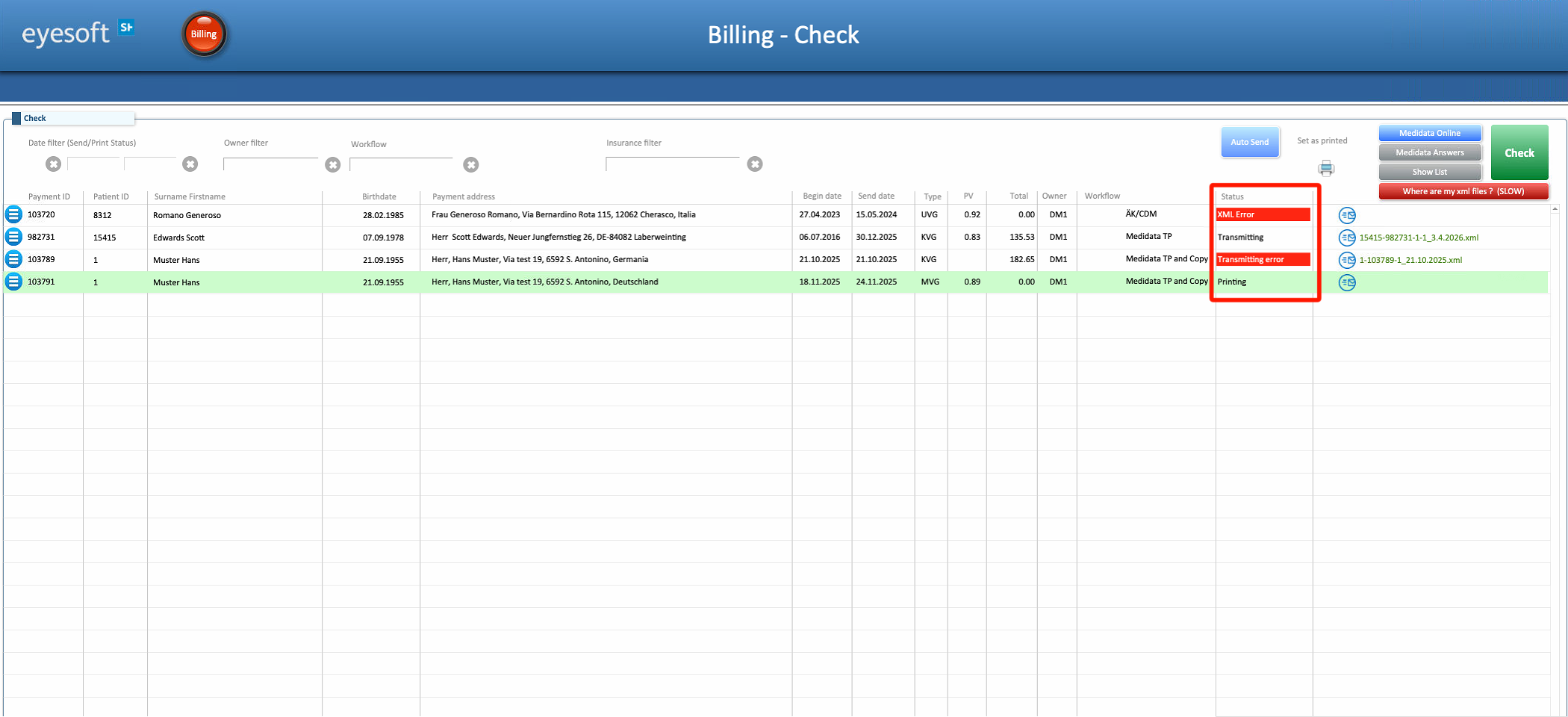
- Within the list, only the Status field can be modified. The same status flow described in Section 2 applies here.
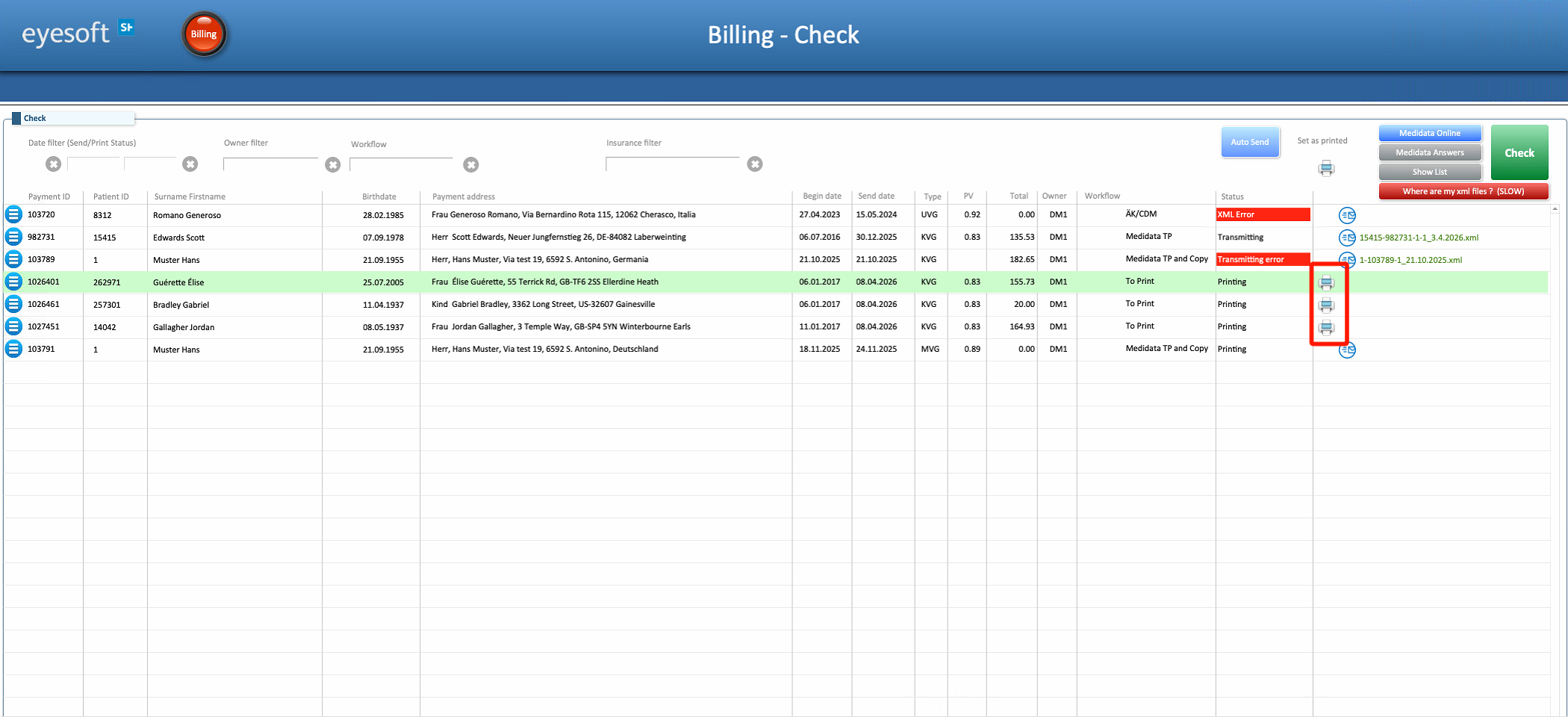
- The print icon next to an individual invoice opens a pop-up window and may also change the invoice status to Sent.
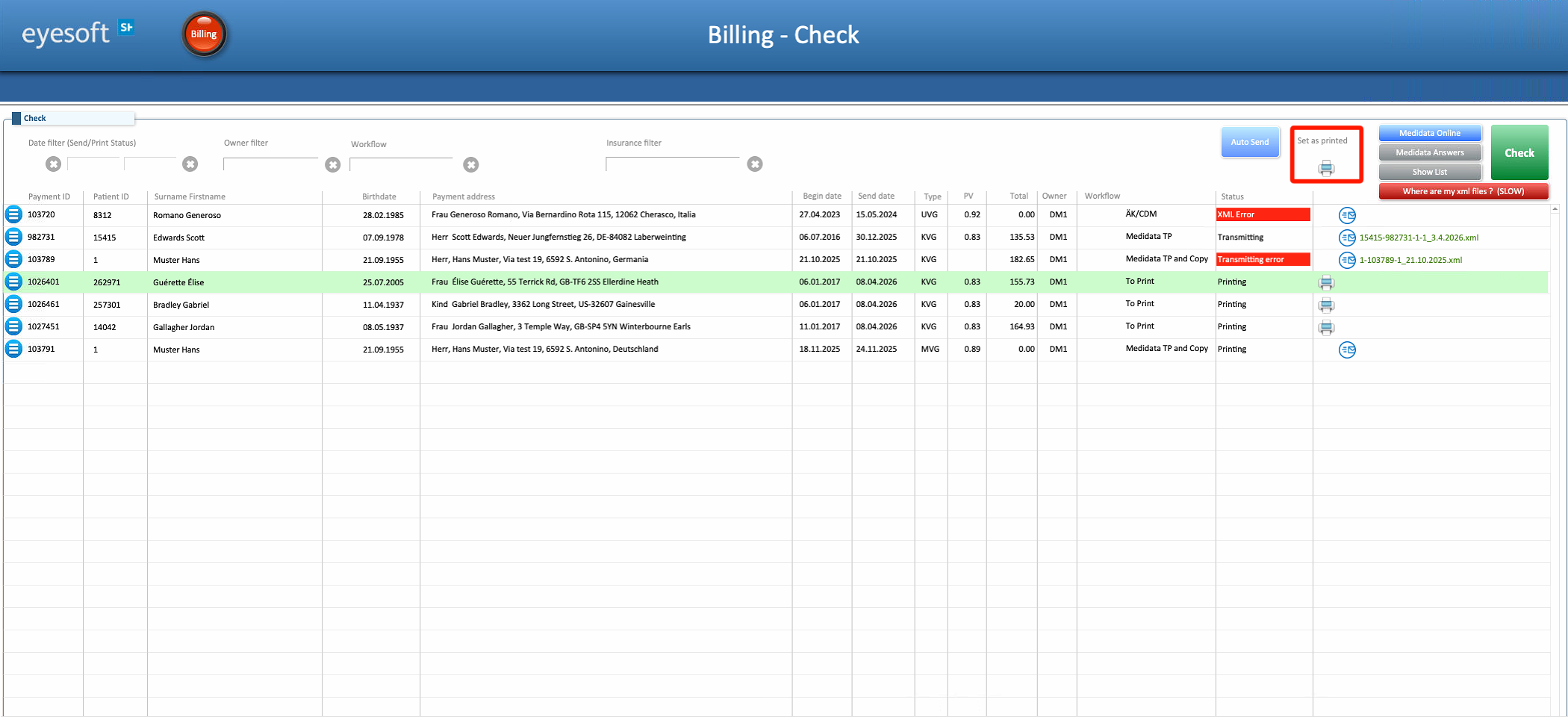
- The print icon at the top of the screen (not tied to a specific invoice) applies the action to all invoices currently displayed, sets their status to Sent, and removes them from the list.
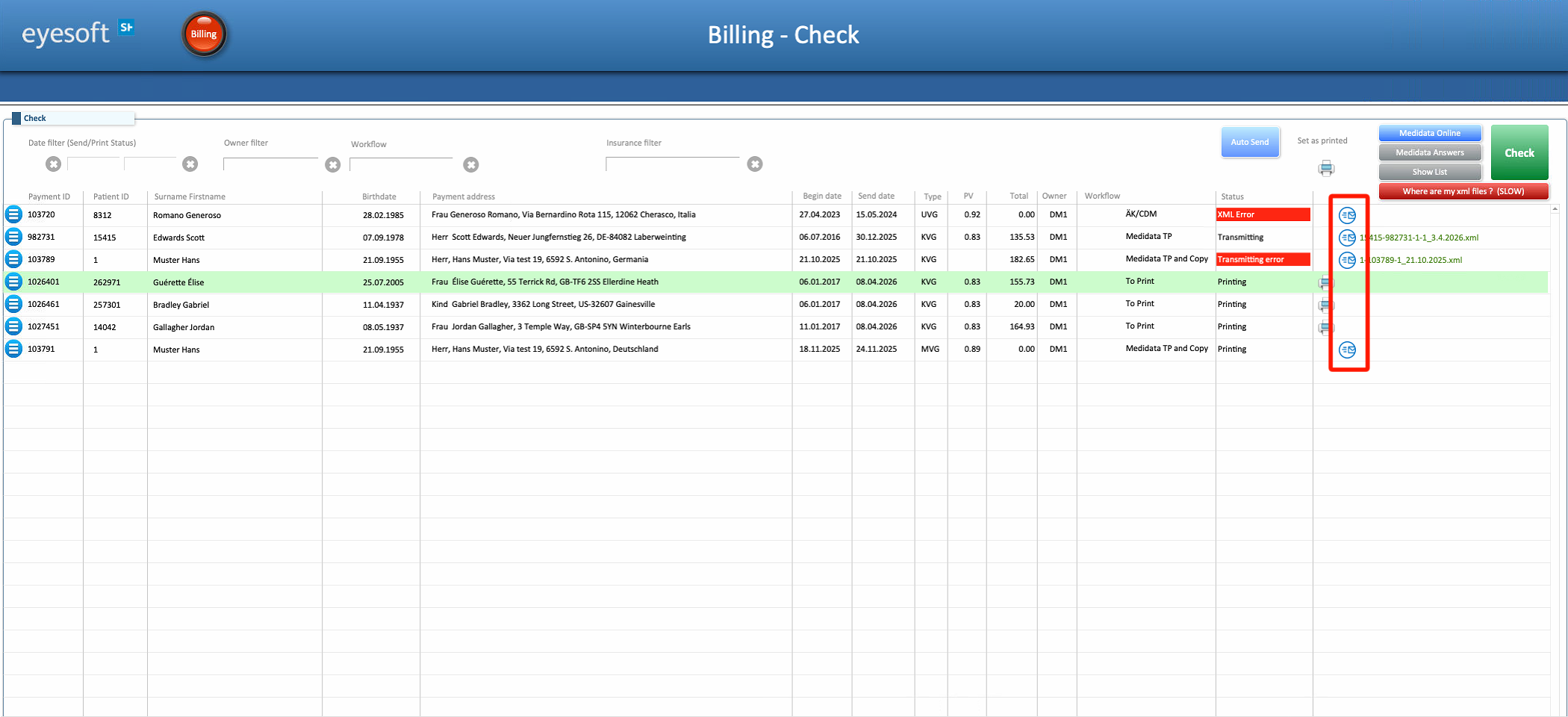
- If a blue envelope icon appears instead of a printer, it means the invoice has already been sent.
Filters
The filters in this section are simpler but tailored to the tasks performed here:
- Date fields
The first two fields filter by date. If only one date is entered, all invoices up to that date are shown. If two dates are entered, only invoices within that period are displayed. - Owner
Filters invoices by the doctor who issued them. - Workflow
Filters invoices by the external service handling them (such as MediData, Curabil, or Pontenova), or by the phase the invoice is currently in within the workflow. - Insurance
Filters invoices by the insurance company they are addressed to.

⚠ To remove an active filter, simply select the X button located near the filter to remove.
Additional Functions
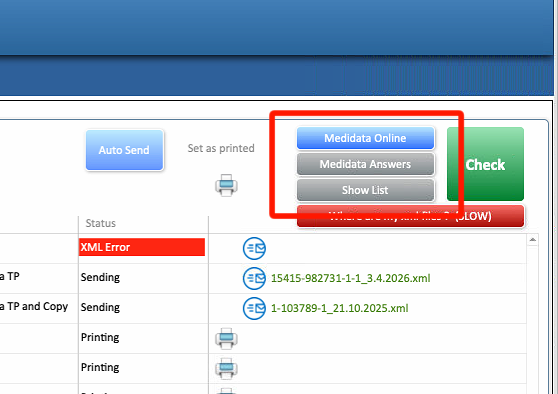
- MediData Online
Opens a window to the MediData website. - MediData Answers
Opens a secondary view displaying all invoices with issues related to MediData. Each invoice can be marked as resolved using the checkbox in the Check Control column. - Where are my XML files?
Searches the system for XML files and reports their location.
6. Cash & Close
This layout allows the user to manually update the eBanking CAMT file to automatically verify and close all active invoices for which payment has been completed.
Follow the instructions on the right side of the layout to process payments automatically.
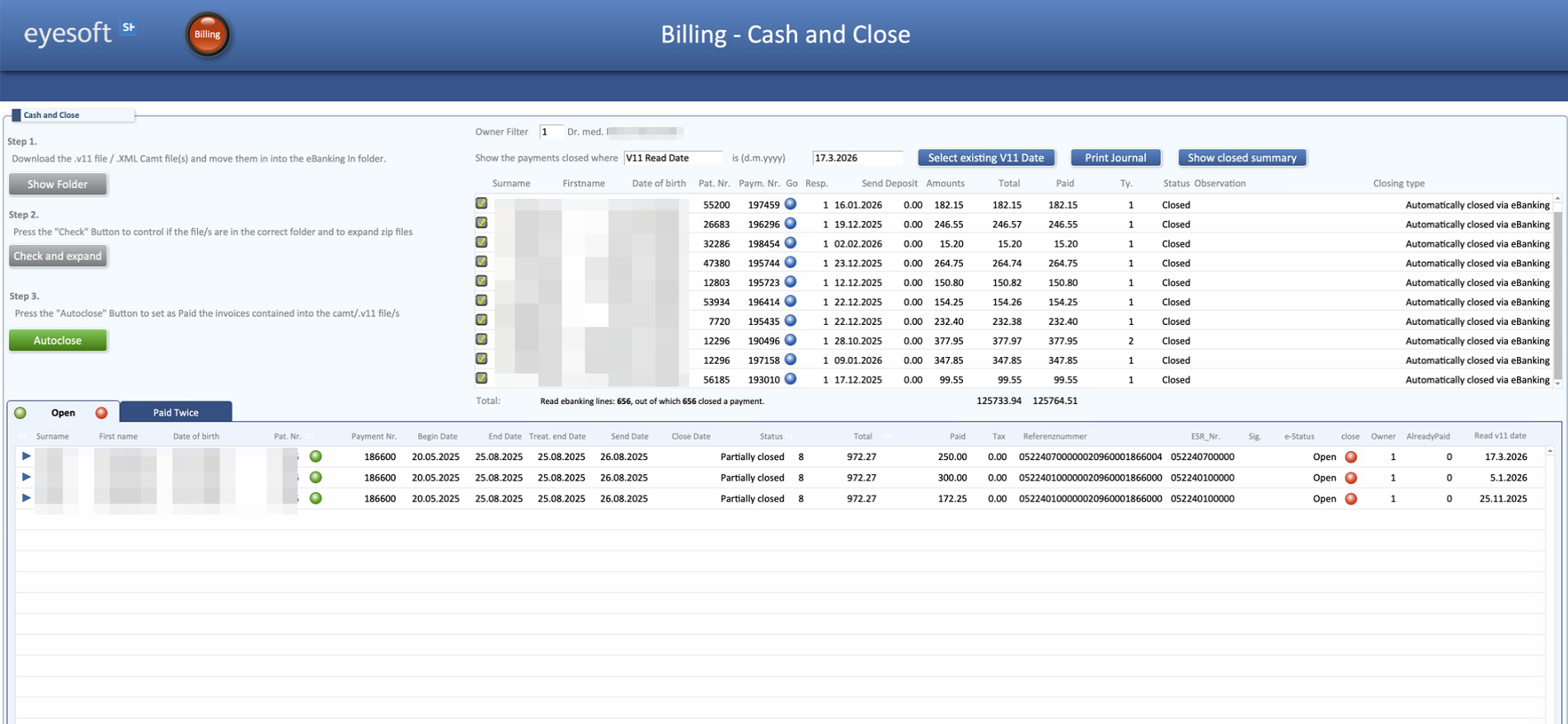
Automatic closure will not work in the following situations:
- Mismatched payment amounts
- Multiple payments (e.g., installments)
- Unclear or ambiguous payments
Invoices that cannot be automatically closed will appear in a separate list below the main layout.
Buttons for Non-Closed Invoices
For invoices that require manual action, the following buttons are available:
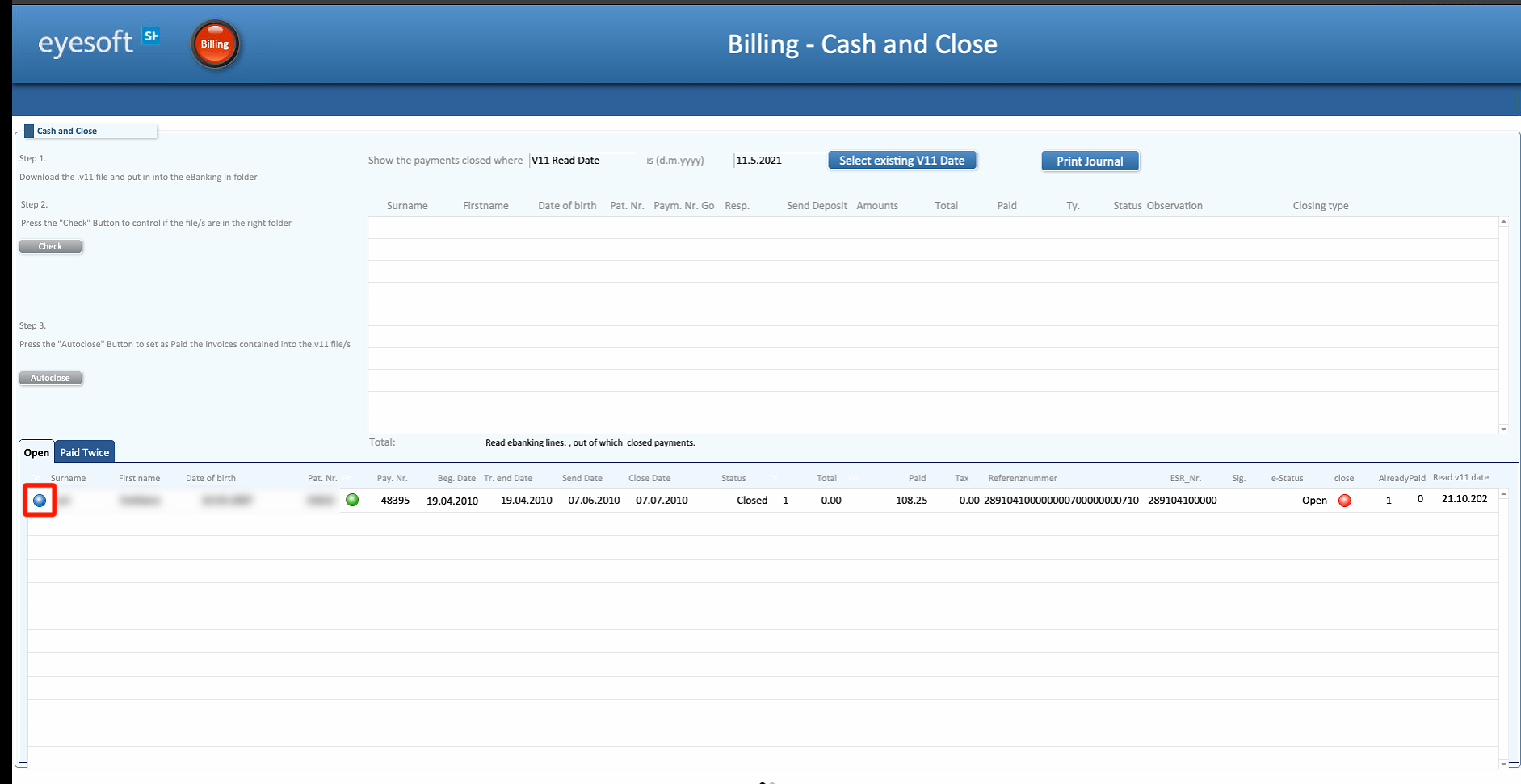
- Blue button (at the beginning of the row) – Opens the Payments section in the Patient’s profile.
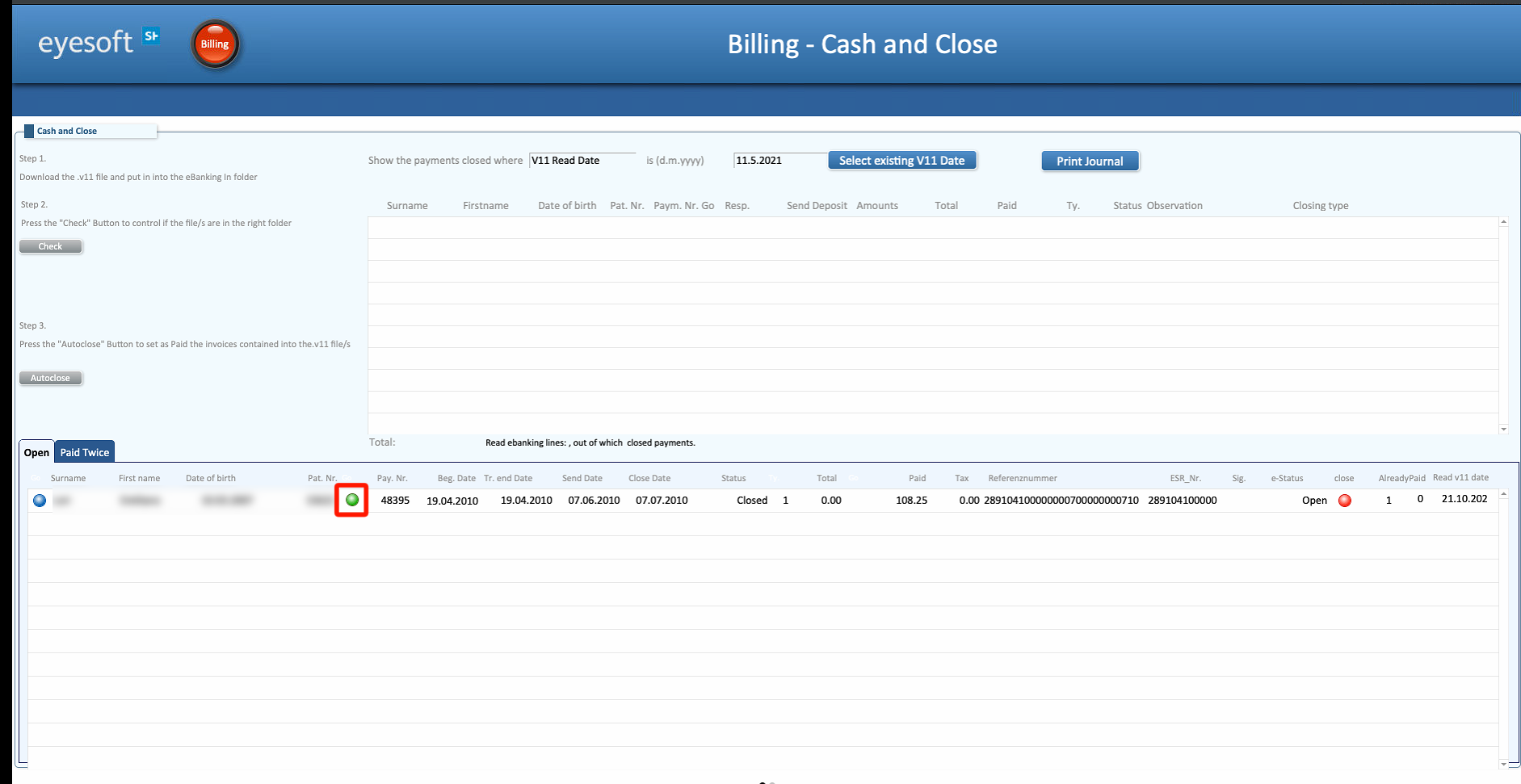
- Green button (near the patient’s ID) – Opens the Patient’s data.
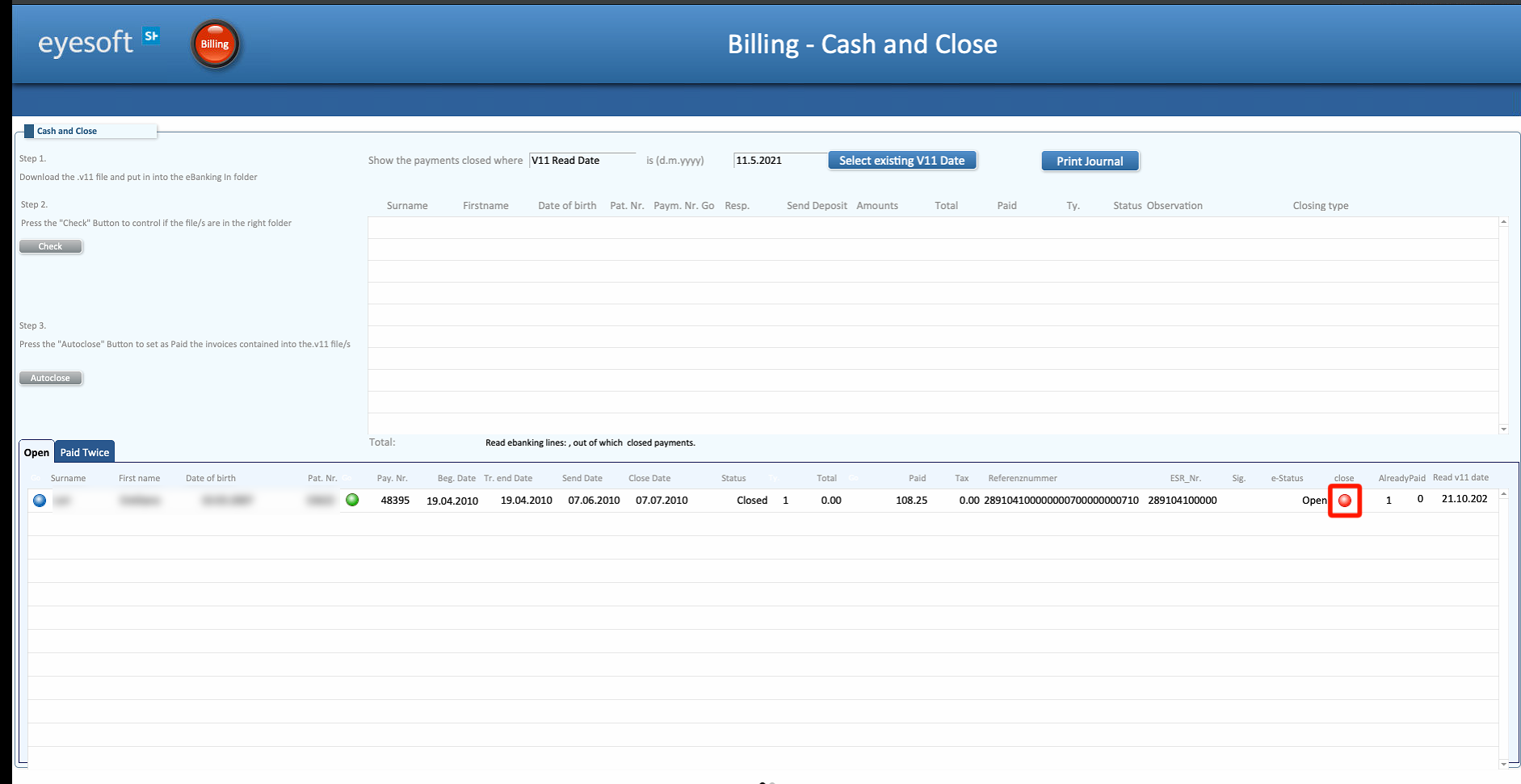
- Red button (near the payment field) – Manually closes the invoice.
Paid Twice
Invoices in the Paid Twice list can appear here for two reasons:
- The patient has actually paid the invoice twice.
- The same file was read twice, creating an unclear payment situation that needs further analysis.

