


1. Creating a New Invoice
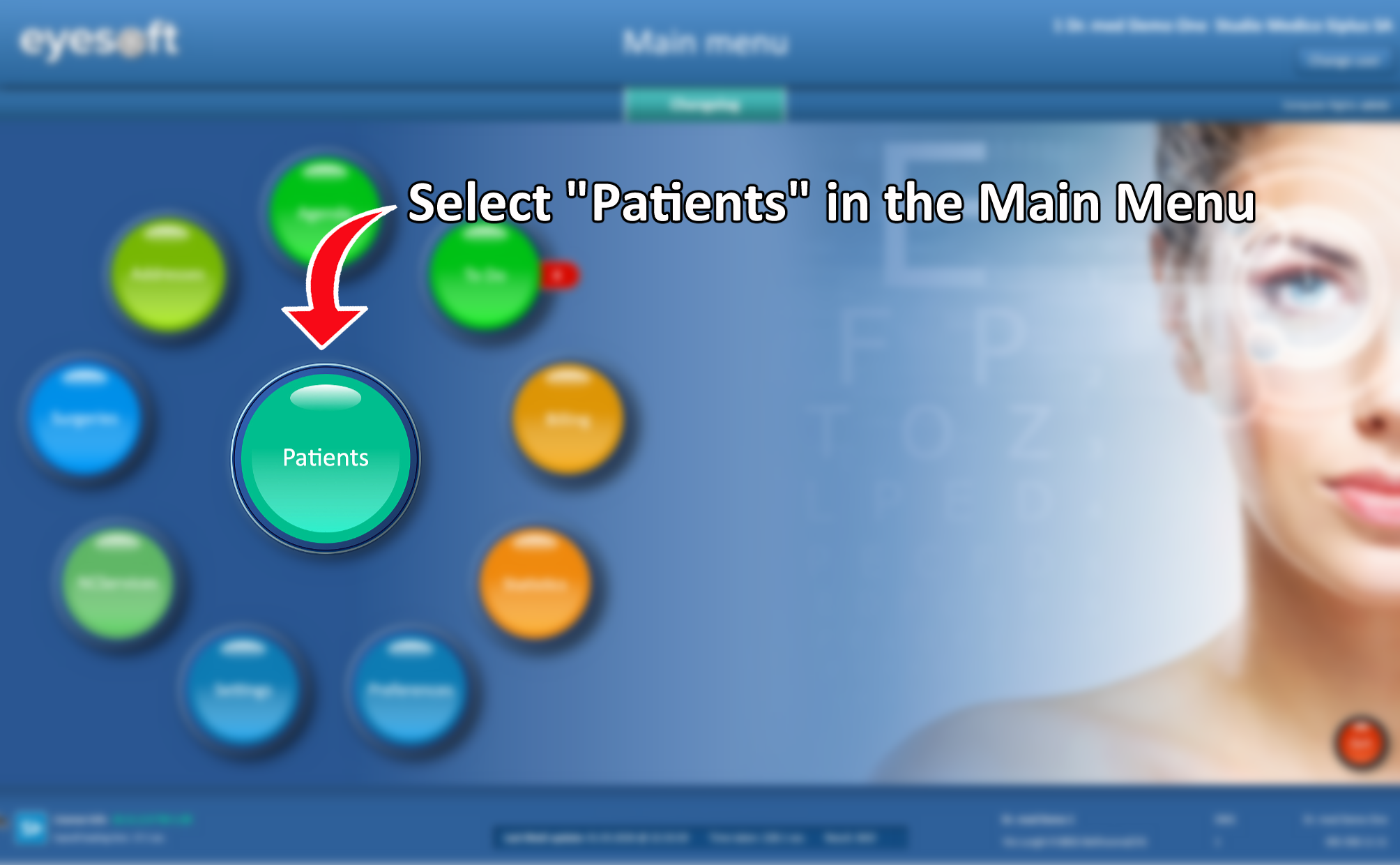
- From the Main Menu, select Patients.
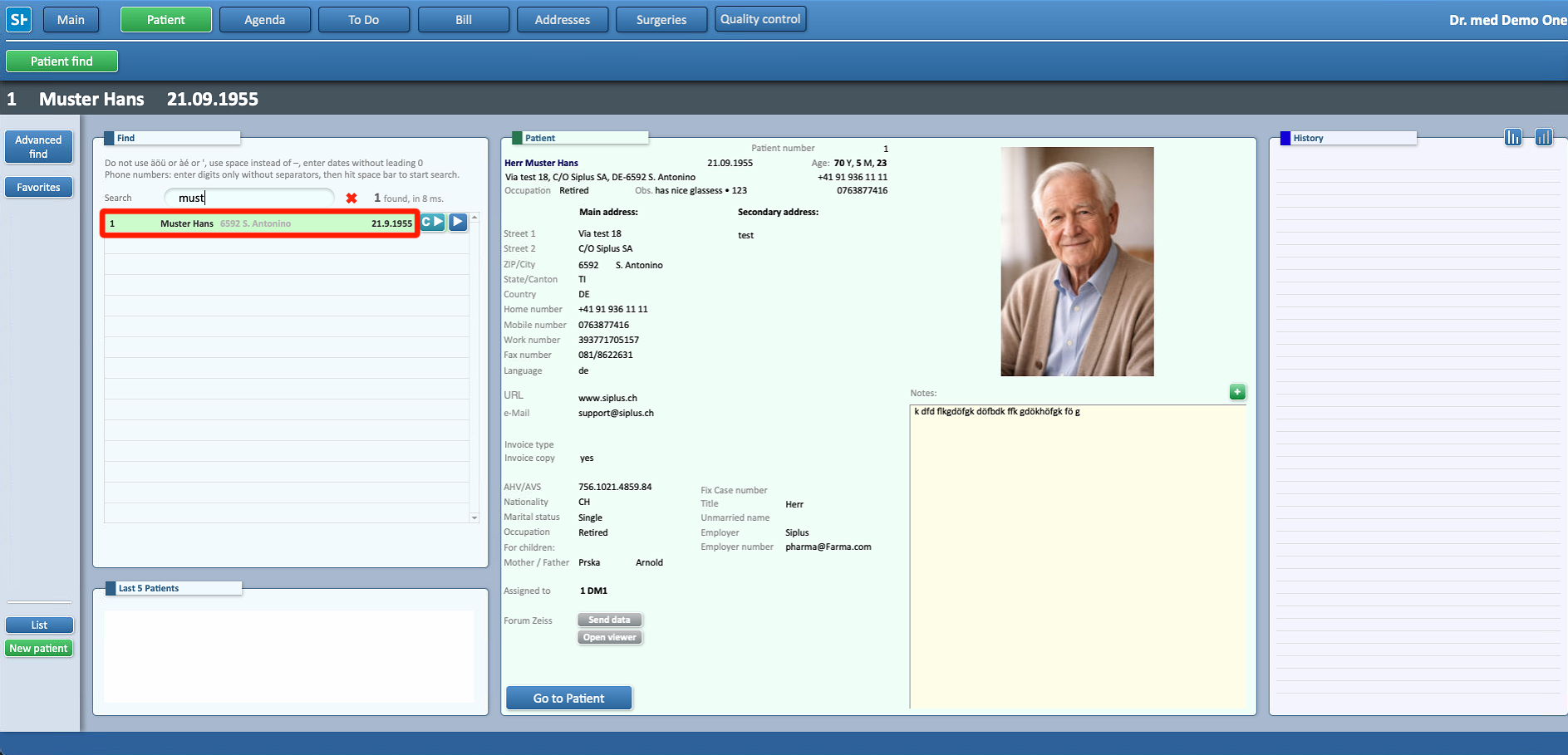
- Search for the patient for whom you want to create a new invoice.
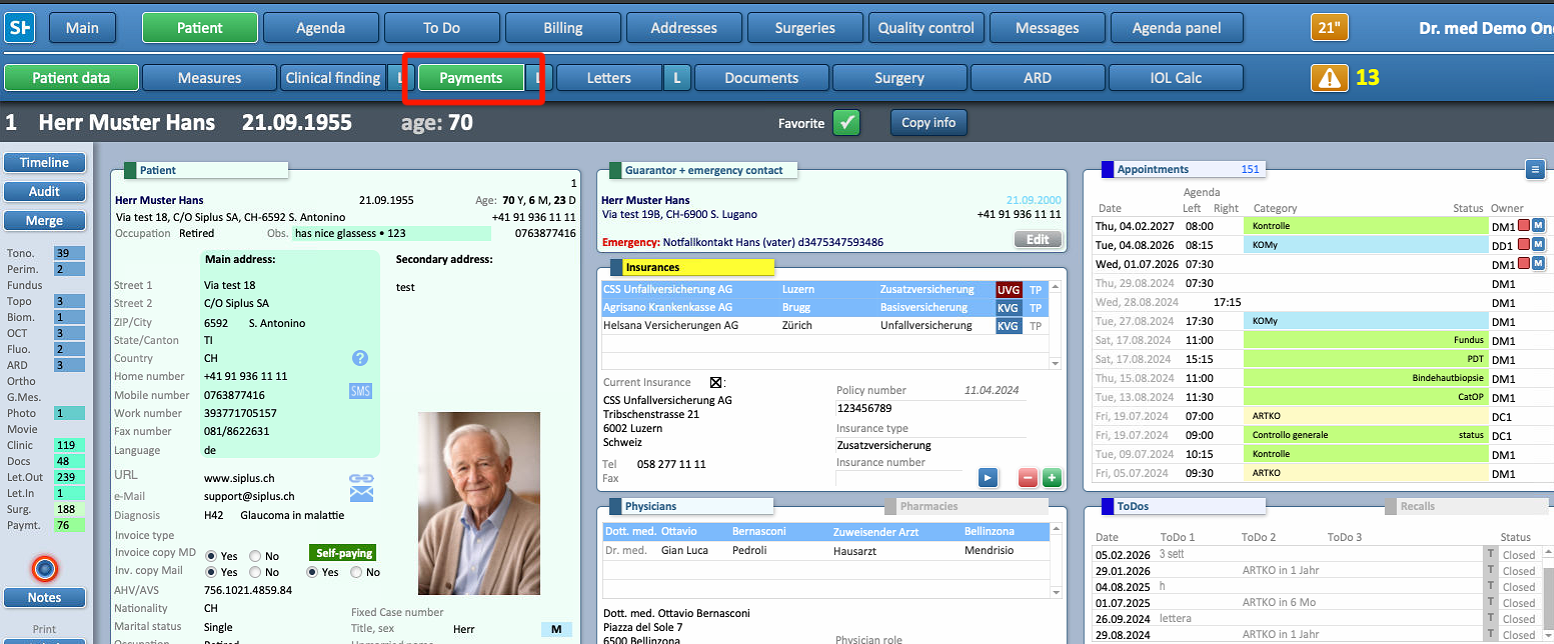
- Select Payments from the layout options at the top of the screen.
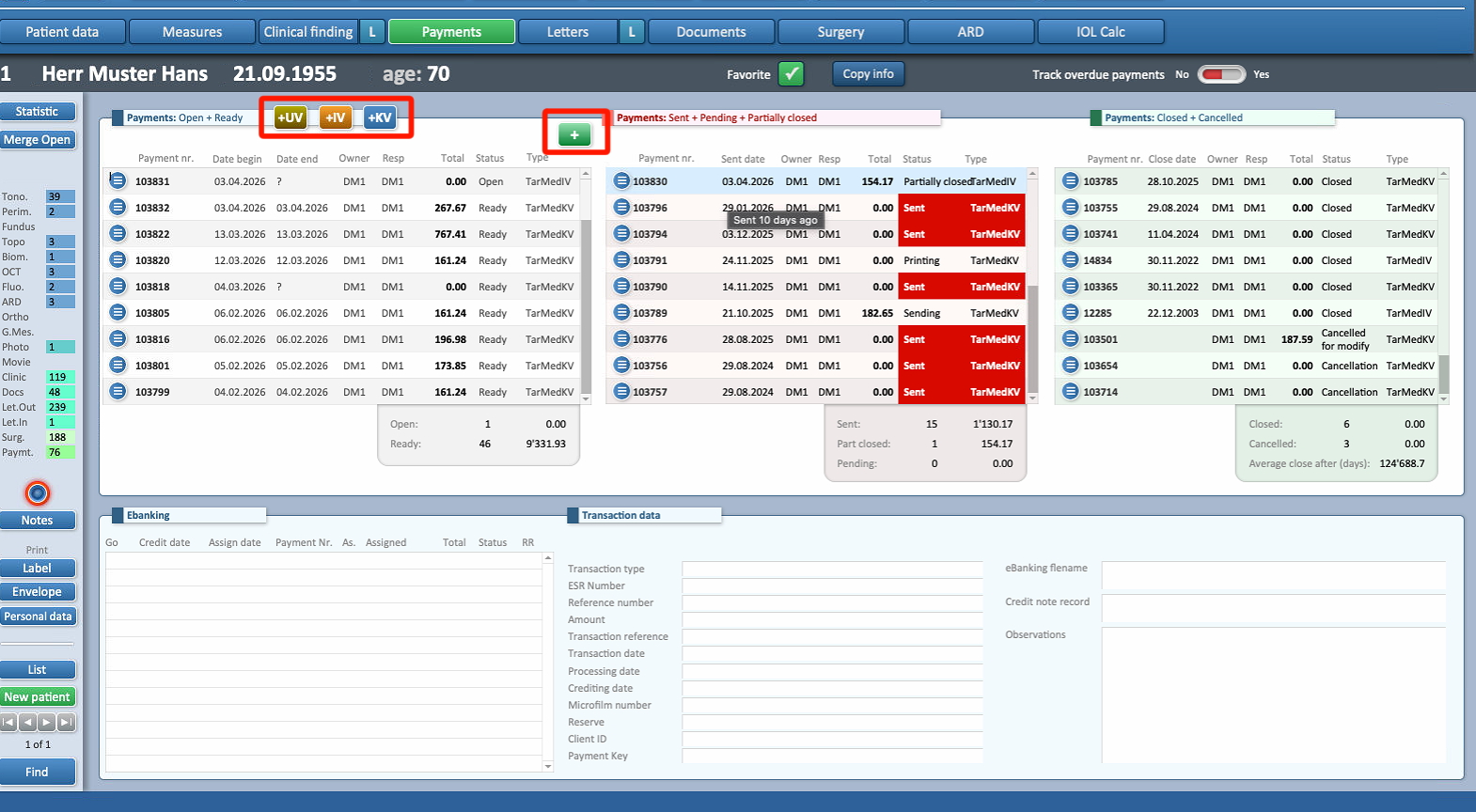
- Click the + icon to create a new invoice.
2. Invoice Systems (TarDoc vs TarMed)
- Starting from 01/01/2026, all new invoices are automatically set to TarDoc.
- TarMed can only be used for retroactive invoices from 2025.
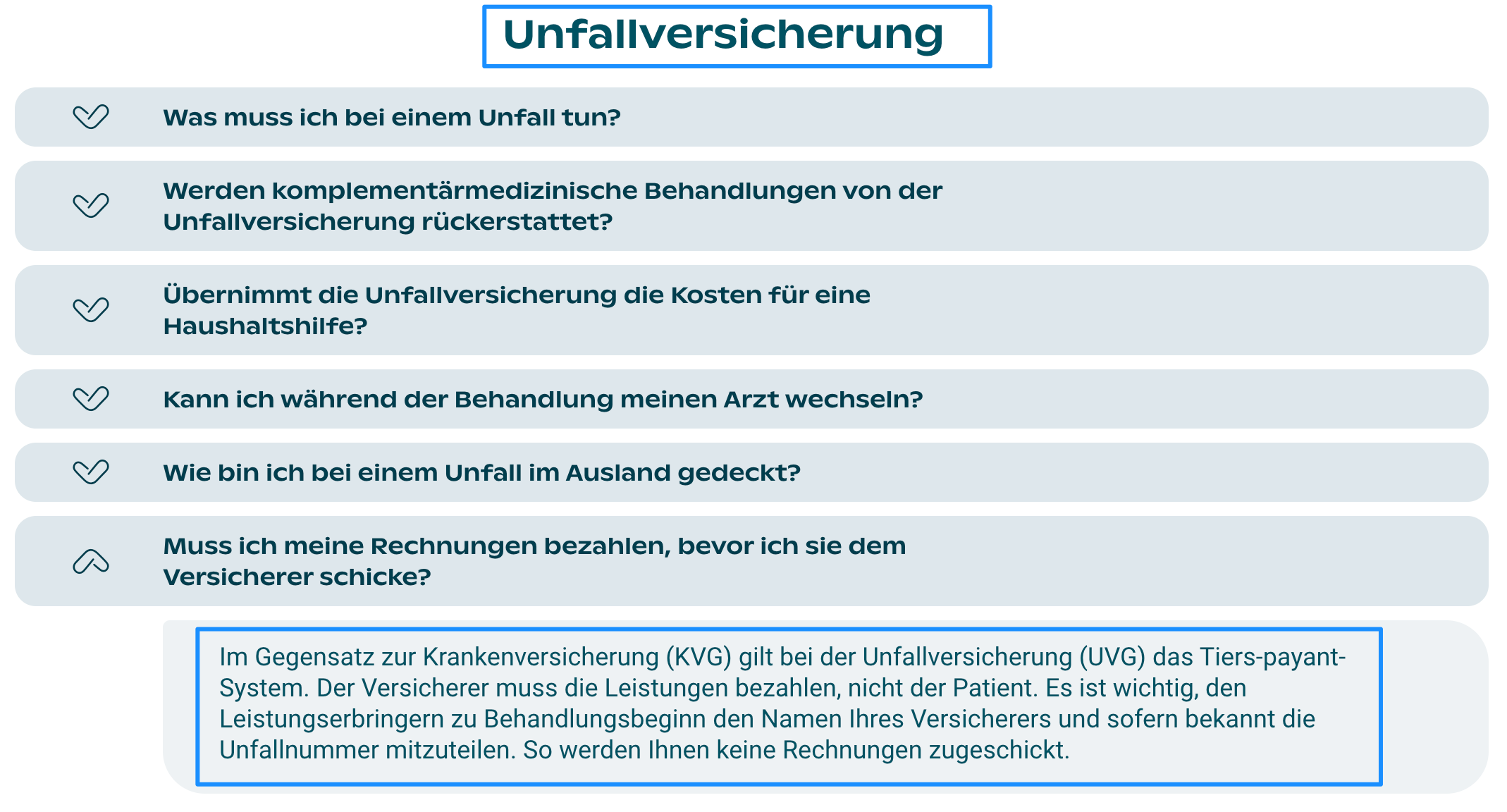
Important Rule (UVG)
- All UVG invoices must be set to TP under TarDoc.
- They cannot be set to TG.
- This is mandatory and cannot be changed.
3. Required Fields & Checks
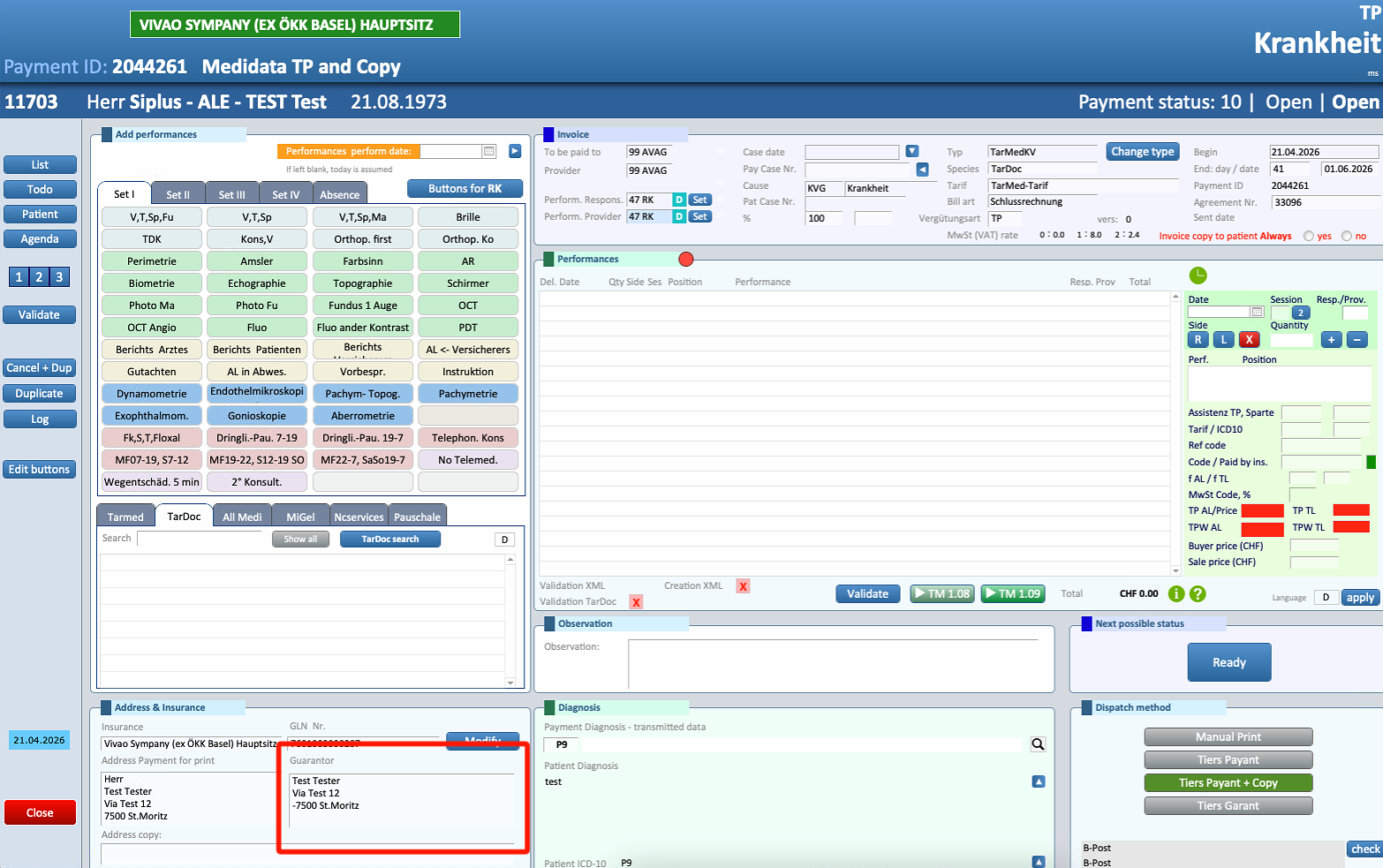
- The Guarantor must always be specified in the invoice.
- It must match the type of patient.
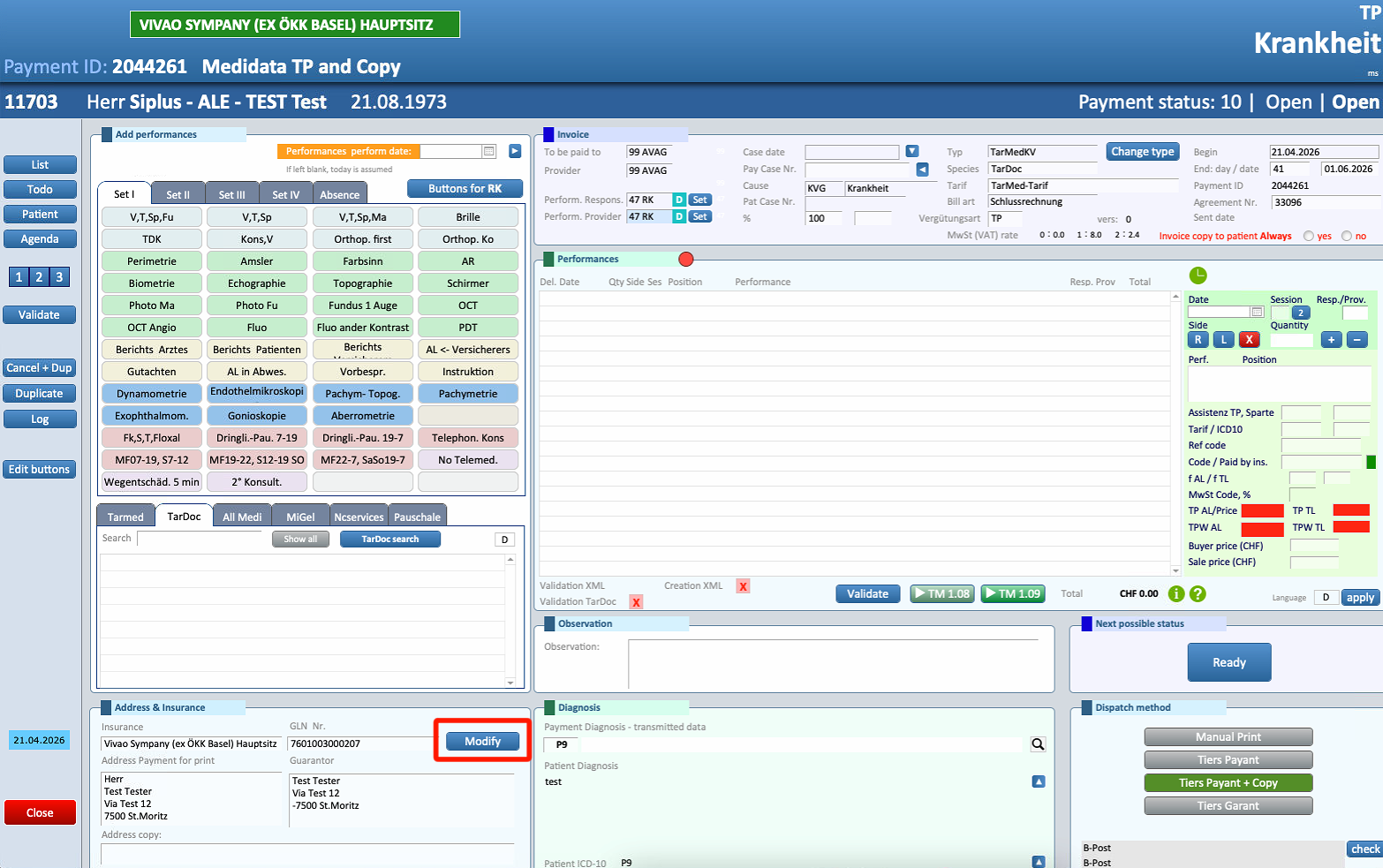
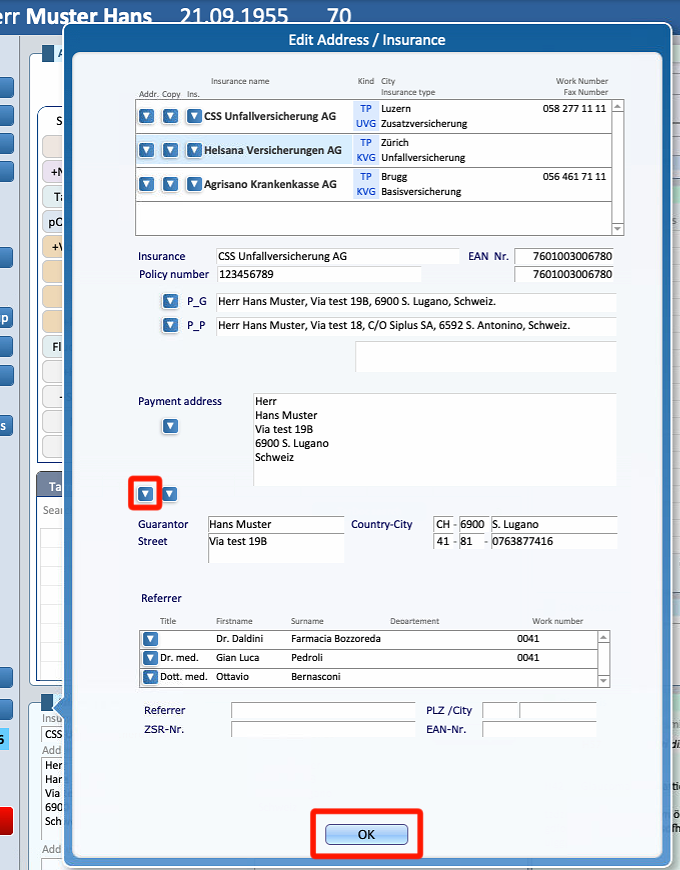
- To add the guarantor’s name, select Modify and then press the arrow next to the guarantor’s name, then apply changes with OK
⚠ For underage patients or those under the care of a legal guardian, ensure that the guarantor is the parent or the designated guardian.
To learn how to add a guarantor, please refer to THIS GUIDE.
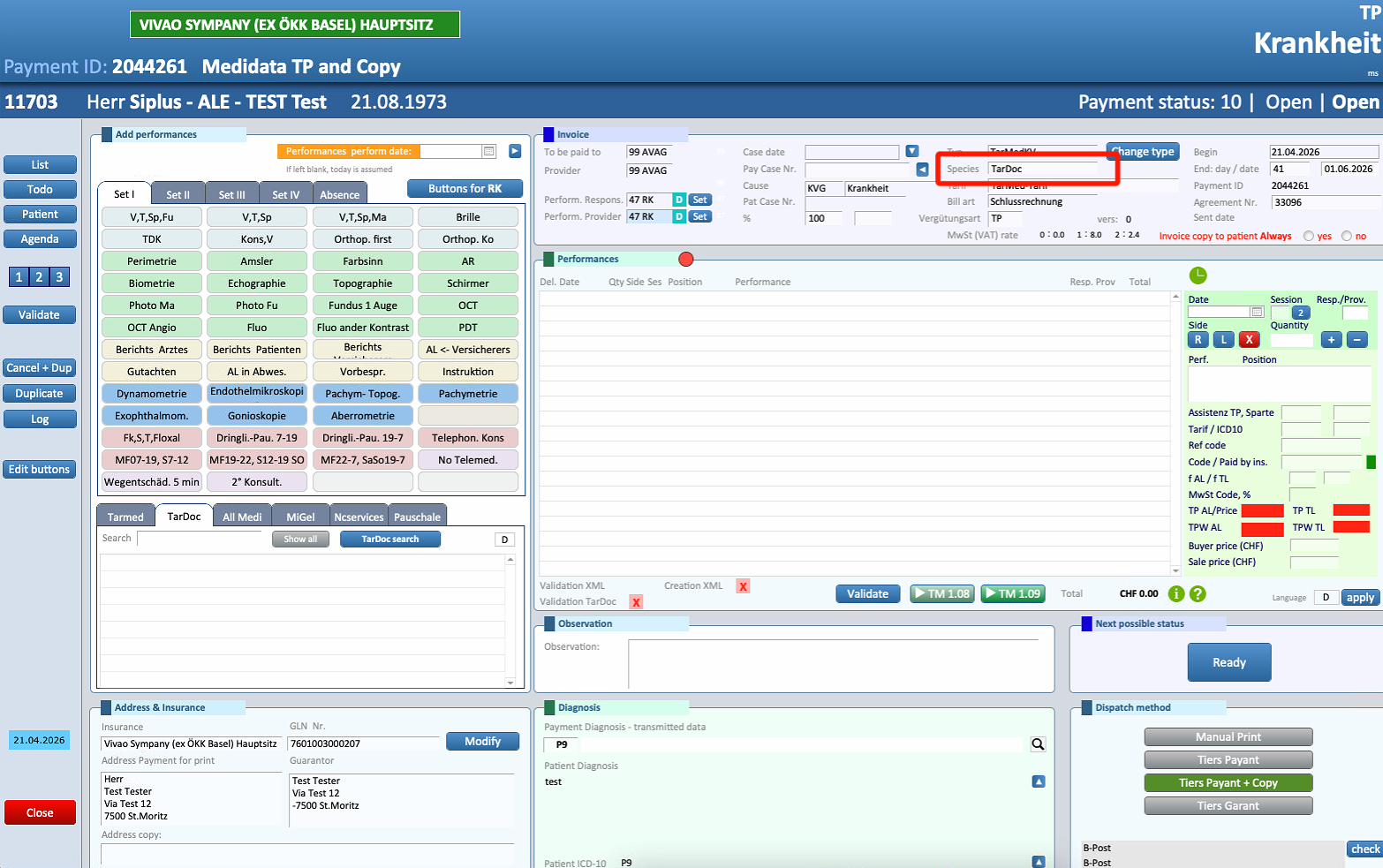
- To verify if an invoice is TarDoc:
- Check the “Species” field → this confirms the invoice type.
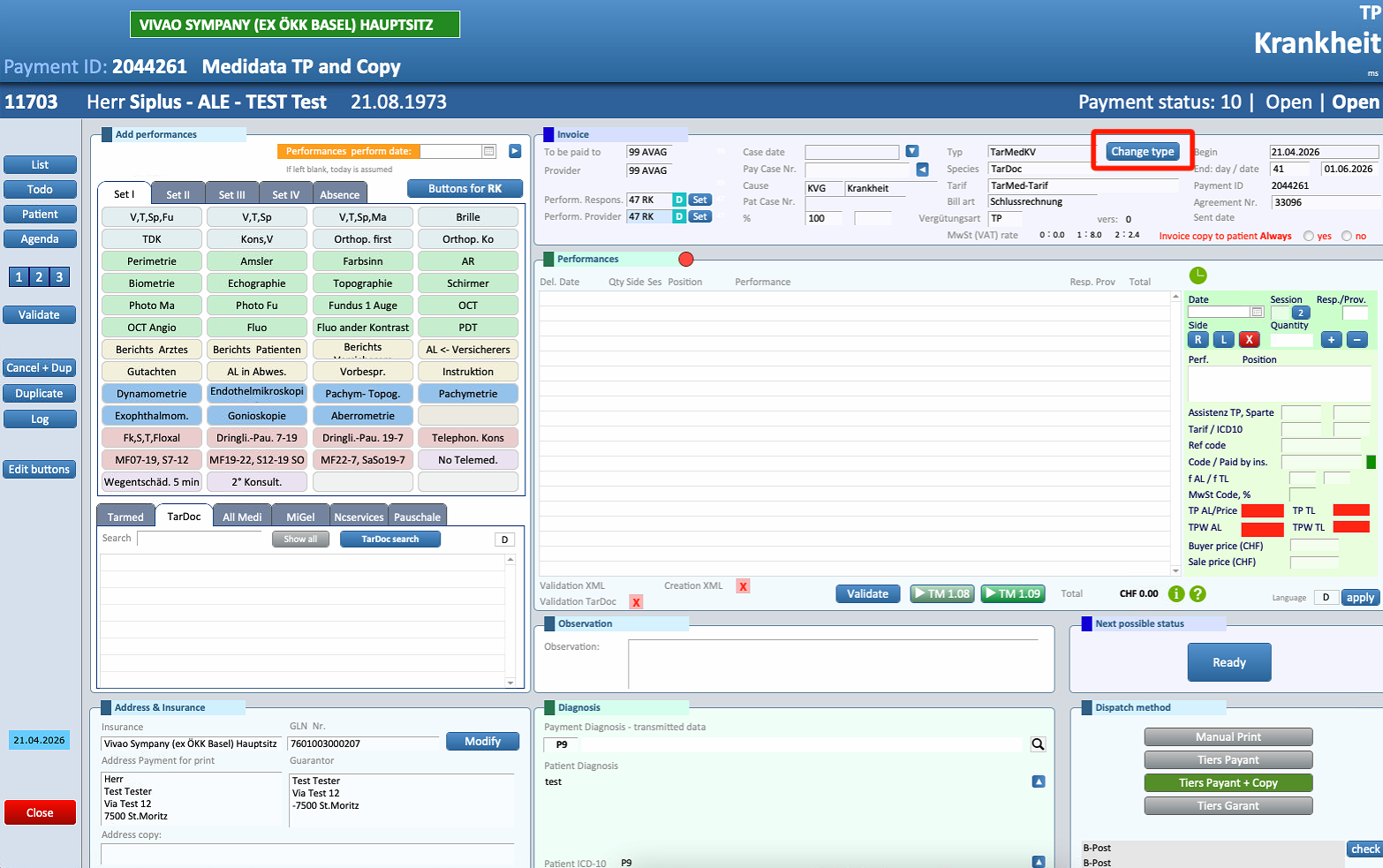
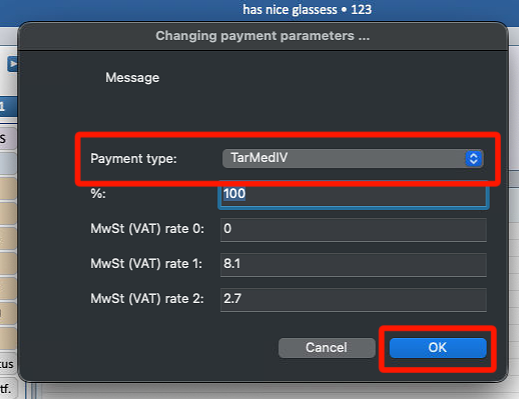
- To change type of invoice, select the Change Type button
4. Invoice Status (Payment Status)
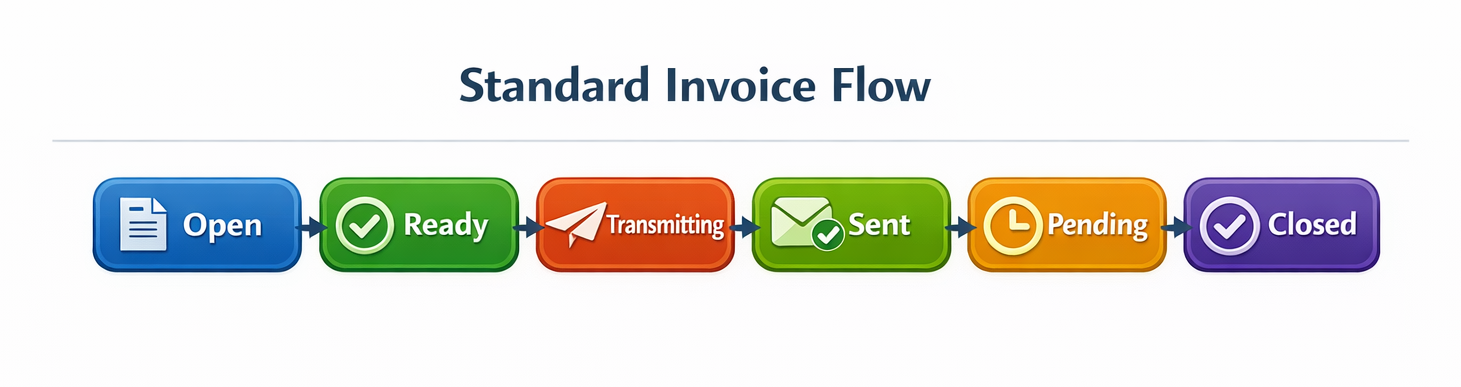
At the top of the screen, next to Payment Status, you can see the current state of the invoice:
- Open → The invoice can still be modified.
- Ready → The invoice is complete and ready to be sent.
- Sending → The invoice is currently being sent.
- Transmitting → The invoice is being transmitted to systems like MediData.
- These systems perform additional checks for possible data errors before forwarding the invoice to:
- The health insurance
- The patient
- Or both
- These systems perform additional checks for possible data errors before forwarding the invoice to:
For a more complete guide on Billing, consult THIS GUIDE (Link to be added)
5. Services in TarDoc
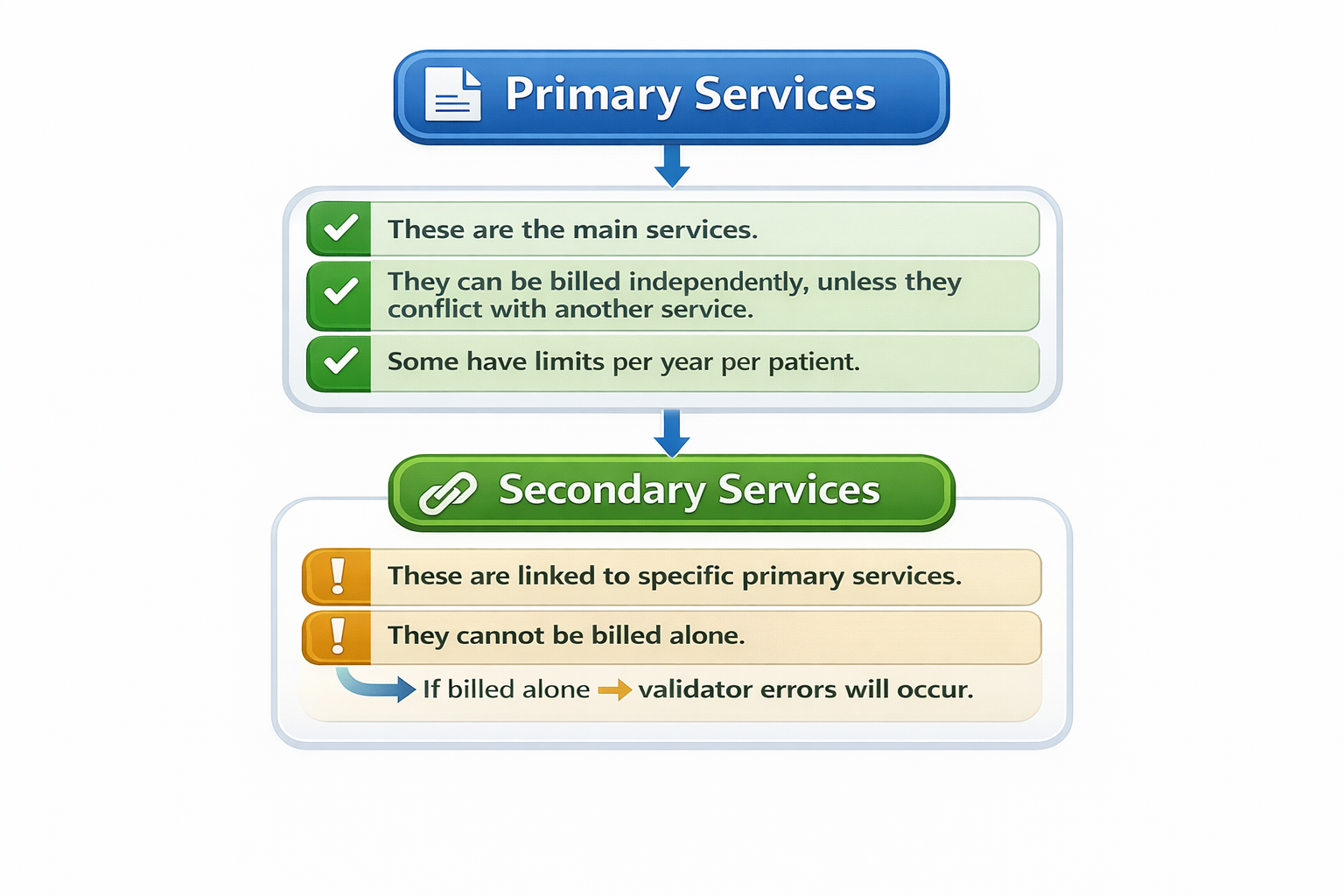
Primary Services
- These are the main services.
- They can be billed independently, unless they conflict with another service.
- Some have limits per year per patient.
Secondary Services
- These are linked to specific primary services.
- They cannot be billed alone.
- If billed alone → validator errors will occur.
⚠ This is often one of the main reason for validation errors in TarDoc invoices.
For information on validator errors, please refer to THIS GUIDE
4. Panels
Invoices
In the top-middle part of the screen, you can easily find all the important details about the invoice:
-
The doctor to be paid and the doctor or assistant who provided the service.

- The case number and the invoice date

- The type of insurance/system (e.g. TarDoc, TarMed) and what kind of invoice it is (e.g. KVG, UVG)

- The start date, end date, and the date the invoice was sent

- Whether a copy of the invoice should also be sent to the patient.

This section gives you a quick and simple overview of everything related to the invoice.
Performance Buttons and Other Services
Services can be added to an invoice using predefined buttons or by selecting the appropriate item from the TarMed/NCServices lists.
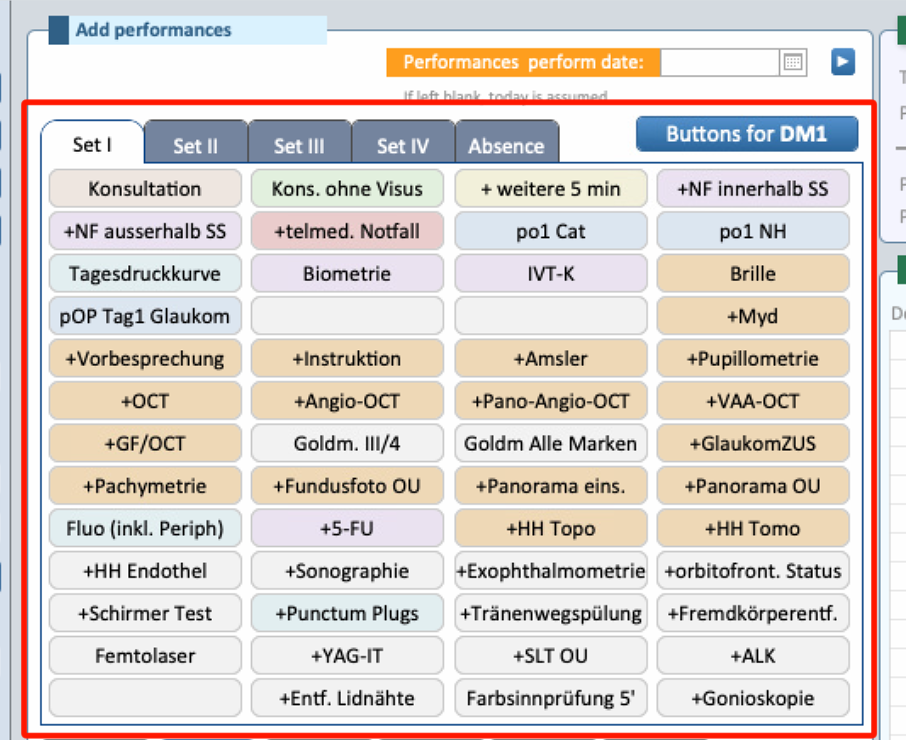
⚠ Please note that after 01/01/2026, the TarMed list should no longer be used. It may only be used retroactively for invoices dated on or before 31/12/2025.
For a detailed guide on performance buttons, please refer to THIS GUIDE.
-
To add a service that is not included in the available buttons, please enter the service directly in the list below the performance buttons.
-
All services included in TarMed or the Compendium can be found under the “TarMed” list or the “Medicines” list.
-
Any additional services or medicines not included in the Compendium can be added via NCServices.
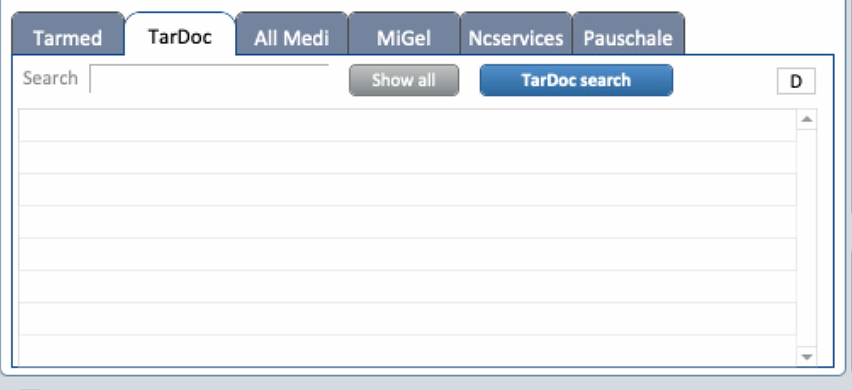
⚠ There is no comprehensive list for medicines or materials outside of the Compendium. Therefore, pricing must be set manually.
For a guide on NCServices, please refer to THIS GUIDE.
6. Validator and Validator Errors
The validator is a tool provided by Eyesoft that checks for potential errors before an invoice is sent to the invoice service or the trust center.
Although it is technically possible to send an invoice without validation, or even when the validator reports errors, this is strongly discouraged. In most cases, such invoices are likely to be rejected due to the issues identified by the validator.
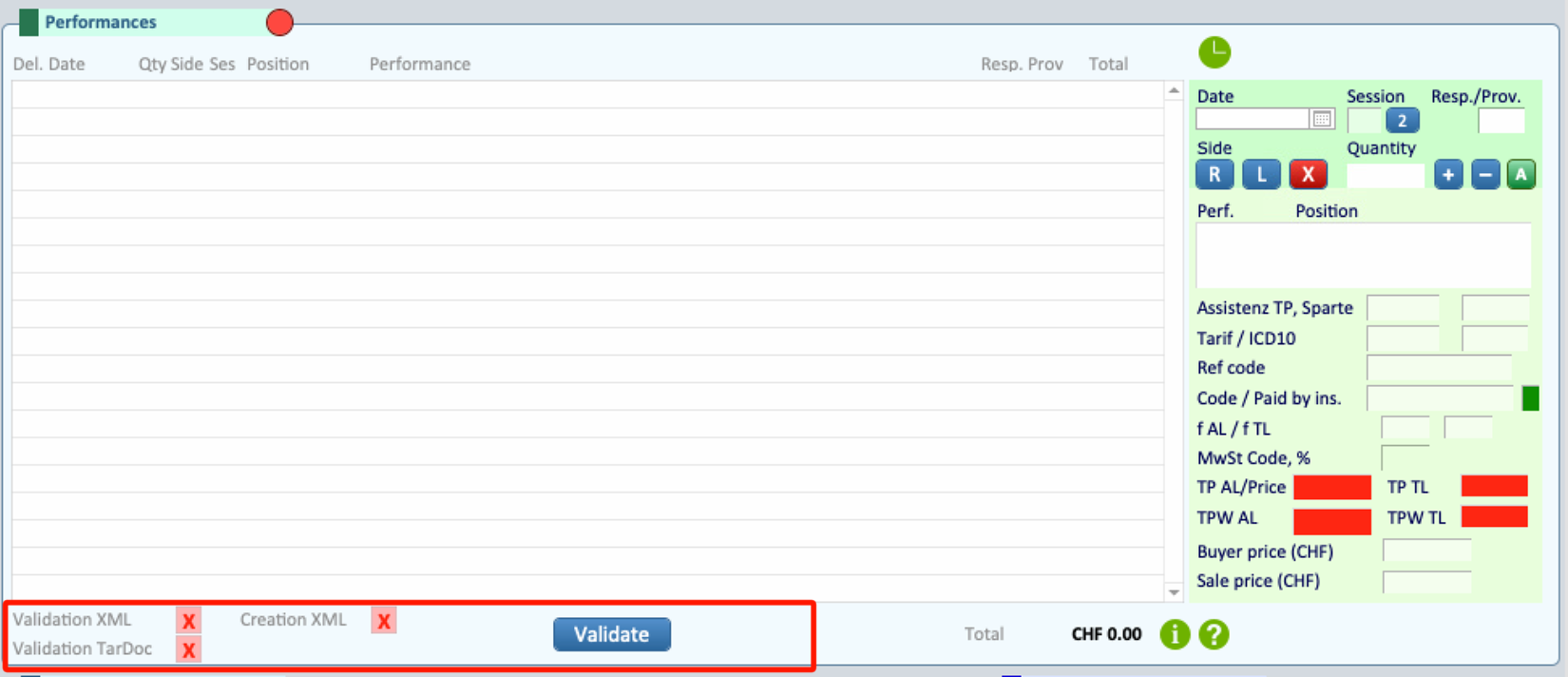
If the validator detects errors, please refer to our dedicated guide.
This guide is regularly updated to include new validator error cases and can be accessed here: THIS LINK.

