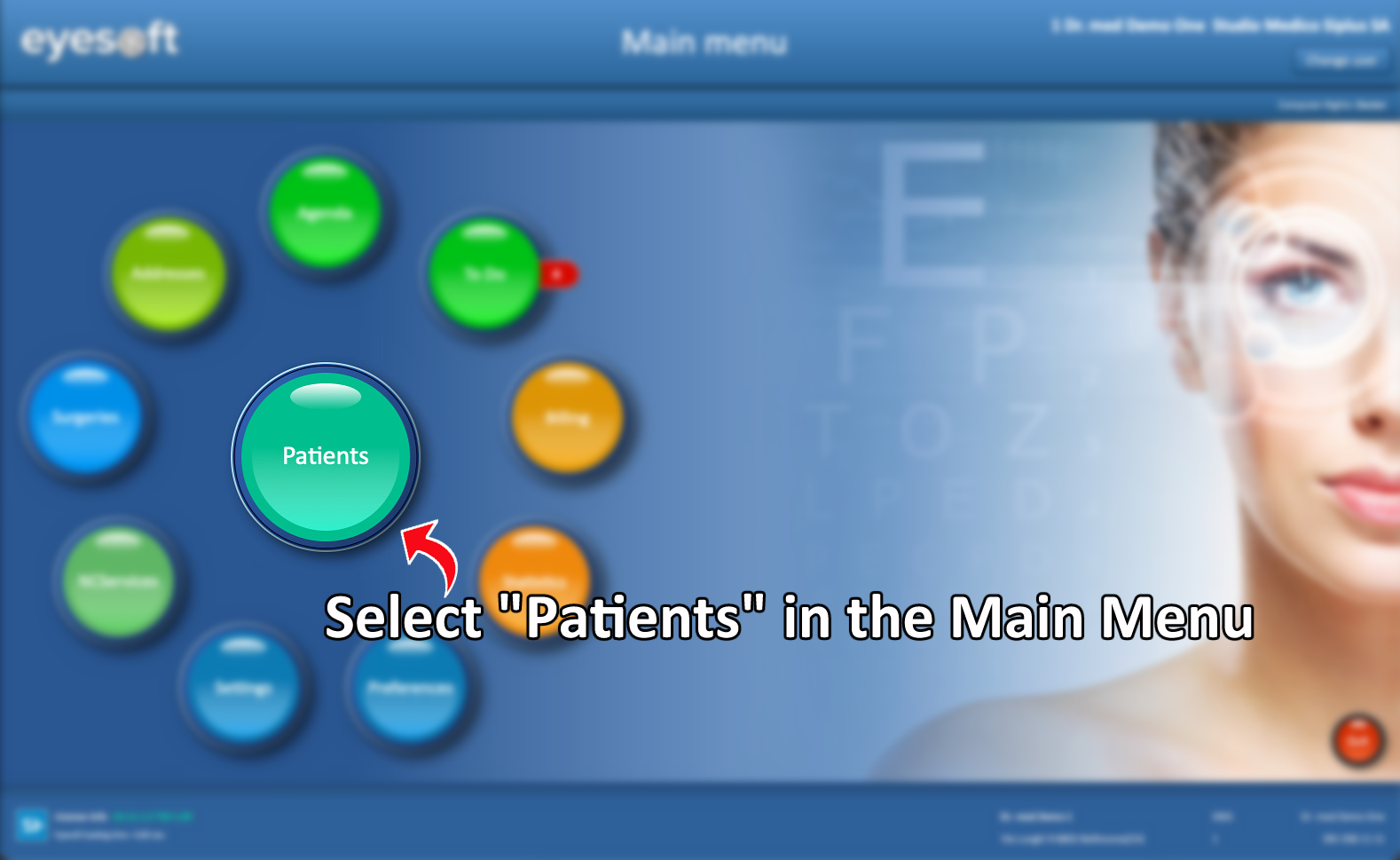
- To access a patient’s profile, select Patients from the Main Menu, search for the patient, and open their record.
-
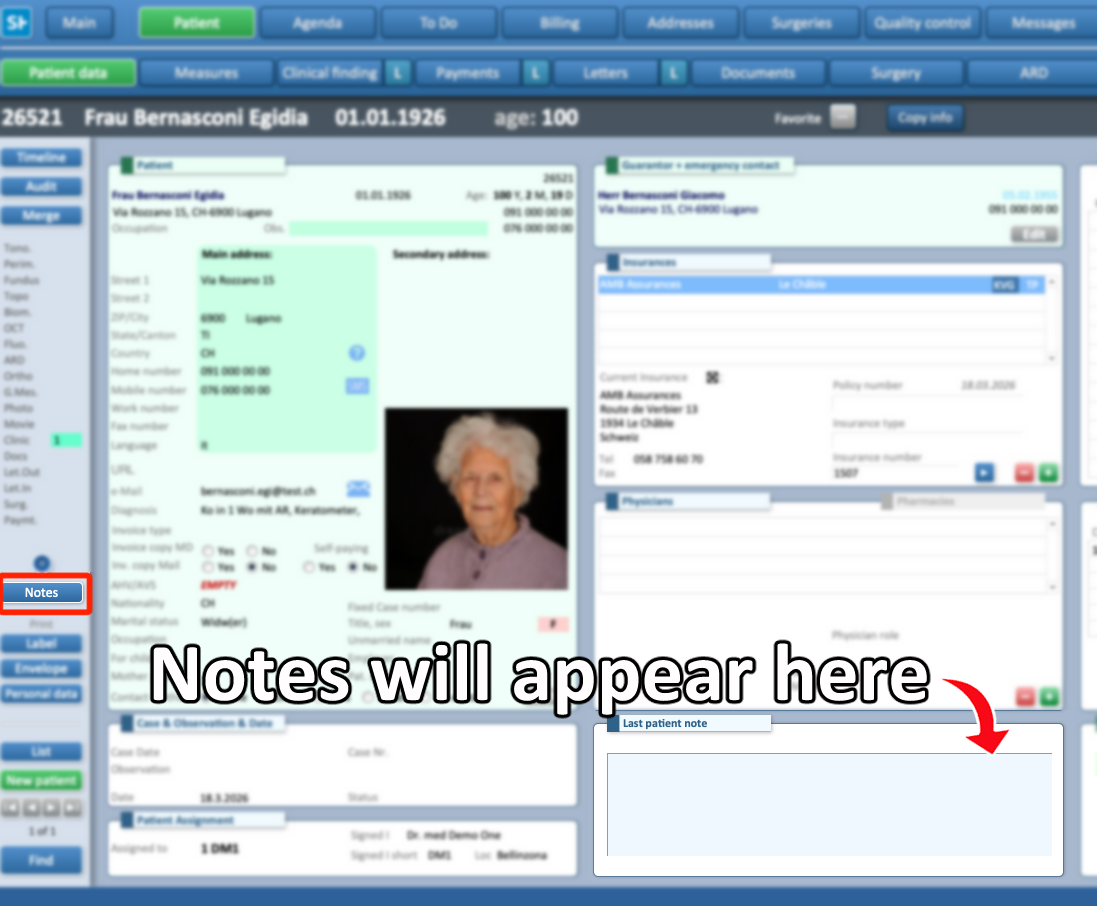
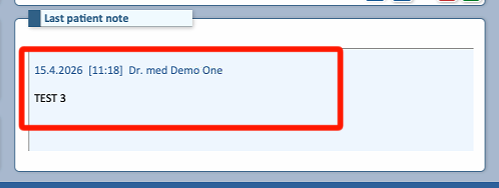
In the middle column, at the bottom of the screen, you will find the Notes section, which displays existing notes.
-
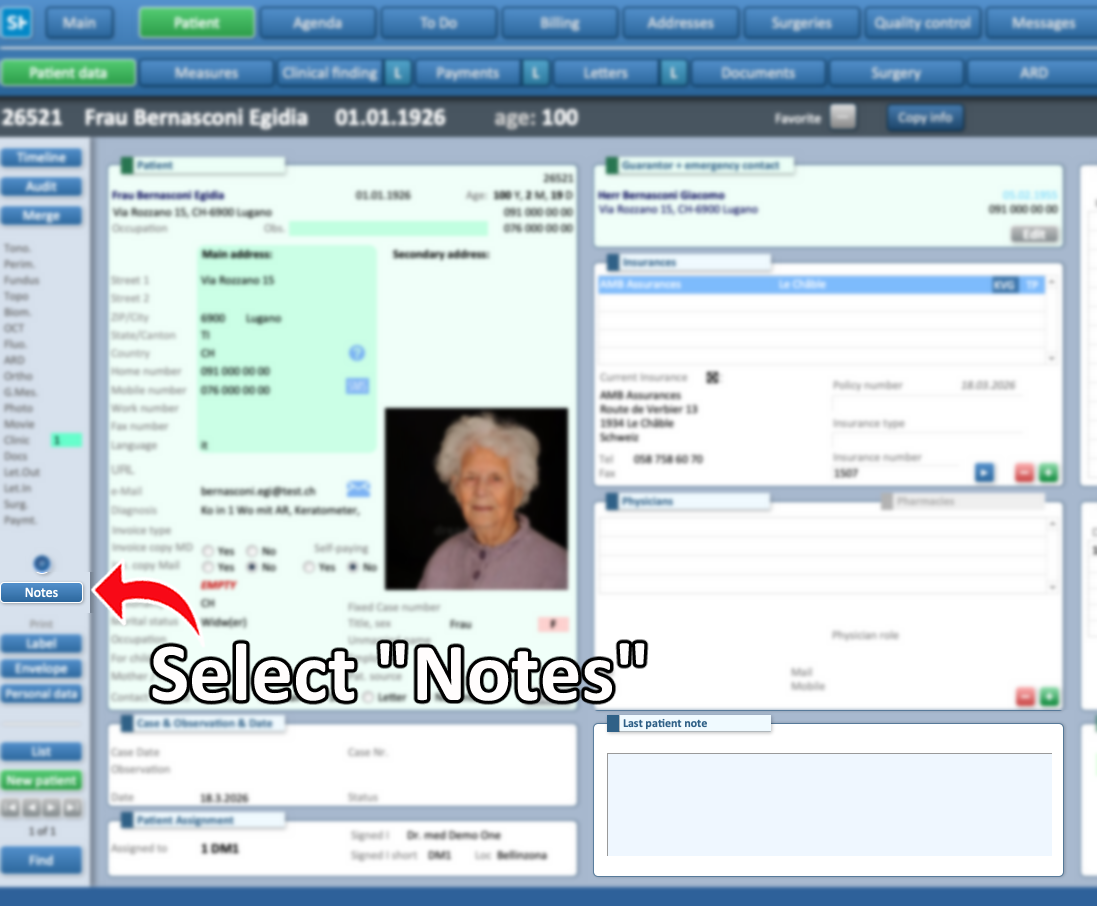
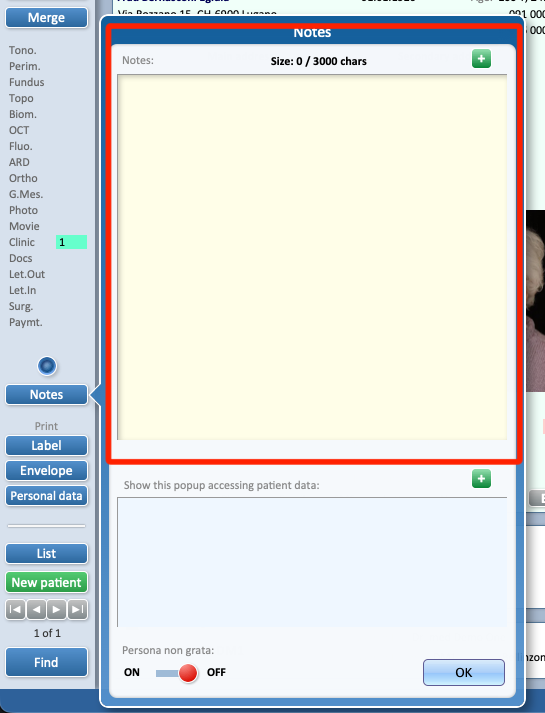
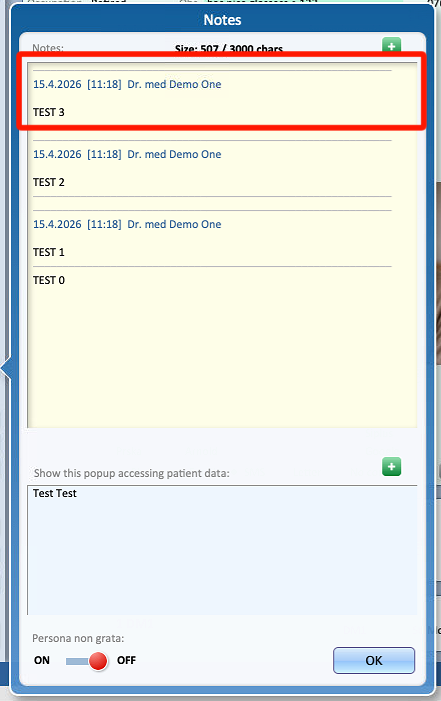
To add or modify notes, click the Notes button on the far left of the screen.
- The top field is used for general note-taking.
-
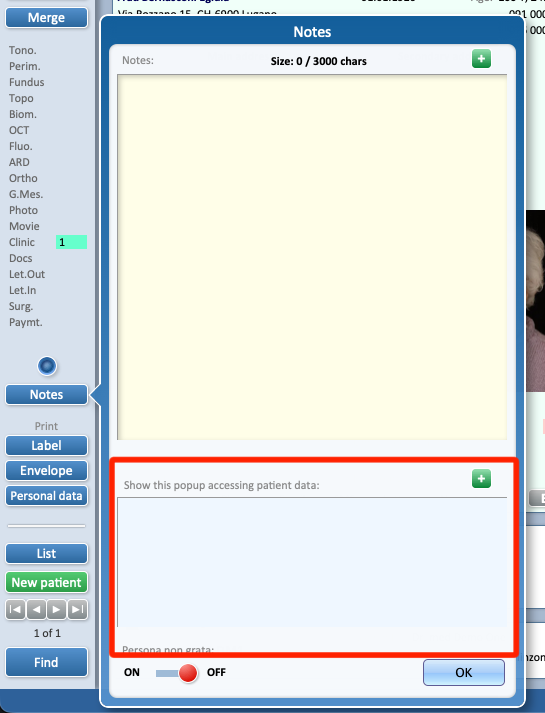
The lower field, if completed, will automatically appear (“pop up”) when accessing the patient’s data during billing or appointment creation.
-
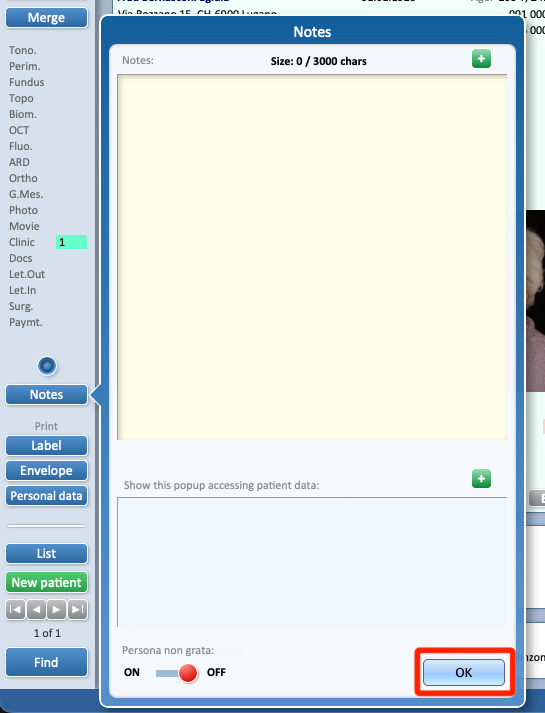
After entering the desired information, click OK to close the pop-up and save the note.
-
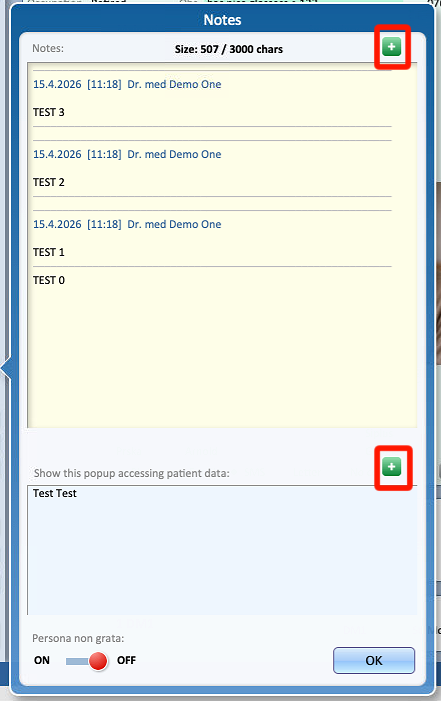
By selecting the + button, additional notes can be added to each section.
It is important to note that the last patient note displayed on the patient’s profile will only reflect the most recently created note in the upper (yellow) field.
-
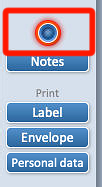
By selecting the circle above the Notes button, a new note field will appear next to the patient’s name at the top of the layout. However, this field will cover the Favorite button and the Copy Info button.