


 9
9
INTRODUCTION – What are the Rules
“Rules” are functions that allow you to insert event indicators (vacations, absences, surgeries slots, etc.) into specific days and time slots within the Agenda.
Rules can be applied to:
-
Consecutive days
-
Non-consecutive days
-
Weekly recurring intervals
-
Specific time ranges within a day
Rules can be:
-
Blocked → prevent appointments from being booked
-
Bookable → allow appointments to be booked while still displaying the rule as an indicator
1. Creating or modifying a Rule
- From the main menu, select Agenda to access the scheduling section

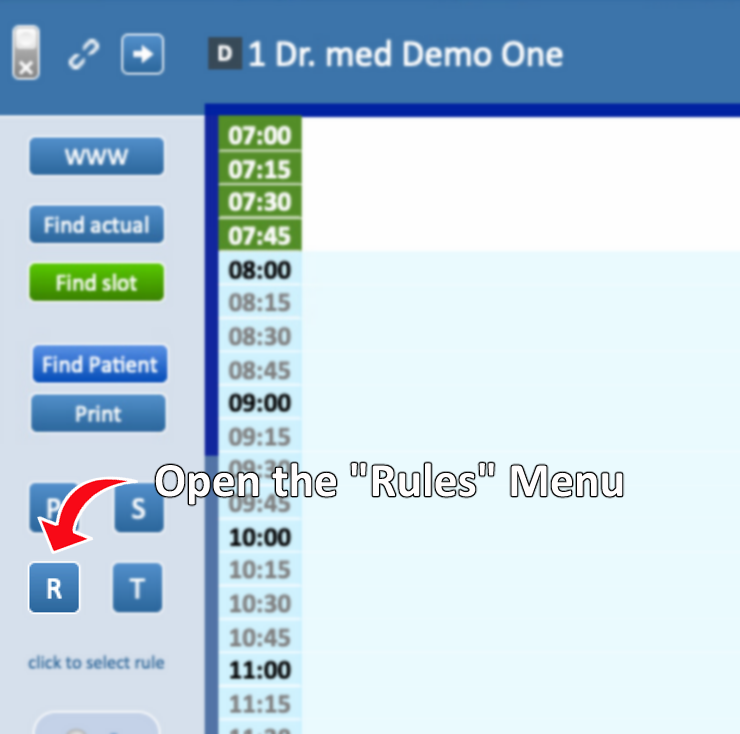
- Once inside the Agenda page, click the R button to open the Rules menu
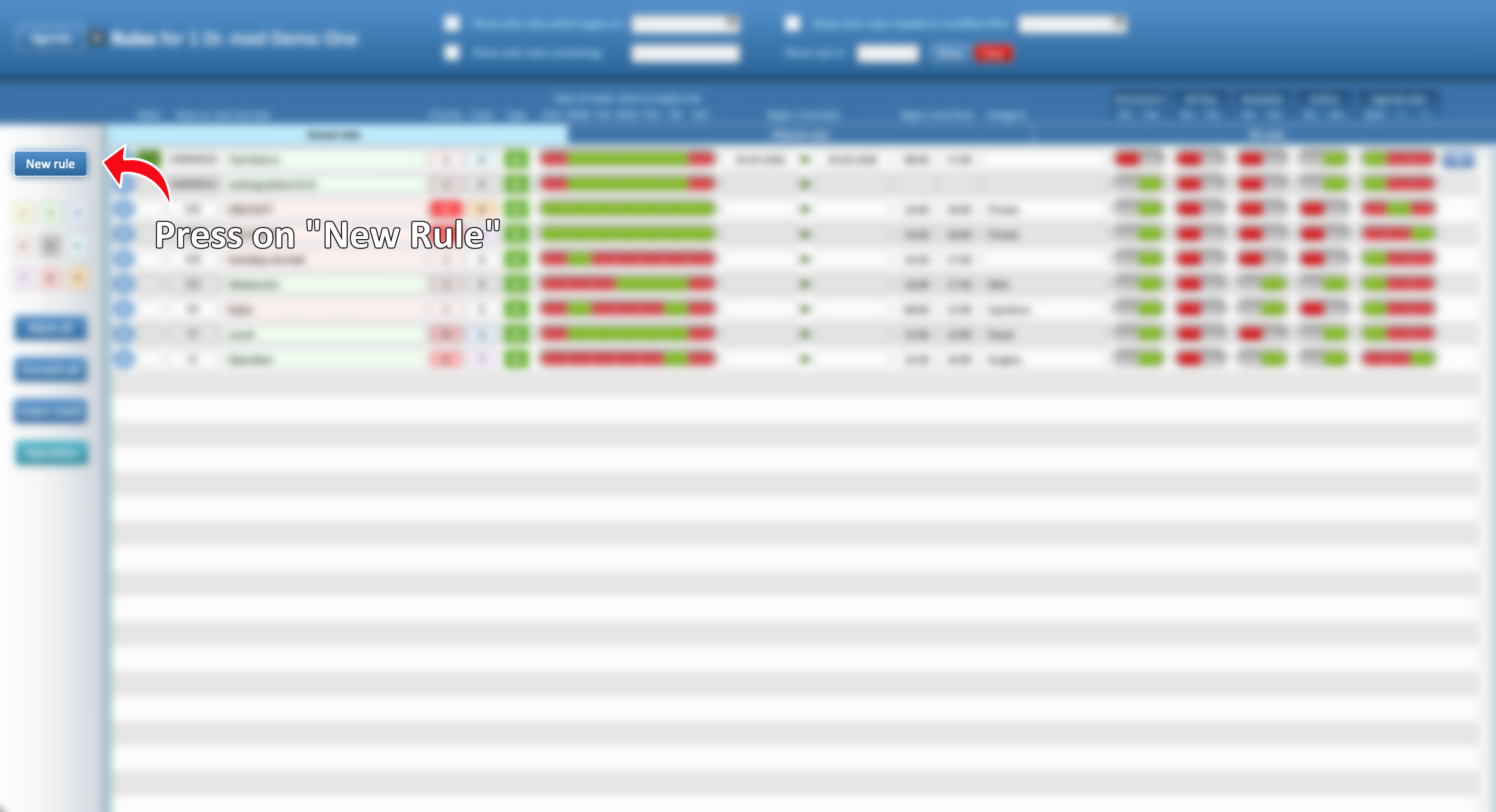
- Clicking New Rule opens a dialog window with three available options
-
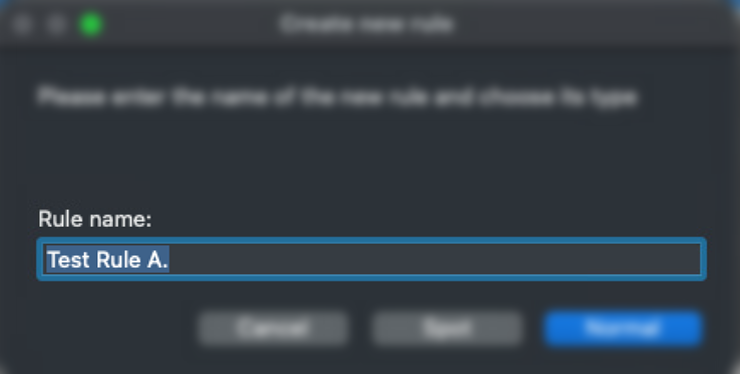
In the Rule Name field, enter the name of the new Rule. This name will also appear as the visible text in the Agenda row affected by the Rule
-
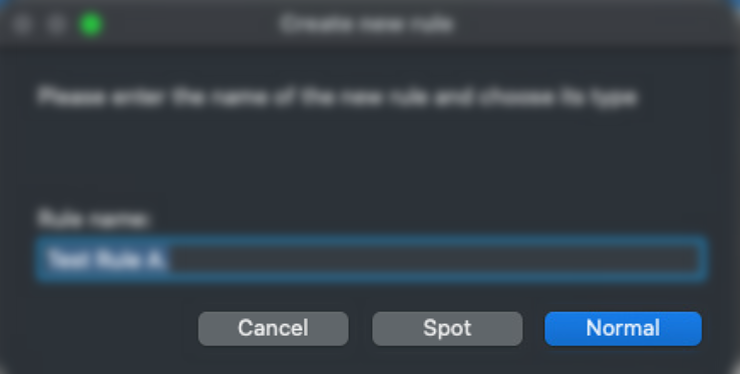
In the dialog window, you can select:
-
Cancel → abort rule creation
-
Spot → create a rule for specific days (even non-consecutive ones), with optional start and end date
- Normal → create a standard rule that can later be modified from the list
-
- The Spot option will allow to apply the Rule only on specific dates, even non consecutive ones, by selecting the desired date on the calenda
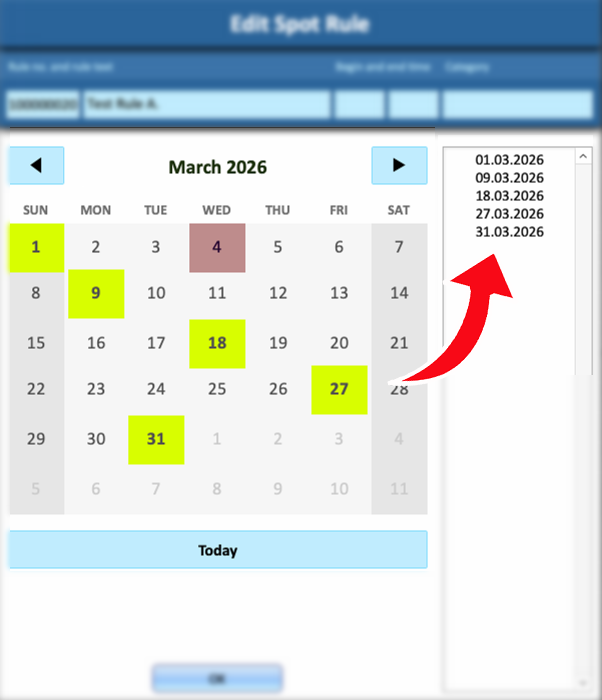
- The new Rule will appear on top of the Rule's list

2. Rule fields and functions
Fields
-
Mark allows you to mark the Rule as Selected, if the field is green, the Rule is selected. If the field is white, the Rule is not selected
-
Rule no. displays the automatically assigned identification number of the Rule
-
Rule text the name of the Rule. It can be specified during creation but can also be modified later.
-
Priority Defines the priority level of the Rule. Click the field and select the desired value from the dropdown menu.
-
Color Allows you to assign a specific color to the Rule. The color can be changed via the dropdown menu or by selecting the desired color button below New Rule.
-
Type indicates whether the Rule is Normal (N) or Spot (S). Clicking the field allows switching between the two types.
-
Days of the week when to apply the rule allows setting weekly recurrences. For Normal rules, this is automatically set from Monday to Friday at the moment o the Rule's creation. Green mens the rule is active, Red means the rule is inactive.
-
Begin / End Date defines the validity period of the Rule. Before the start date and after the end date, the Rule will be inactive.
-
Category allows assigning a category to the Rule via dropdown menu. At the bottom of the list, the “Edit…” option allows category management.

Sliders
-
Permanent defines the Rule as permanent, overriding any start and end dates.
-
All Day applies the Rule to the entire day unless specific time intervals are defined.
-
Bookable displays the Rule but still allows appointments to be booked within the affected time slots. Particularly useful when used with the “Find Slot” option in the Agenda.
-
Active Activates or deactivates the Rule.
-
Agenda Side applies the Rule to the left side, right side or both sides of the Agenda

3. Rule list views
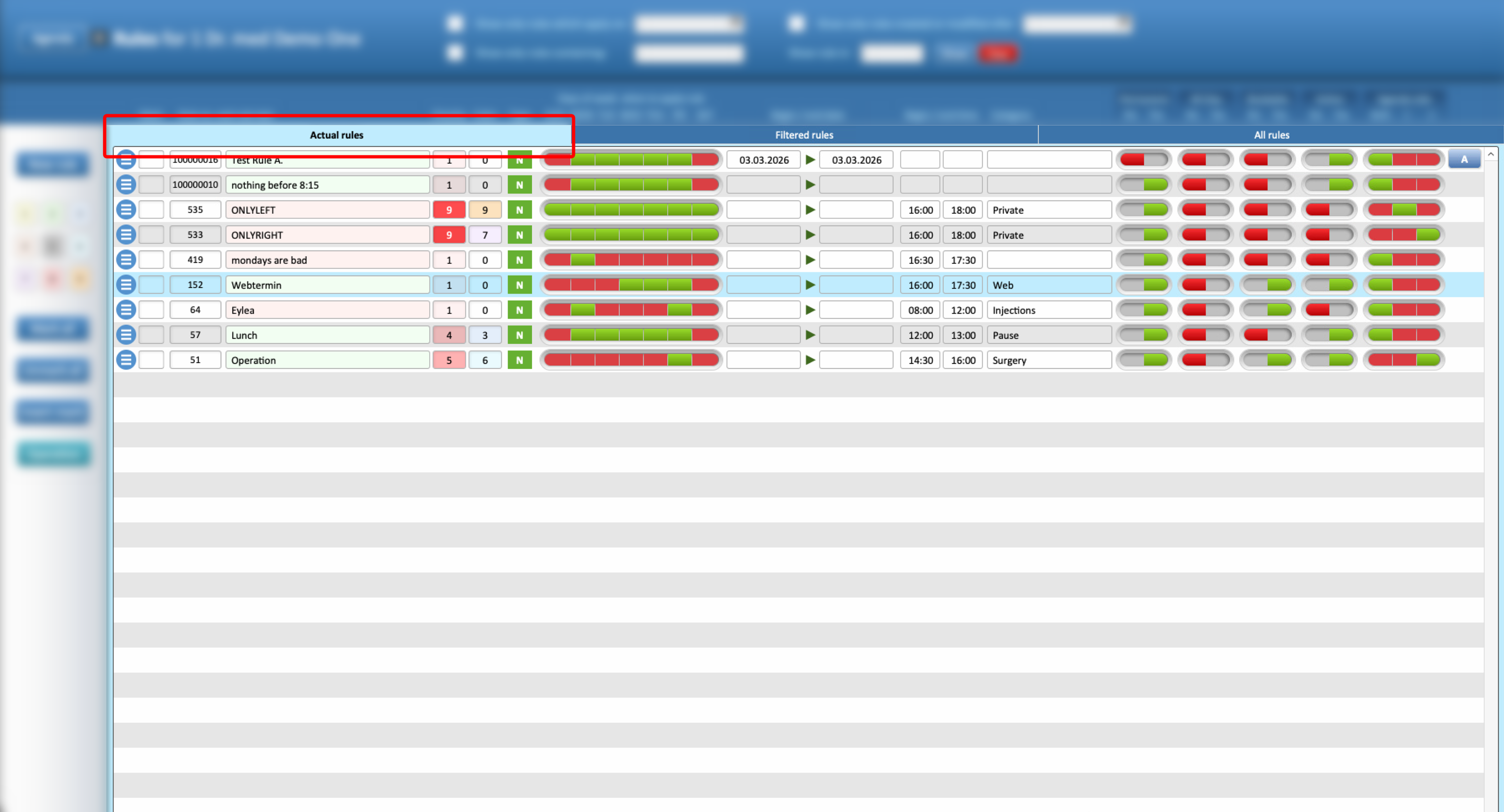
- Actual Rules displays only currently active Rules
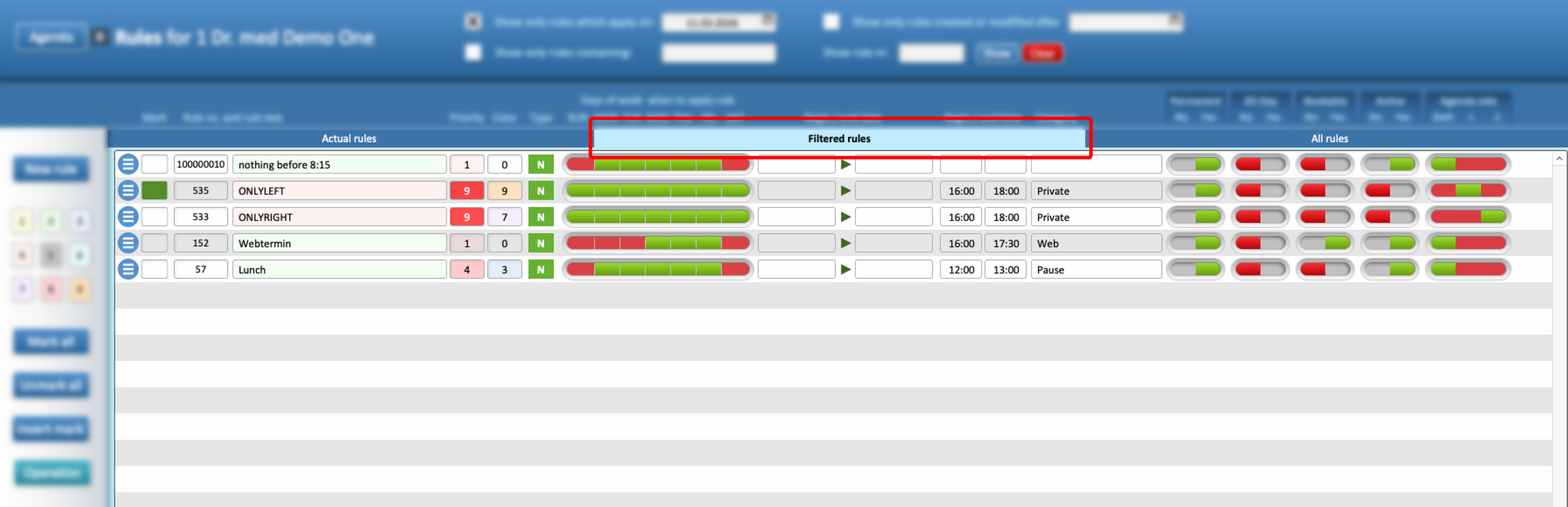
- Filtered Rules displays only Rules that match the applied filters
- All Rules Displays all created Rules, both active and inactive

4. Filtering Rules
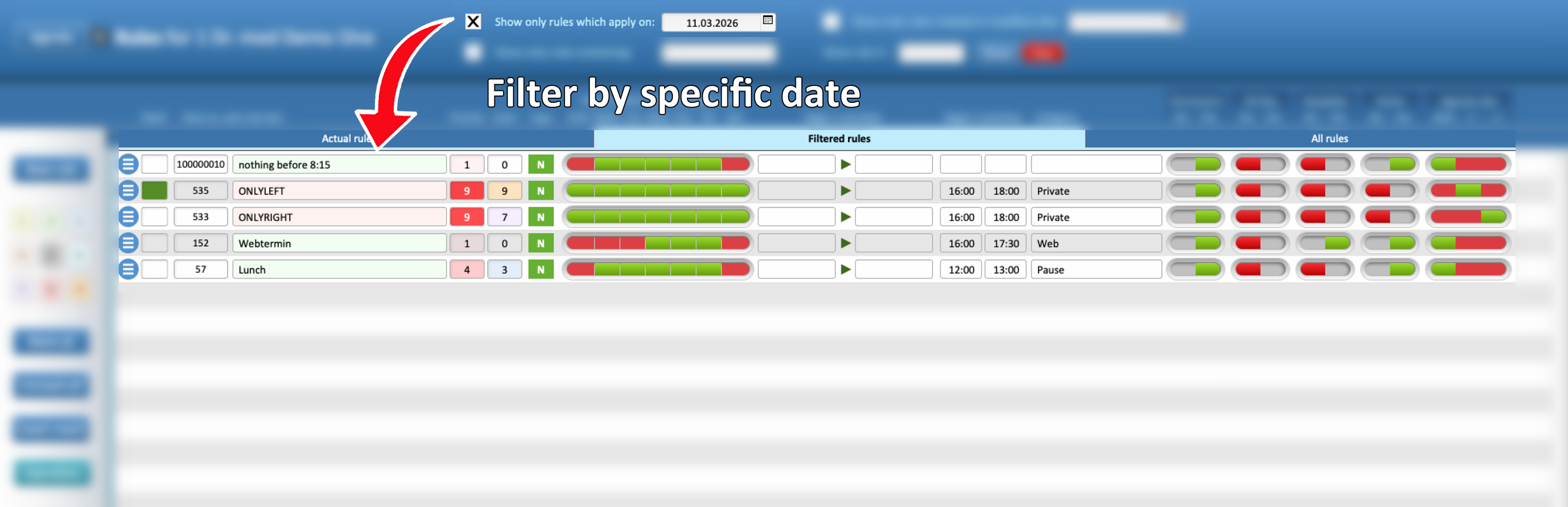
- Show Only rules which apply on displays Rules active on the selected specific date
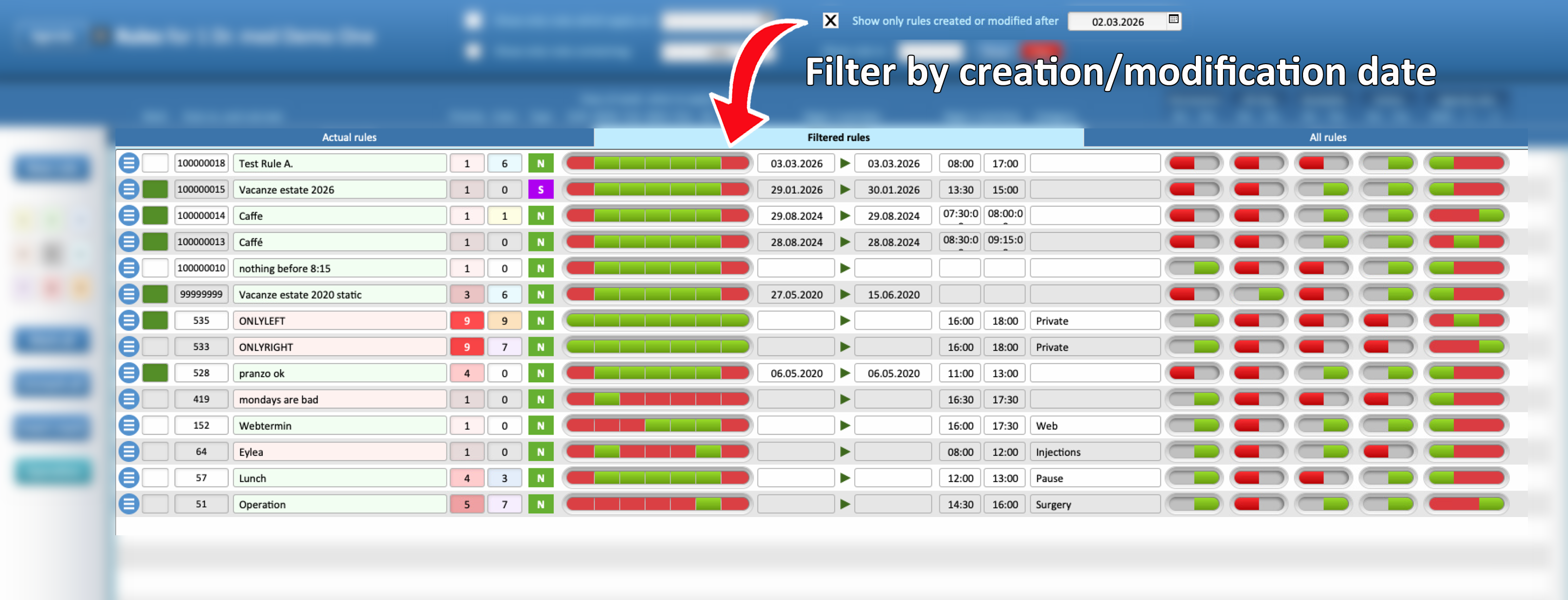
- Show only rules created or modified after displays Rules created or modified after the selected date.
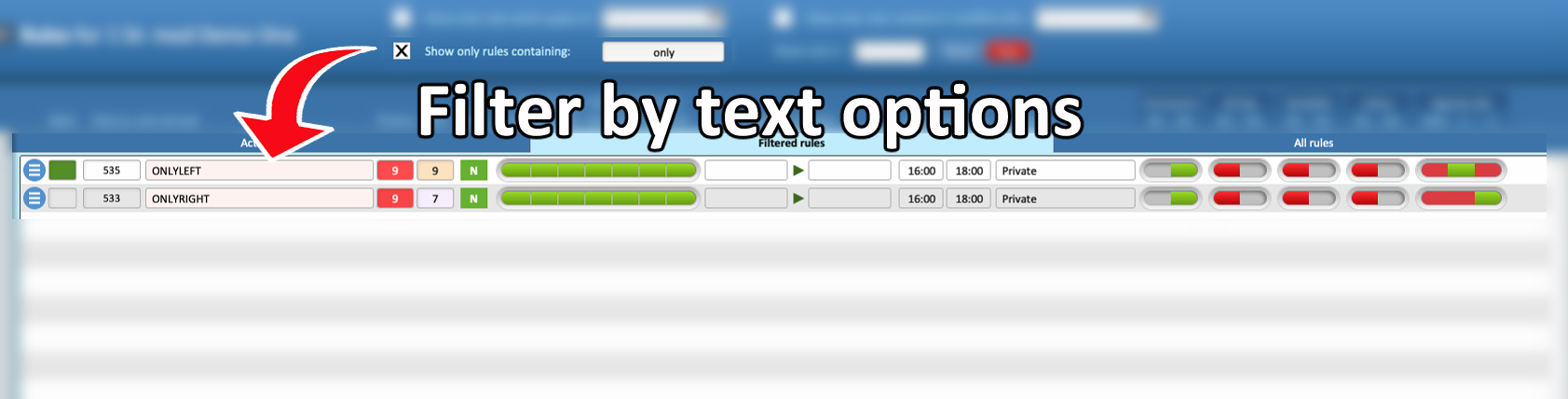
- Show only rules containing displays Rules containing the entered text.
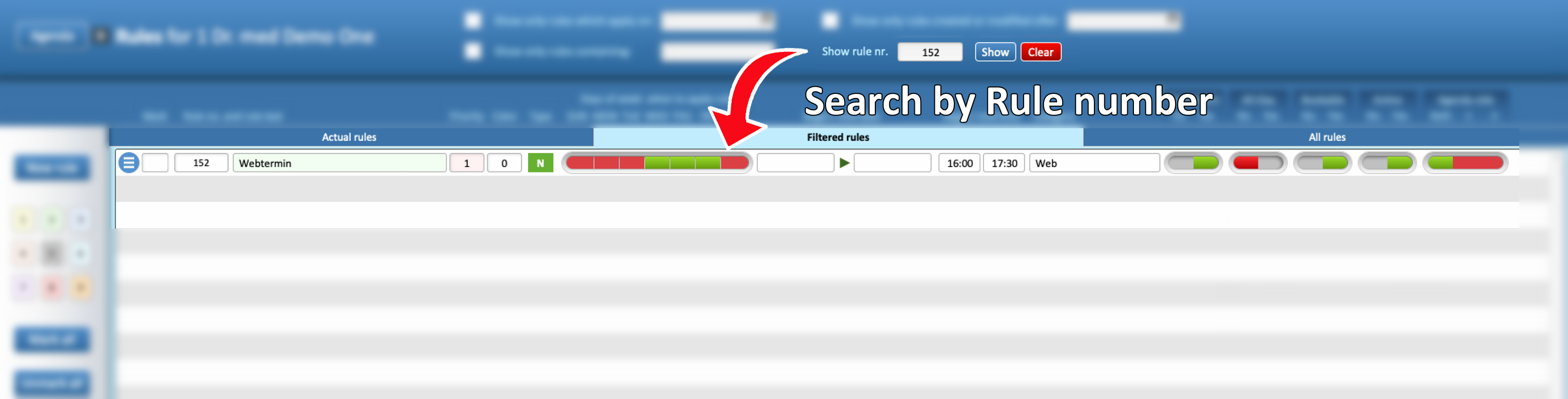
- Show rule nr. allows searching for a specific Rule by its identification number.
5. Bulk Operations
- In the left side of the windows, the following buttons:

•. Mark All selects all Rules.
•. Unmark All deselects all Rules.
• .Invert Mark reverses the current selection.
- Operation allows you to:
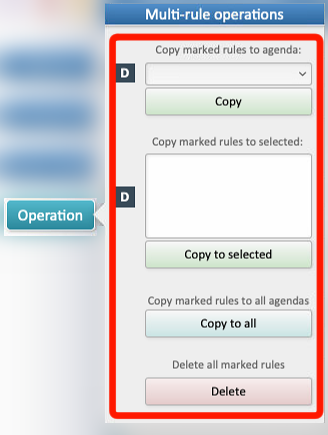
•. Copy selected Rules from one user to another
•. Copy selected Rules to multiple users
•. Copy selected Rules to all users
•. Delete selected Rules
6. Single Rule Actions
- Three-line menu icon clicking the three-line menu icon next to a Rule allows you to duplicate it or to delete it individually


