


 137
137
How to easily create a TARDOC Invoice in EyeSoft
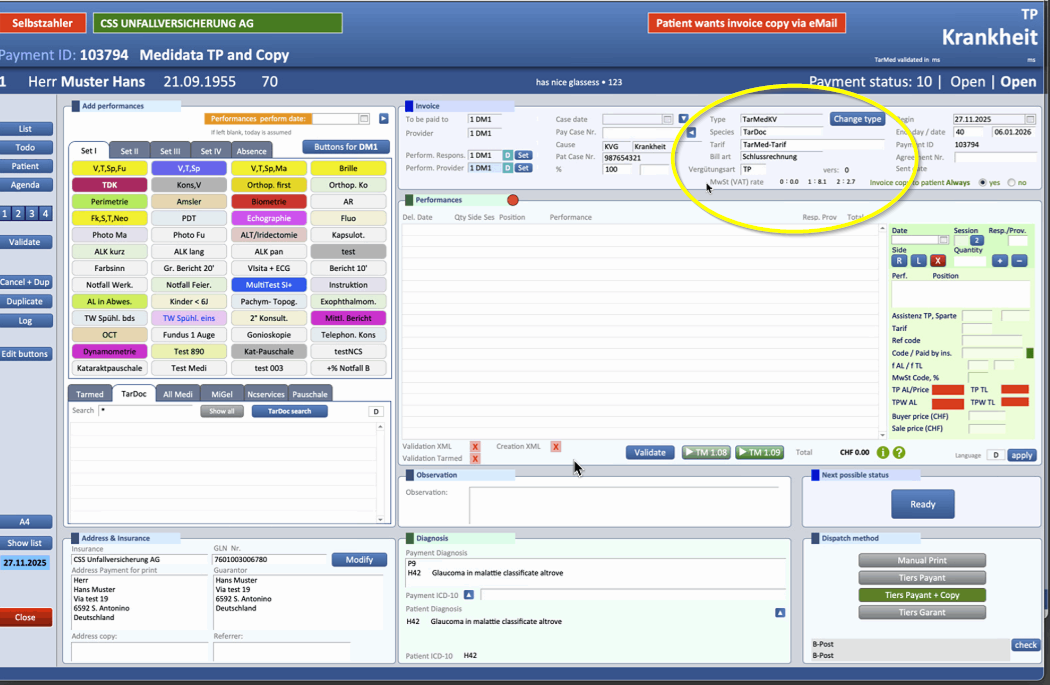
The invoicing flow remains almost identical to TarMed System:
-
Setting the Invoice Type
-
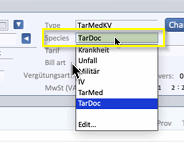
When creating the invoice, you must ensure that the TARDOC option is selected
-
If you need to create a retroactive invoice, simply set the option to TARMED.
-
Note: The mixed button will automatically add only the appropriate performances (TARDOC or TARMED) based on the selection in the invoice
-
-
Adding TarDoc Performances
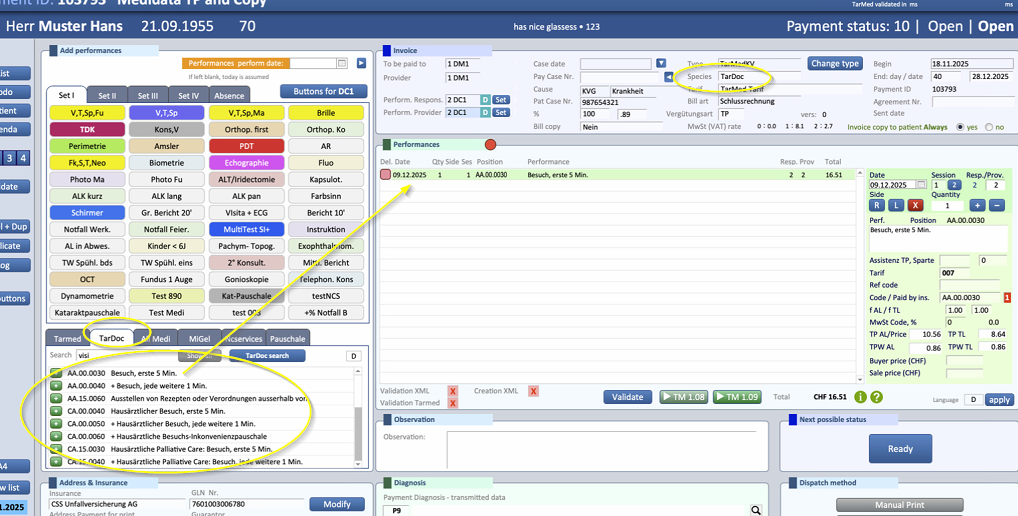
Select the right perfomance from the TarDoc list...
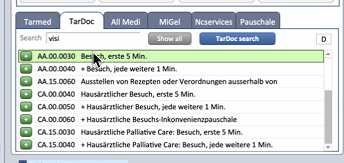
...and add it to the invoice by simply pressing the "+" button
-
Adding Pauschale
-
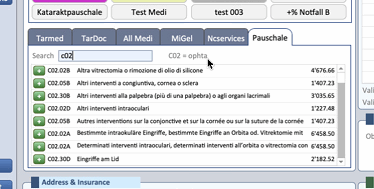
To enter a flat rate performance, simply click on the Flat Rate tab (Pauschale), then use the search field to find the one you want:
-
-
Invoice Validation
-
The validation process (using the
VALIDATEbutton) remains unchanged
-
Settings
Important setting to be configured on January 1, so that every new invoice will be created correctly.
Settings >> Payments >> Tarmed Settings
Parameters:
- Bill specification: TarDoc
- Diagnosis first Line (xml): P9
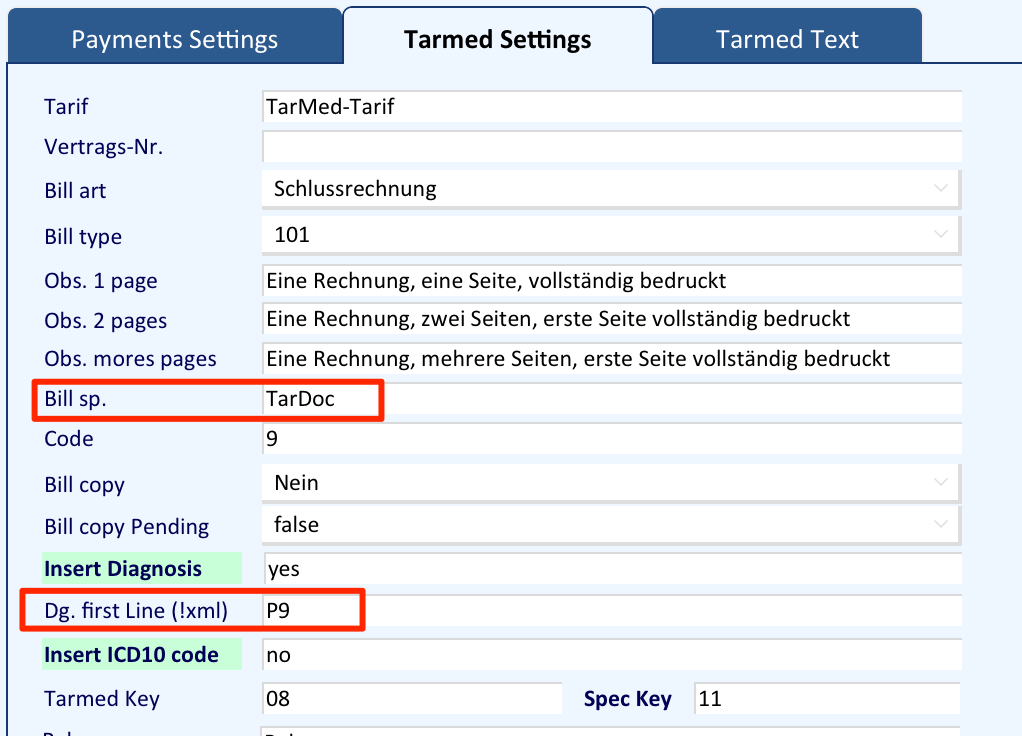
the latest informations about specifying the diagnosis in the invoice are to be found here:
https://tarifeambulant.fmh.ch/wichtige-tarif-info.cfm
as specified in the linked document above, for KVG invoices without flat rate performances a Tessiner Code is mandatory, therefore P9 as default is ok. However, for all other situations, the use of ICD10 goes from possible to mandatory.
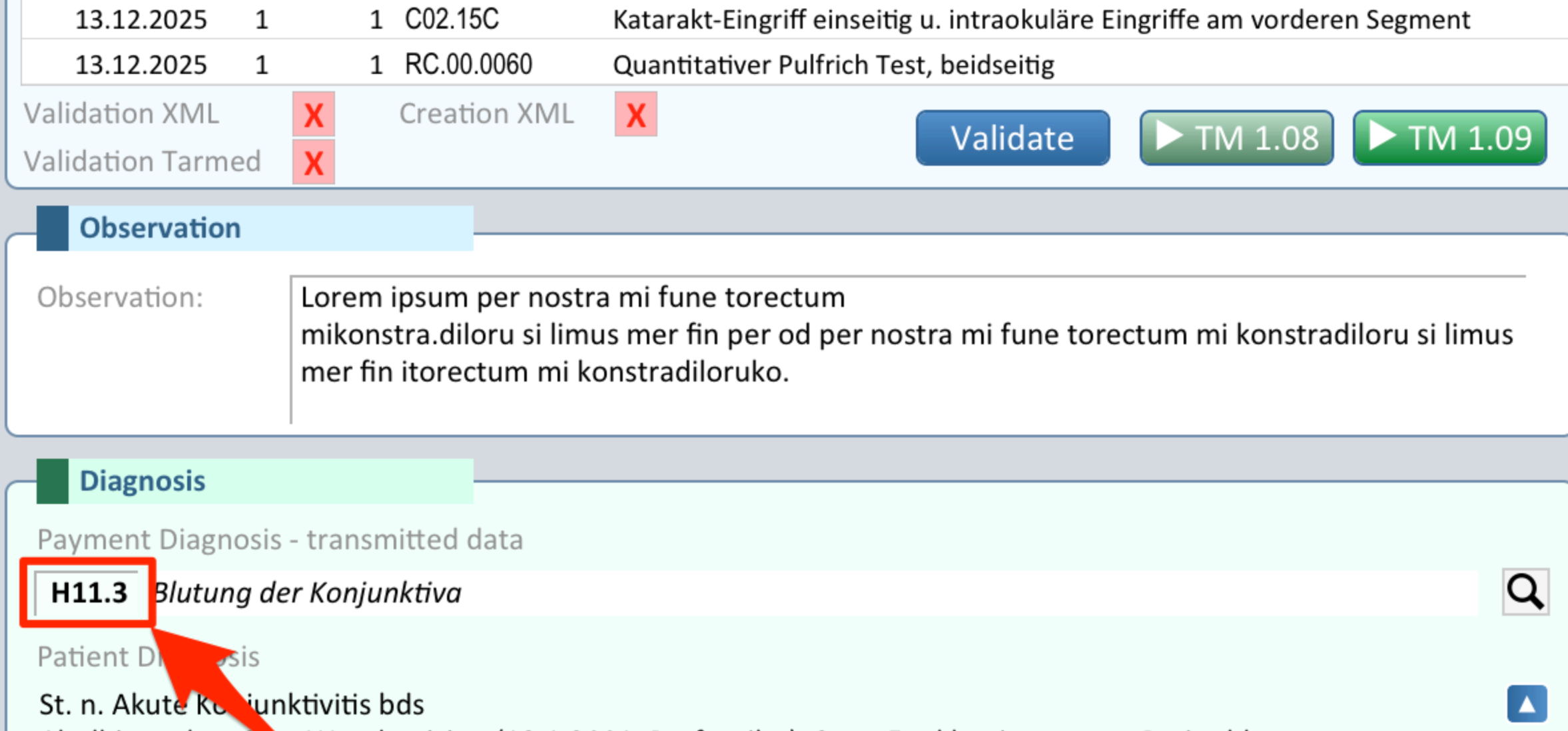
The payment disease code – whether it is a Ticino code or ICD10 – must be unique; multiple codes must not be entered. In the case of multiple pathologies, the most relevant one must be chosen. Eyesoft automatically encodes the type of code in the payment according to its length, which is always 2 for the Ticino code and always more than 2 for ICD10. This code must be entered here (and for a new payment, P9 is always proposed as specified in the Settings):
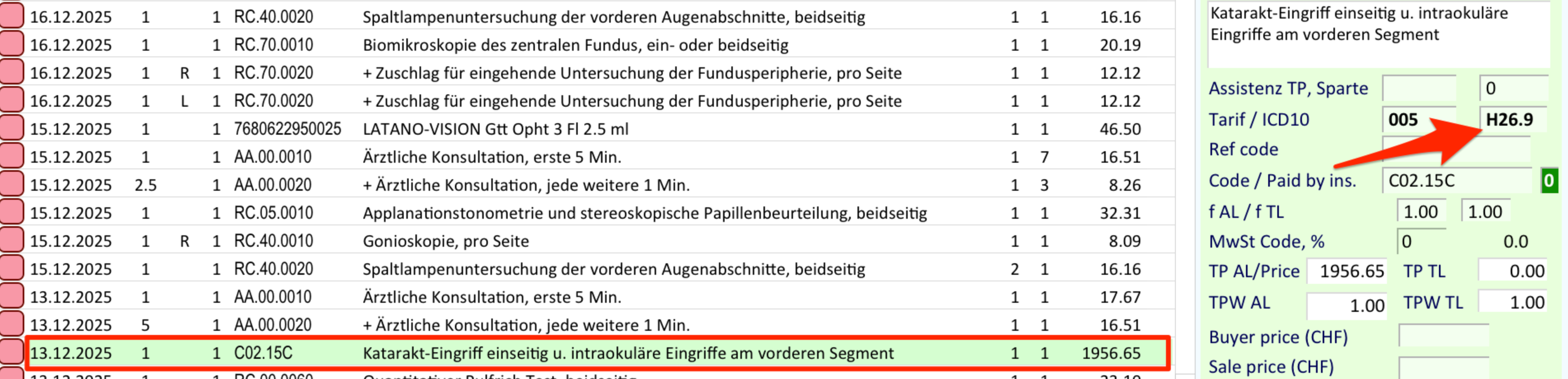
If a single position requires an ICD10 code specifically for it, as may be the case for a flat rate performance, then the code can (and should be) entered here:
See this manual for instructions on creating an NCService

