639
639
How to easily perform the procedure to convert the Performance Buttons in EyeSoft from TARMED to TARDOC
This document guides EyeSoft customers in converting existing performance button sets (TARMED) into "mixed" TARMED/TARDOC sets.
This operation is essential to ensure correct billing for both old and new invoices.
1. Converting Performances on Buttons
The goal is to populate the existing performance buttons (which contain TARMED codes) with their respective TARDOC equivalents.
-
Step 1: Access Settings
-
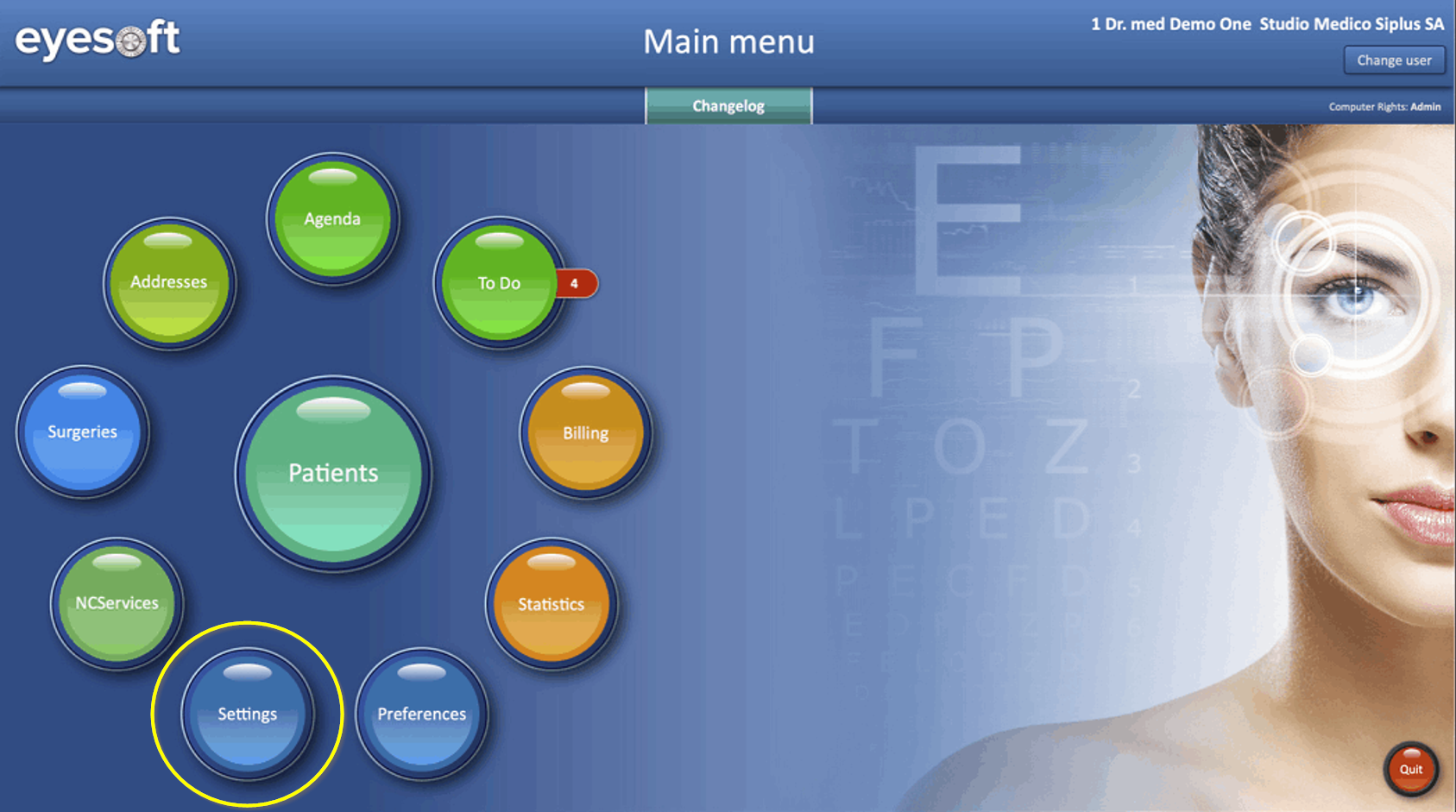
Go to Settings:
-
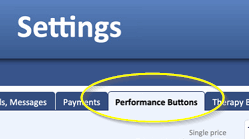
Open the Performance Button tab:
-
-
Step 2: Select and Convert each Button
-
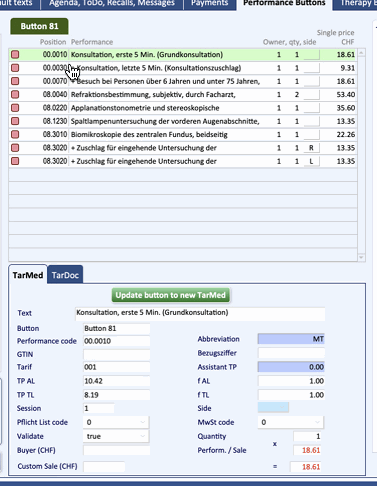
Choose the button you want to update...

... and you get the list of the perfomance actually contained in that "group of performances"
-
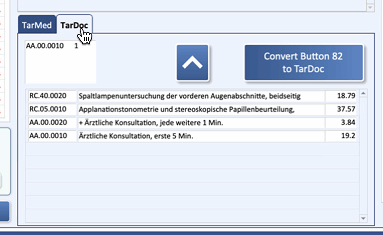
Click on the TARDOC button (lower section):
-
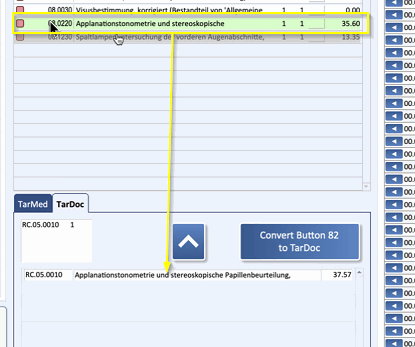
For each performance selected from the list above, EyeSoft suggests TarDoc codes that may be suitable for you.
-
If you agree with the proposal you can add the new services for the same button:
-
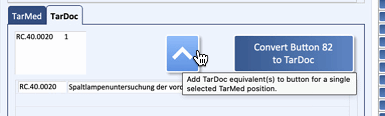
click the "up arrow" button in order to Add TarDoc equivalent(s) for a SINGLE SELECTED TarMed position..
-
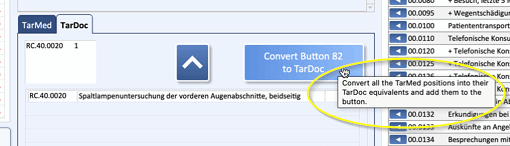
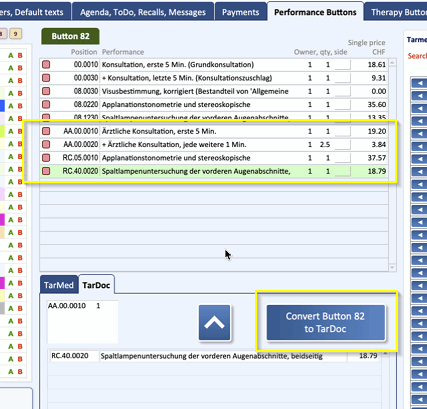
click the "button" in order to Convert ALL the TarMed positions into their TarDoc equivalents and add them to the button
-
New Perfomances are now added to previous TarMed Perfomances:
-
- IMPORTANT:
-
-
The system has created a mixed button that contains both the original TARMED codes and the new TARDOC codes.
-
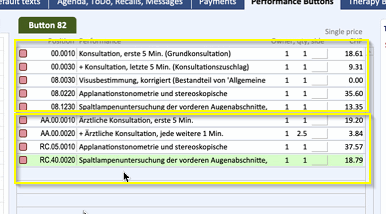
It is not necessary to delete the old TARMED codes. The system automatically uses:
-
TARMED codes if the invoice is set to TARMED (retroactive invoices).
-
TARDOC codes if the invoice is set to TARDOC (new invoices).
-
-
This allows you to create (e.g., in January 2026) retroactive invoices for 2025 by simply changing the type and using the SAME buttons:
-
-
- Step 3: Review and Modification (Critical Step)
- The automatic conversion is a suggestion based on internal catalog statistics and is NOT necessarily the best conversion.
It is the responsibility of the doctor/staff to check every converted button.-
Conversion Example
-
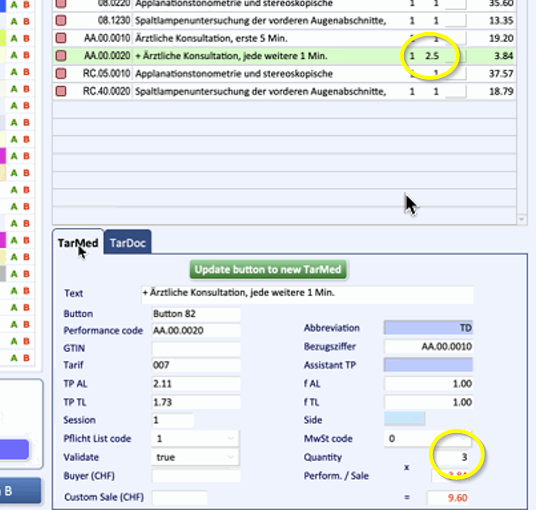
Quantity: If a TARMED performance is converted, the quantity may need to be manually edited
(e.g., divided by 2.5)
-
1-to-Many Conversion:
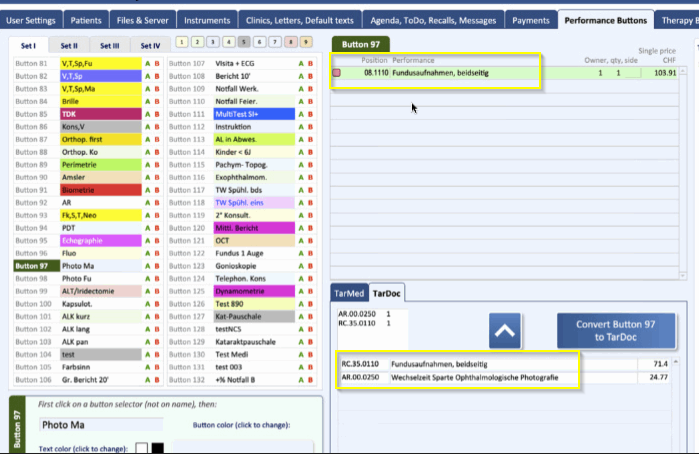
In rare cases (e.g., Fundus Photography), a single TARMED performance is split into two or more new TARDOC performances,
including a "special" performance
-
-
- The automatic conversion is a suggestion based on internal catalog statistics and is NOT necessarily the best conversion.
-
Step 4: Manual Addition of Performances (Optional)
-
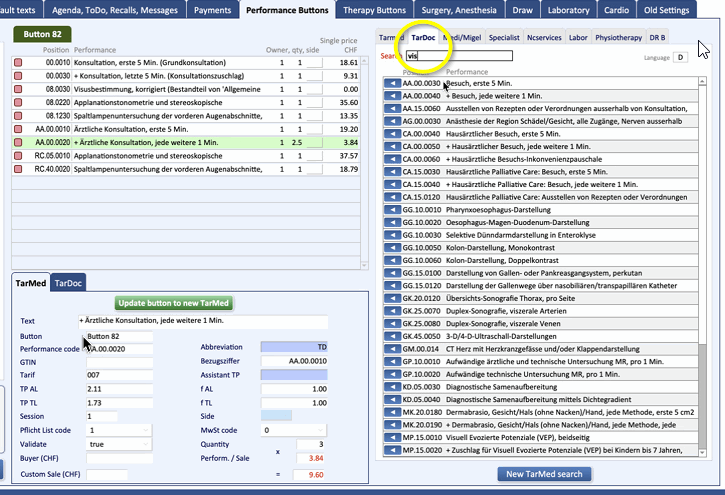
You can search for and add further TARDOC performances to the button:
-
Search the TARDOC catalog:
-
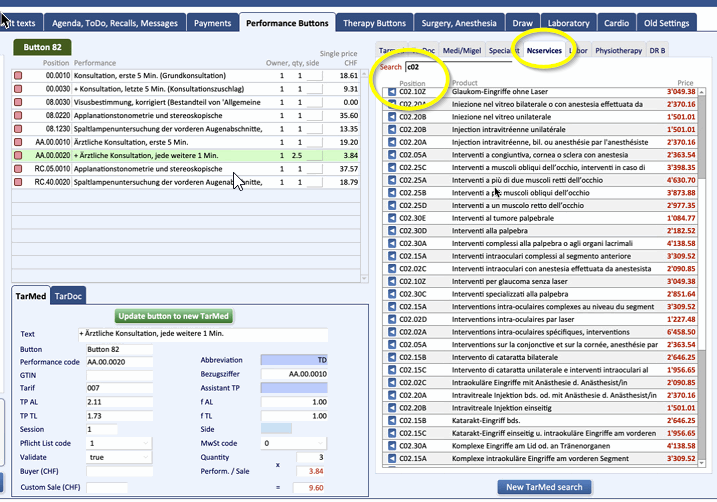
Pauschale (Fixed Prices):
Go to NC Services, in order to find the new Pauschale (fixed price) (e.g., C02), you can search by typing the code (C02)
-
-
You are done (for a single doctor, if you want to manage multiple users, see chapter 3).
Exit from Settings clicking on Menu:

-
2. Invoicing Process
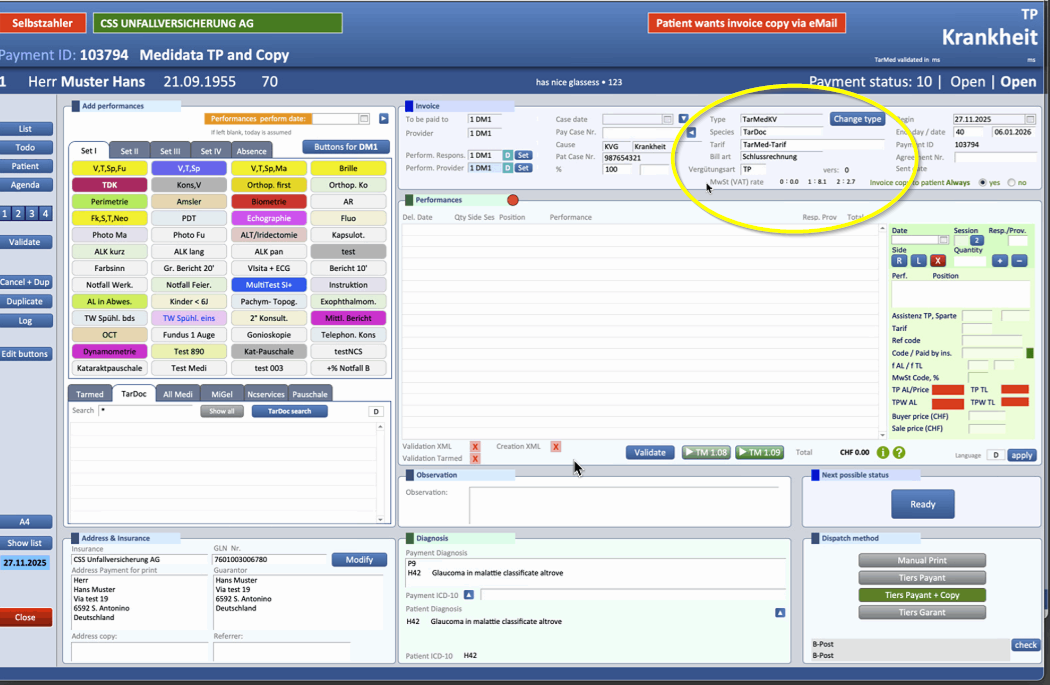
The invoicing flow remains almost identical:
-
Setting the Invoice Type
-
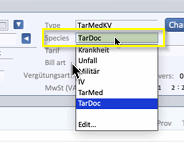
When creating the invoice, you must ensure that the TARDOC option is selected
-
If you need to create a retroactive invoice, simply set the option to TARMED.
-
Note: The mixed button will automatically add only the appropriate performances (TARDOC or TARMED) based on the selection in the invoice
-
-
Adding Pauschale
-
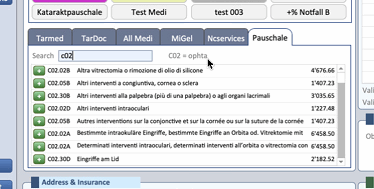
To enter a flat rate performance, simply click on the Flat Rate tab (Pauschale), then use the search field to find the one you want:
-
-
Invoice Validation
-
The validation process (using the
VALIDATEbutton) remains unchanged
-
3. Copying Settings Between Users (Administrators)
Once a set of buttons (e.g., set 1 of Dr. Demo 1) has been correctly converted and validated, it can be copied to other user profiles.
-
Step 1: Select the Target
-
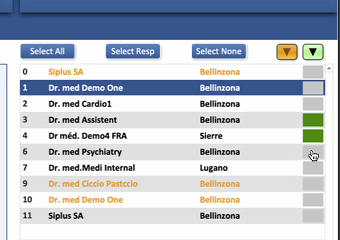
In Settings > Performance Button, select all the users/doctors to whom you want to copy the sets
-
Tip: You can use
Select Alland then deselect the source user (the one you are copying from)
-
-
Step 2: Execute the Copy
-
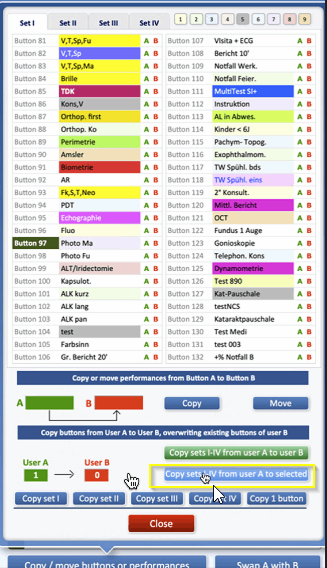
Use the button (see image), clic on set numbers (e.g.,
1, 4) and the source user (User A) -
The system performs the copy in a single step to all selected users.
-
Note: This allows all users to have a common base set of buttons while maintaining the possibility of having specific personalized sets
-
4. Settings
Important setting to be configured on January 1, so that every new invoice will be created correctly.
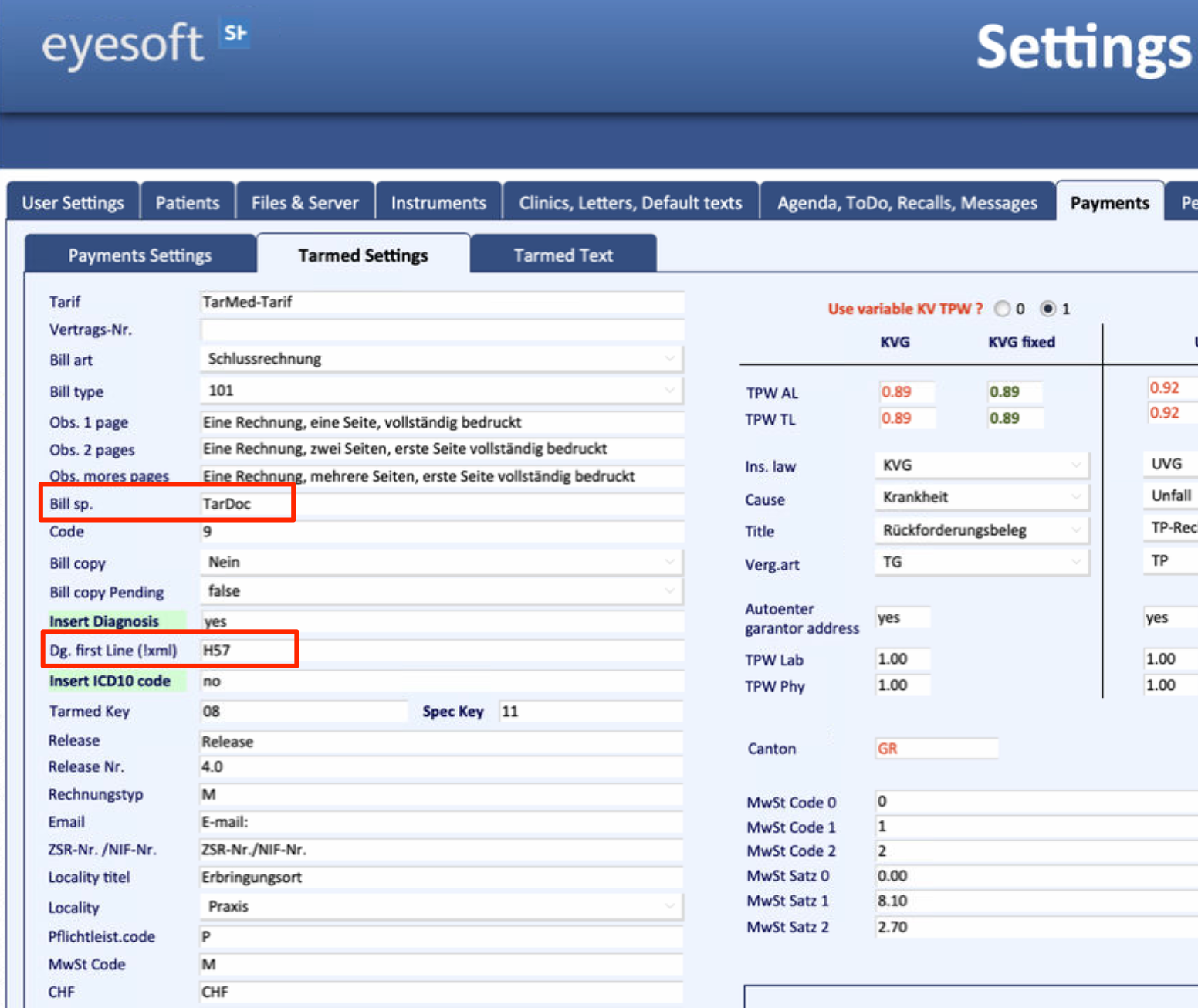
Settings >> Payments >> Tarmed Settings
Parameters:
- Bill specification: TarDoc
- Diagnosis first Line (xml): H57