


 578
578
1. Mail from Medidata
- Medidata error emails may look confusing, but the issue is usually simple and clearly indicated in the message
- Focus only on the specific error message, as it typically points directly to what is wrong in the invoice
- The problem is often a small mistake in the invoice rather than a complex system issue
- Identify the error message, understand the issue, and correct it to ensure the insurance accepts the invoice
2. How correctly read the error messages
The error messages can be of different types, here are the most common:
- The value 'X' of element 'Y' is not valid
- This indicates that the value entered in field X does not conform to the format or content requirements defined by MediData, or it might be empty
- The value 'X' of/on element 'Y' is not valid with respect to its type
-
This means that the value may be present and appear correctly formatted, but the type of information or code provided is not valid in this specific context.
-
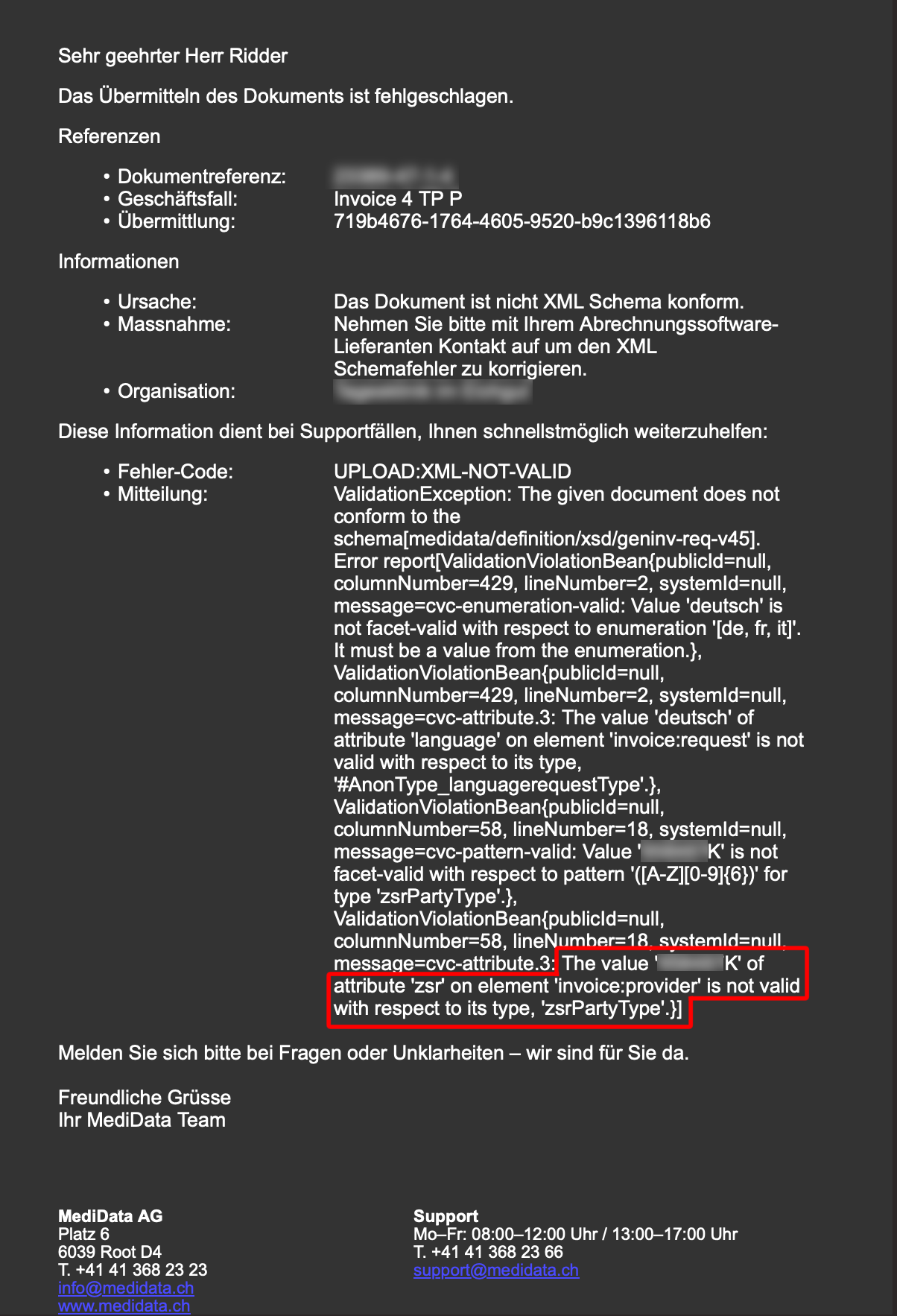
For example, a ZSR number ending with “K” may be correctly structured, but such codes are not permitted for billing purposes. As a result, the value is rejected by the MediData validator (this point is better explained below
-
How to understand if the field related to the error is filled or empty:
- If the value is shown as ‘X’ (where X represents any entered value), it means that the field is filled, but the information provided does not comply with the format or content accepted by MediData.
- If the value is shown as ‘’, it indicates that the field in question is empty.
- The element ‘Y’ refers to the specific field associated with the reported error.
-
Please refer to the practical examples listed below for further clarification.
-
3. How to locate the correct patient and invoice
- Check the Document Reference line to identify the correct records
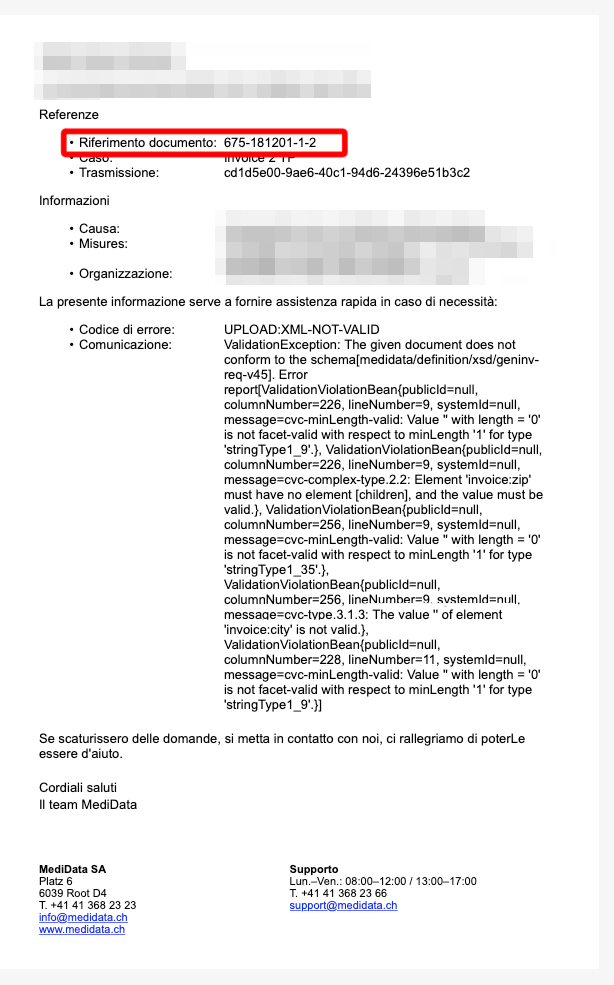
• The first number listed corresponds to the patient’s ID

• The second number listed corresponds to the invoice code

• These two numbers indicate exactly which patient and invoice need to be reviewed
4. Where to locate the line describing the Errors
- The error message from Medidata is usually located towards the bottom of the XML text
- Scroll down to the end of the XML file to find the line describing the issue (refer to image)
- The line describing the error of the invoice, always begins with "the value of"
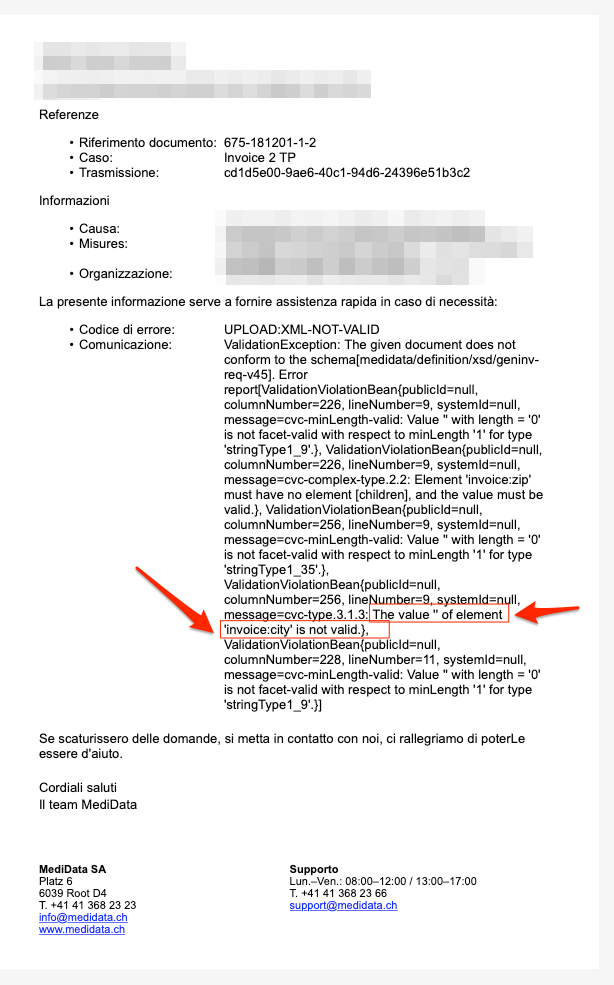
- This line contains the exact error that needs to be addressed
- In rare cases, the error may not be related to the invoice itself but to the email it was sent from
5. Errors List
- The value of the element "invoice:city" is not valid
Problem: This error refers to the patient's city or residence being filed incorrectly

Solution: Enter the correct city information by clicking Edit on the patient's profile

- The value "XXX" of attribute "zsr" on element "invoice:refer" is not valid
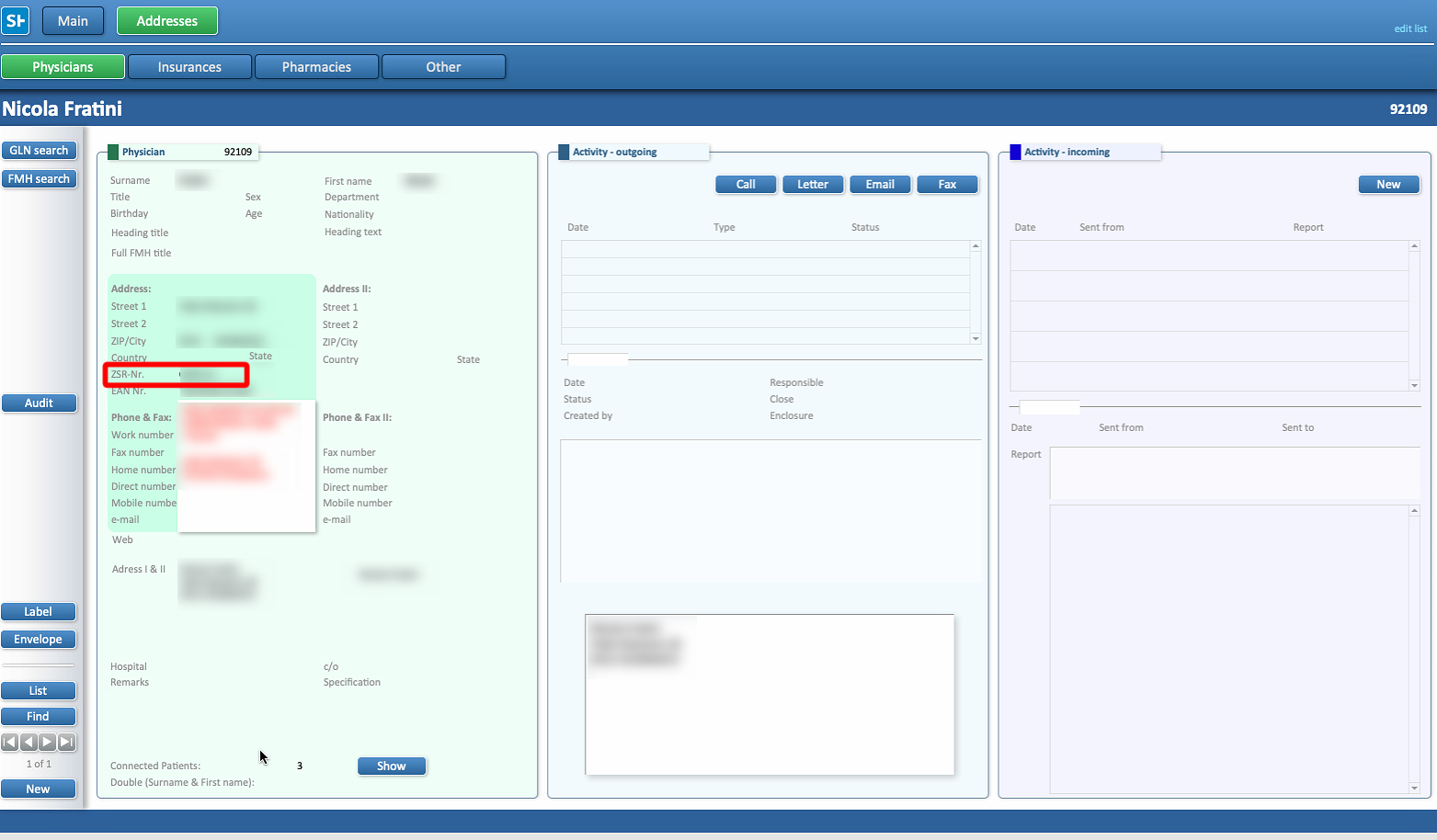
Problem: This error refers to the doctor's ZSR number not being filed correctly. In this case the code
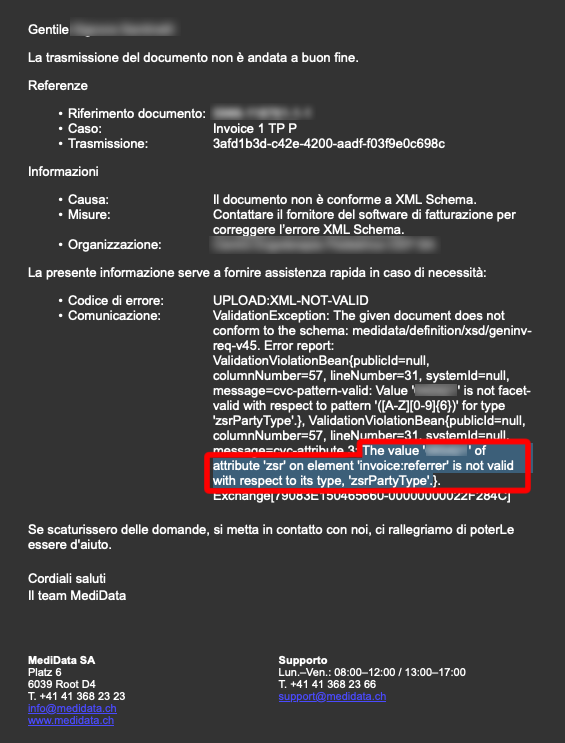
Solution: This error indicates that a doctor’s ZSR number has been recorded incorrectly and may be associated with two different positions.
- Case 1. Incorrect ZSR number for the physician.
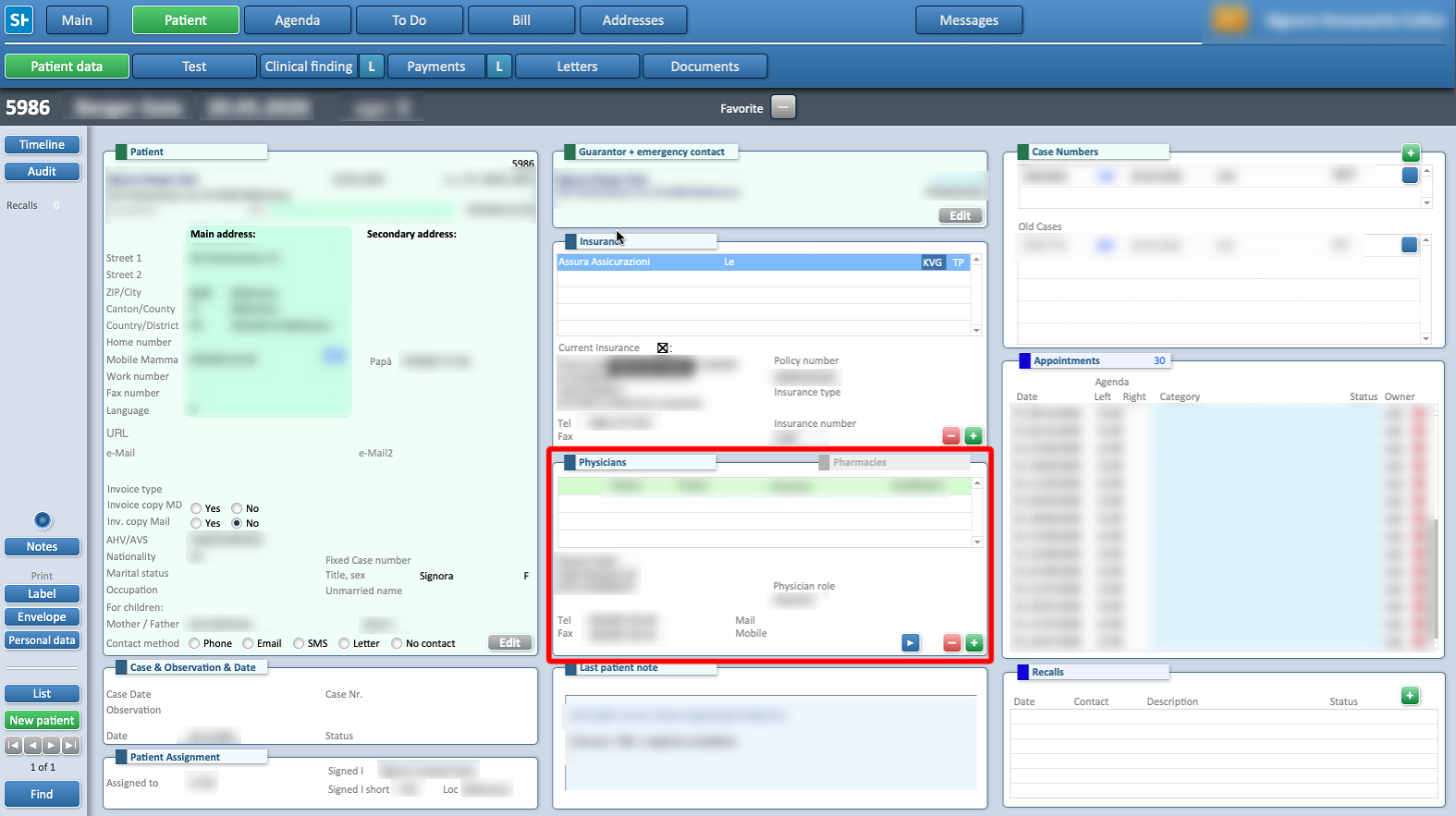
- In Patients, locate the patient profile related to the invoice in question (the ID is displayed at the top of the error report; see instructions above).
- Identify the physician and select the arrow ►.
- Verify the ZSR number. If it is incorrect, select the field and update the code directly.
- Changes are saved upon exiting the field.
- Case 2. Incorrect ZSR number for the clinic's doctor
- A dedicated guide addressing this issue is available at THIS LINK
⚠ Important: ZSR should always contain at least a letter, in cases in which it doesn't, the correct code can be found HERE
-
Numbers containing K cannot be used for billing (Refer to image below)
-
In this case, a second ZSR must be added, either of the clinic, or of a supervisor
- The value "" of element "invoice:street" is not valid
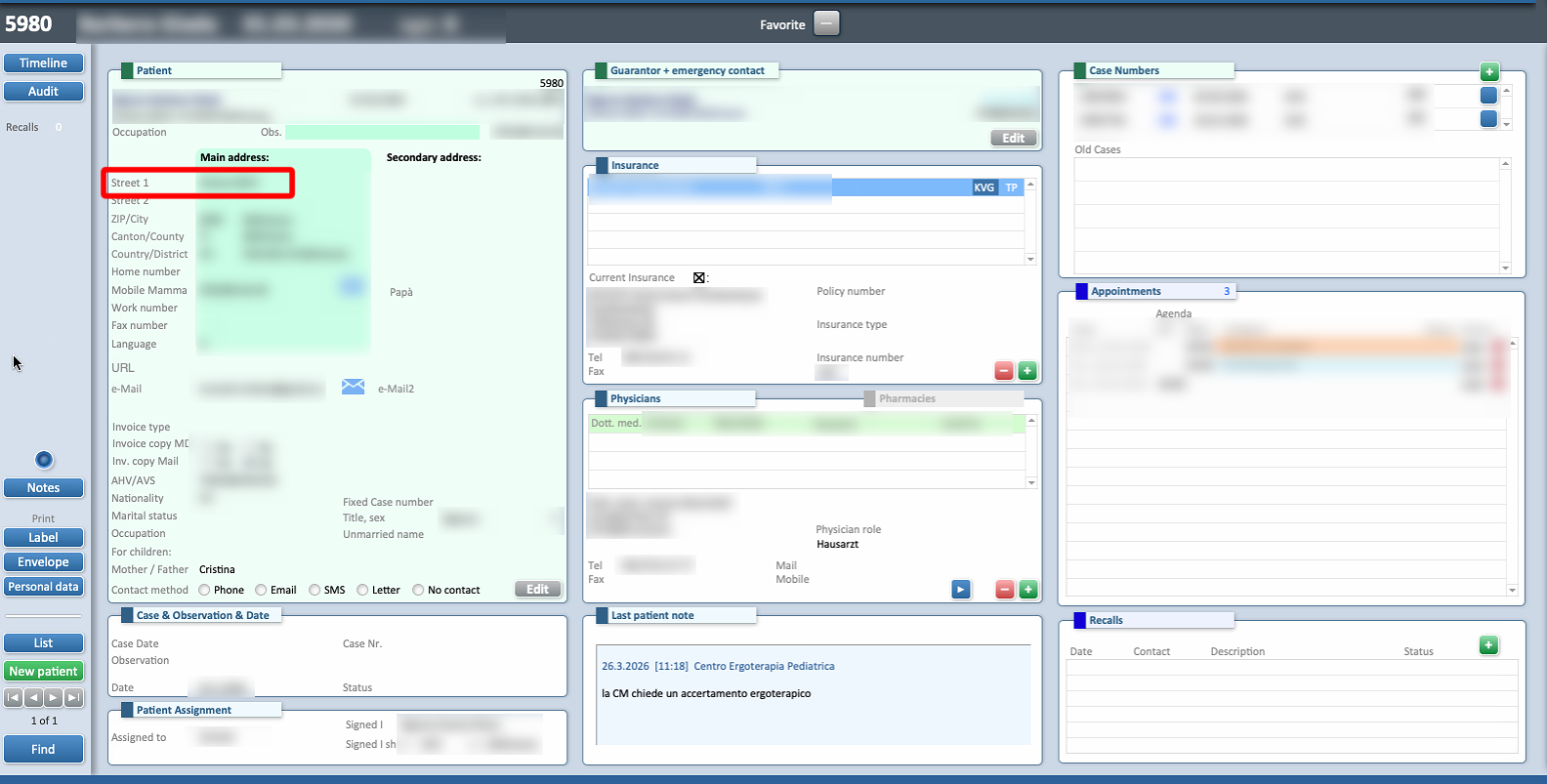
Problem: This error refers the patient's street not being filled correctly
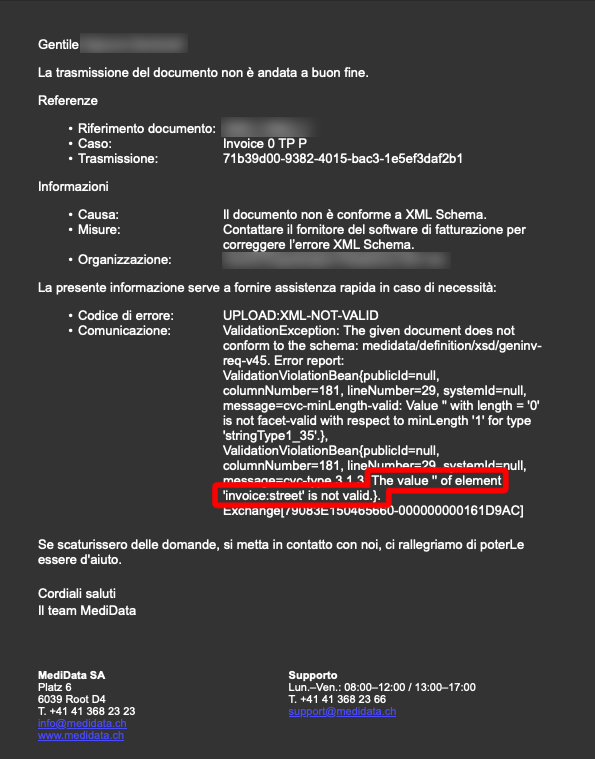
Solution: his error may indicate that the patient's street information is entered in a format not accepted by the Medidata system. Access the patient’s profile, select Edit to modify the information, then press OK to save the changes.
- Transmission via Patient Portal to the recipient [email protected] was rejected.
Problem: The data recipient’s email address does not end with .ch
Solution: Update the recipient’s email to one accepted by MediData or select an alternative transmission channel.
- The value " of element 'invoice:familyname' is not valid
Problem: The Family Name might be filed incorrectly or empty.
- In some cases, it might not be present in the guarantor section of the invoice, which is now required to be filled.
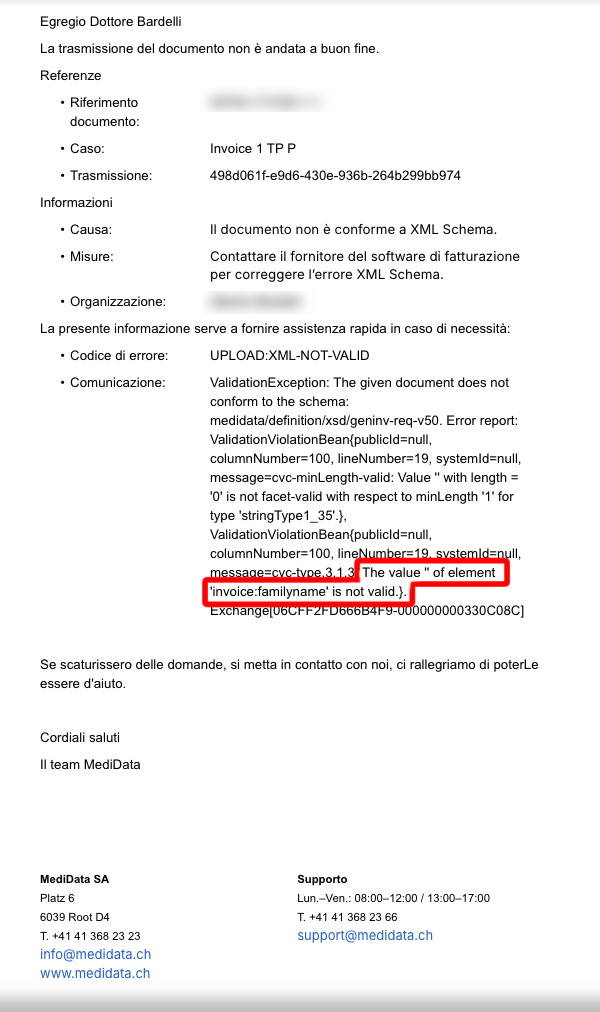
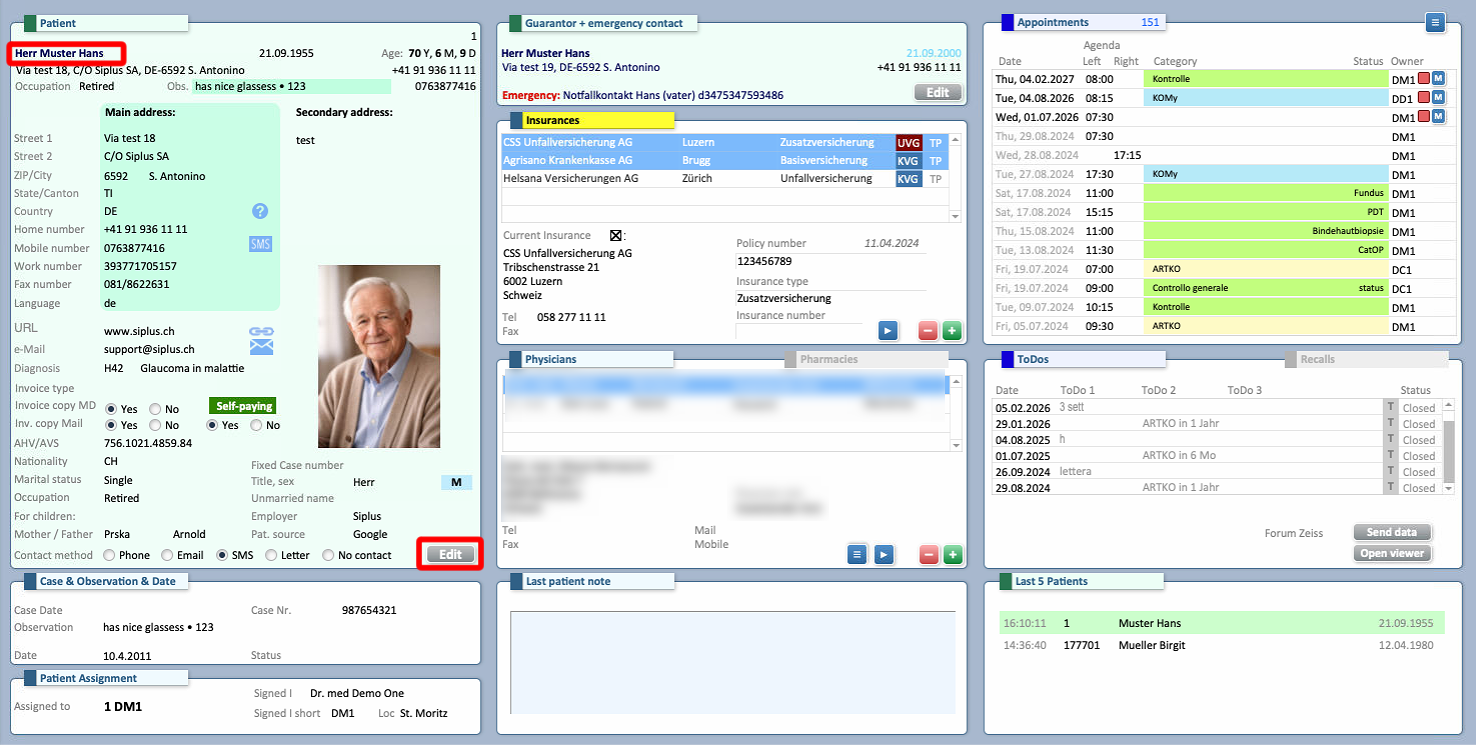
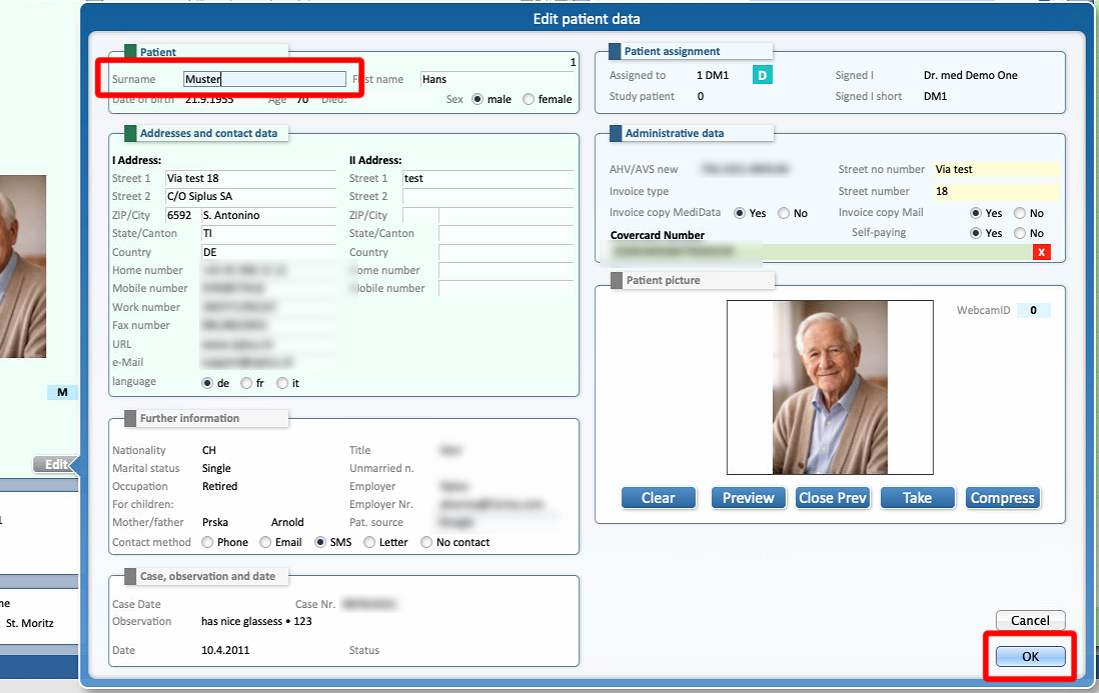
Solution: Select the correct patient and check the Family Name field. If missing or incorrect, press on Edit to correct, and OK to confirm the change
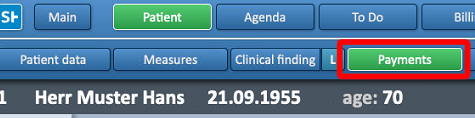
The issue may also be caused by a missing guarantor on the invoice, the guarantor’s details must be entered in the appropriate field of the invoice (see images below).
Please note that the guarantor is typically the same as the patient. Exceptions apply when the patient is a minor or has a legally assigned guardian, such as in the case of elderly individuals or those under guardianship
| Family Name missing
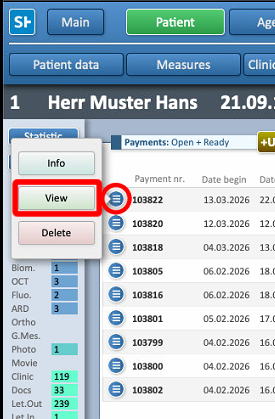
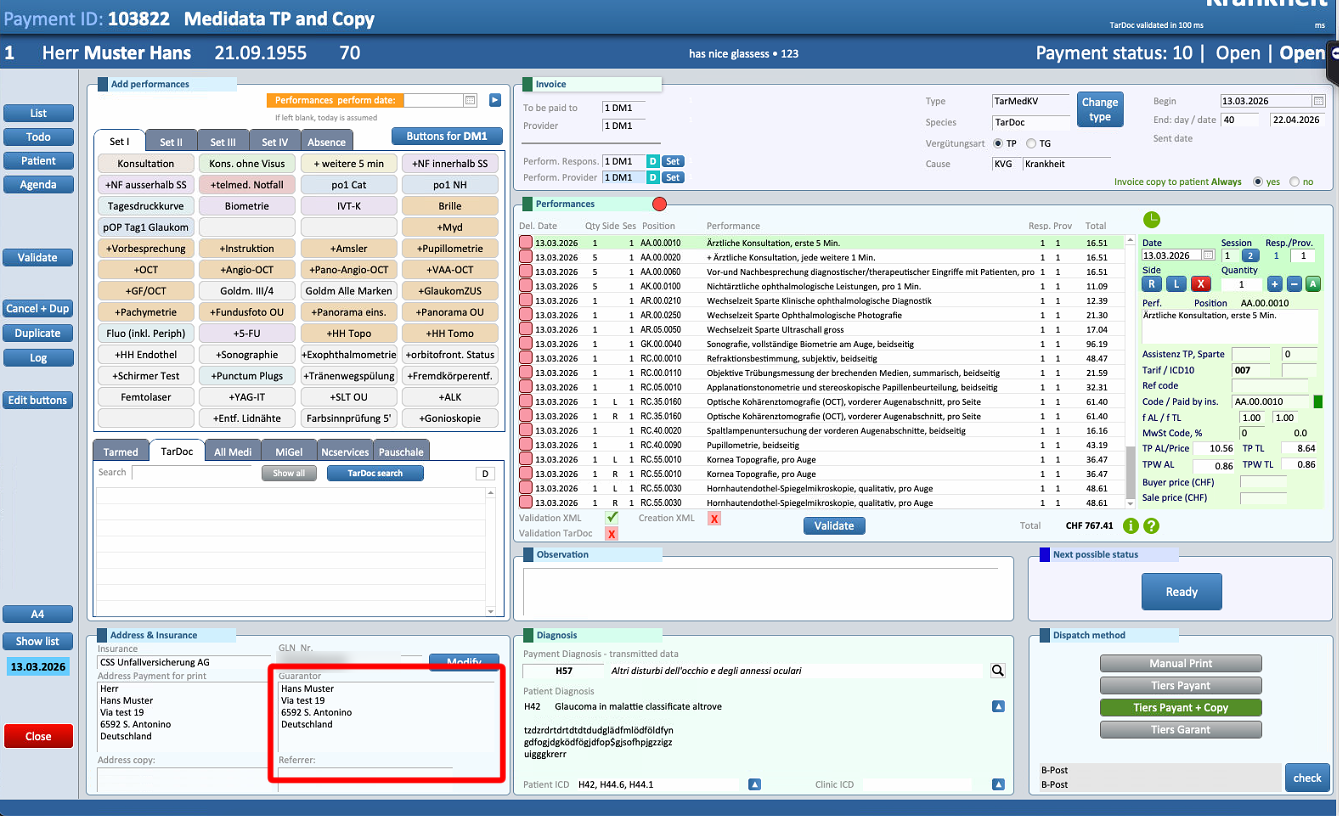
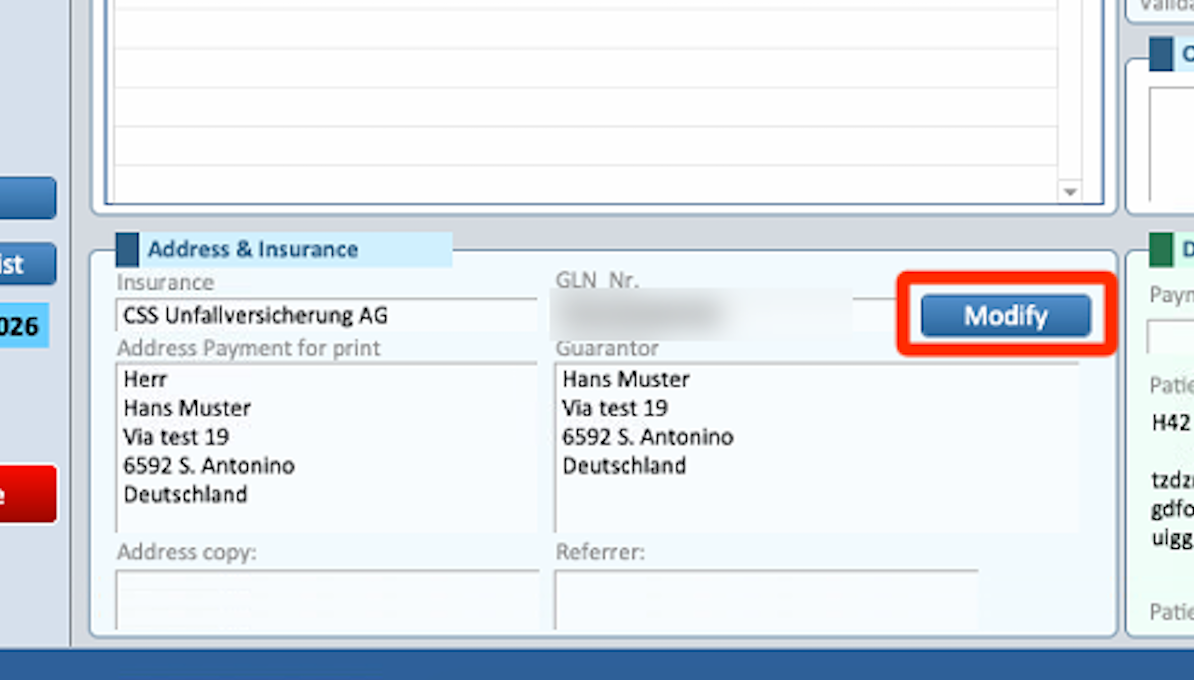
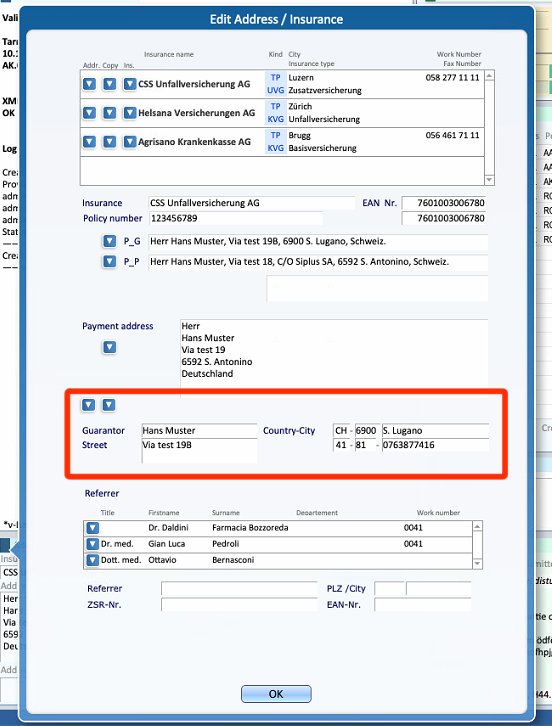
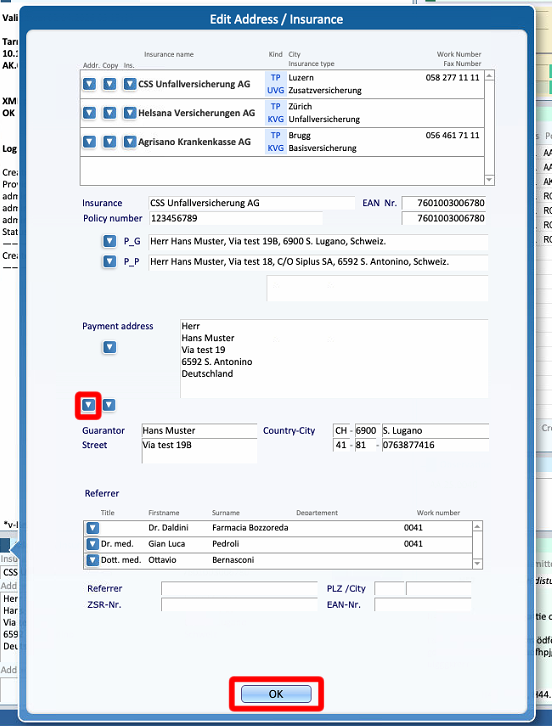
For instructions on how to add or edit a guarantor, please refer to THIS GUIDE
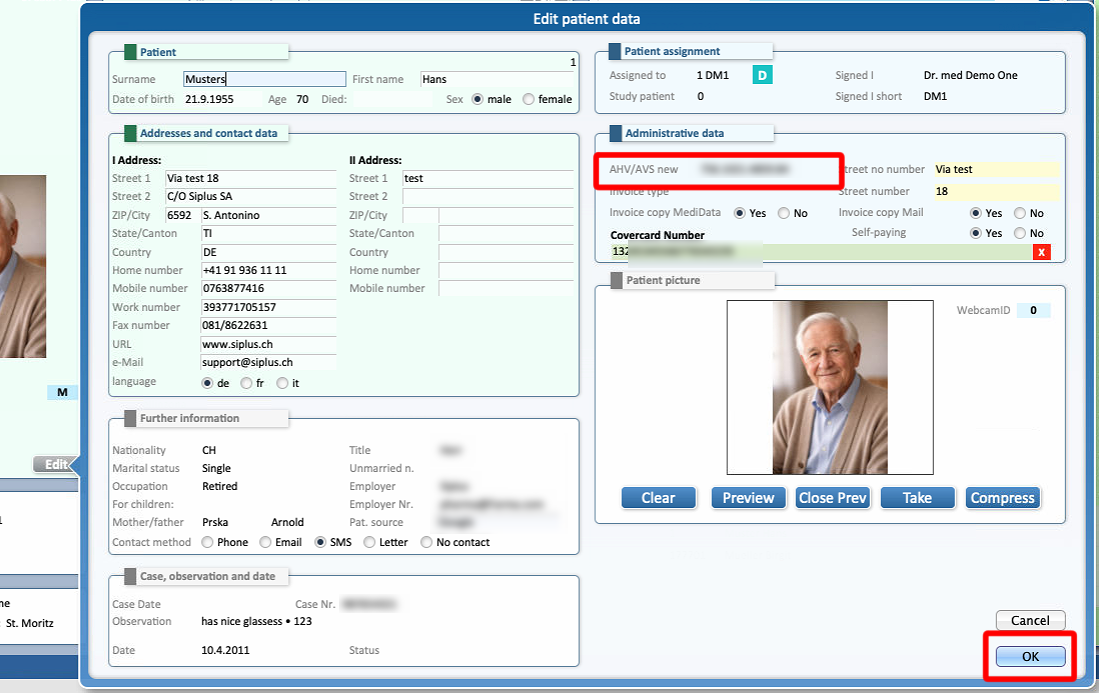
- The value " of attibute 'ssn' on element 'invoice:patient' is not valid
Problem: The patient's AHV/AVS number is either incorrect or empty
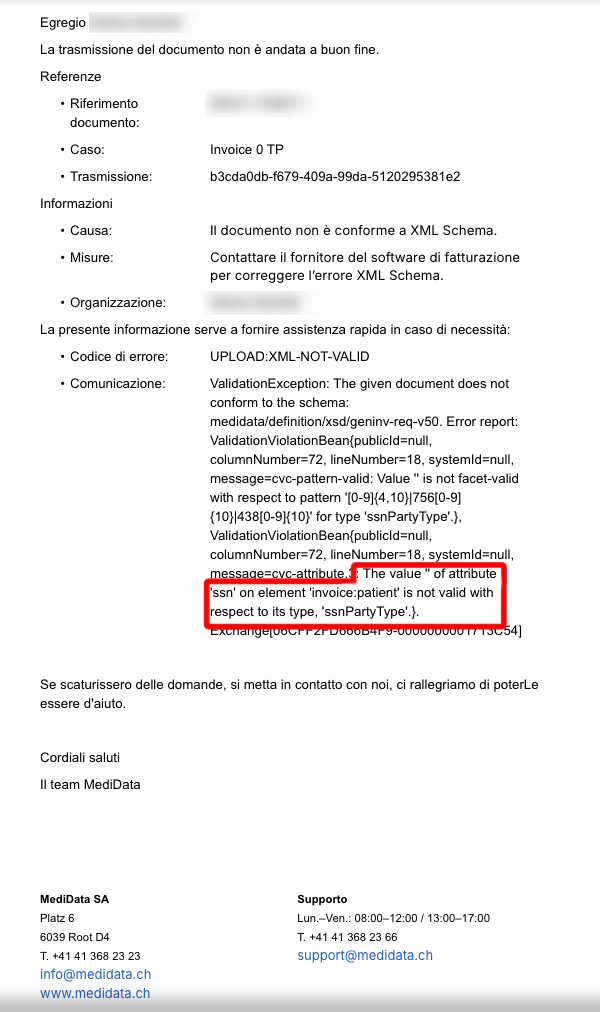
Solution: In the patient's profile, select Edit, then correct or fill the AHV/AVS field. Then select OK to confirm the changes.
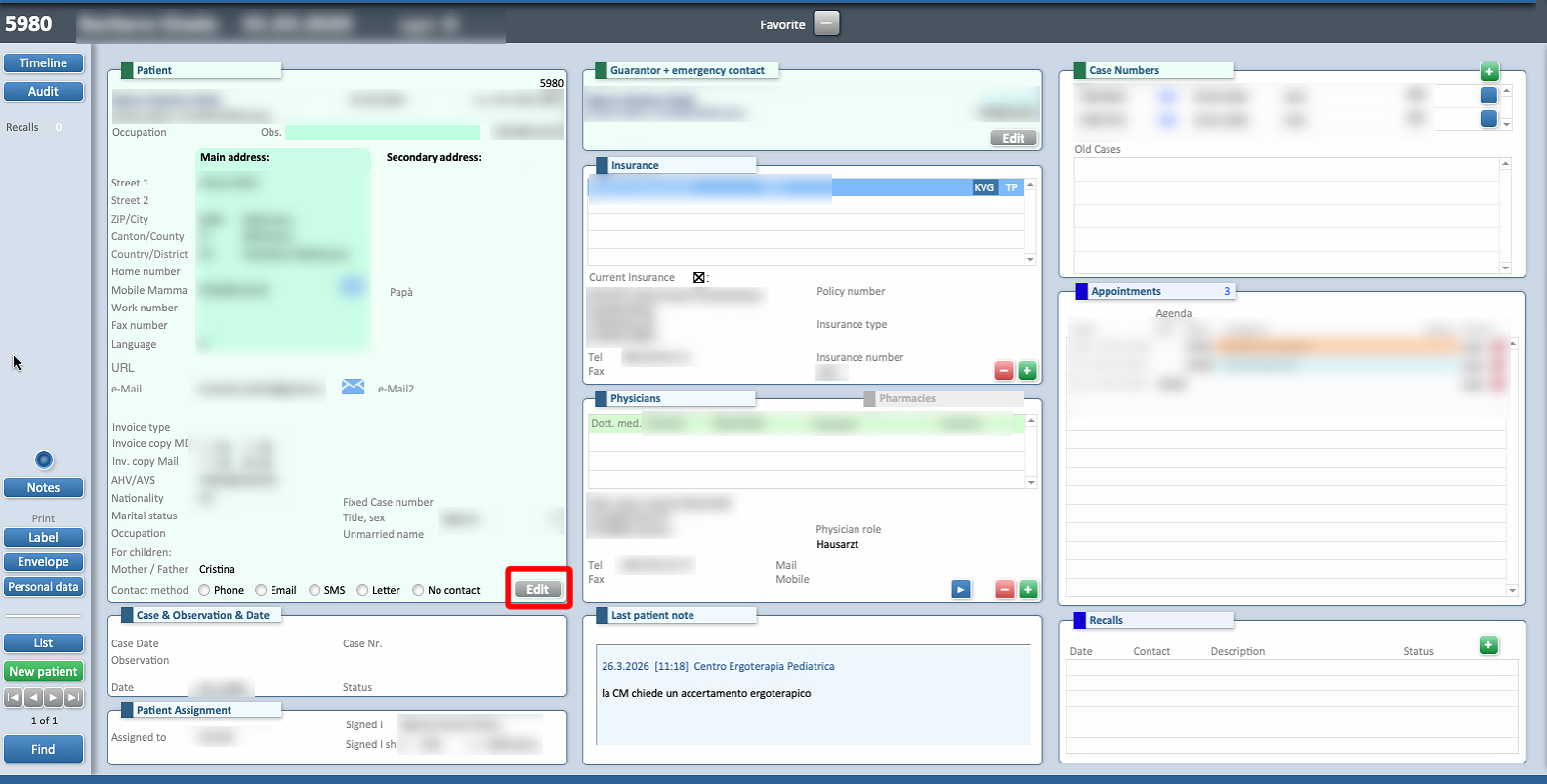
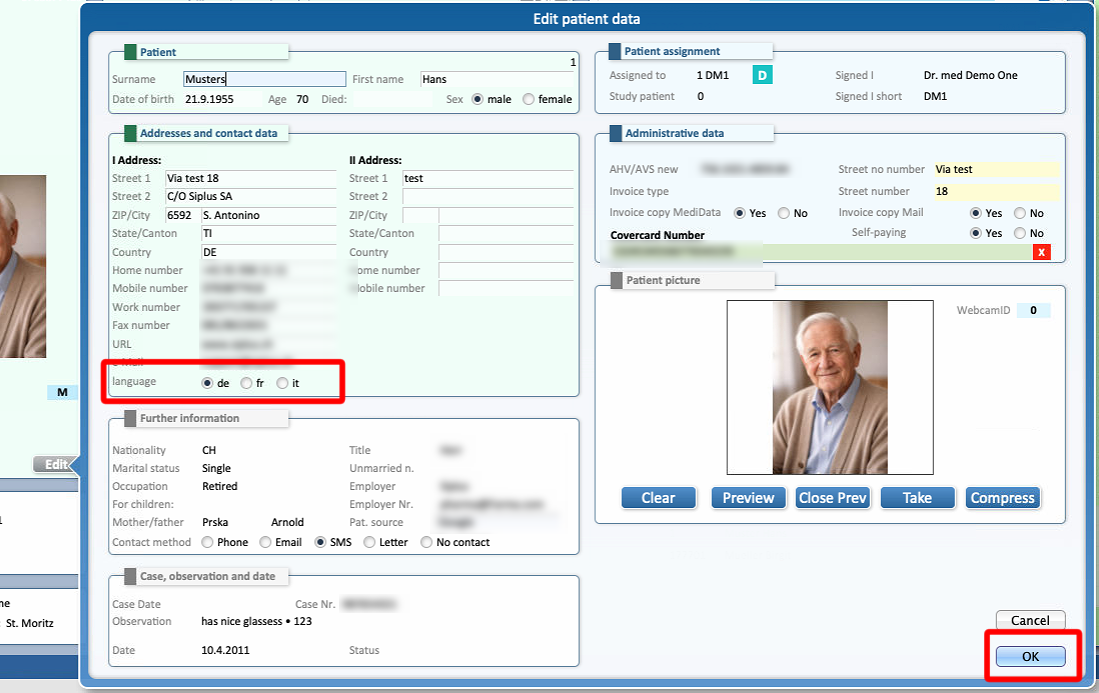
- The value 'XX' of attribute 'language' on element 'invoice:request' is not valid
Problem: The language field might be incorrectly entered in a format not accepted by MediData or empty
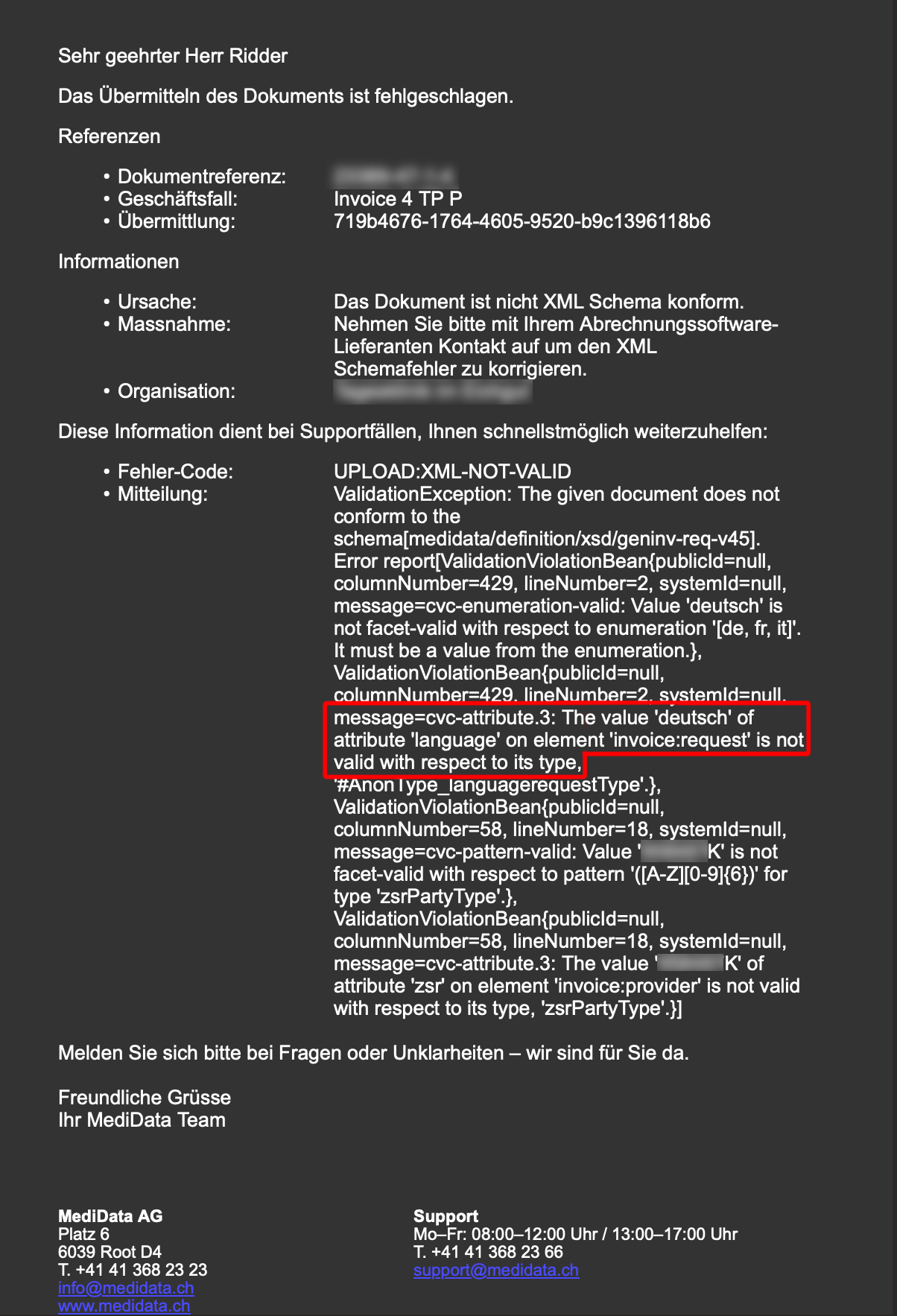
Solution: Verify the language has been correctly entered. The accepted values are de, fr or it.
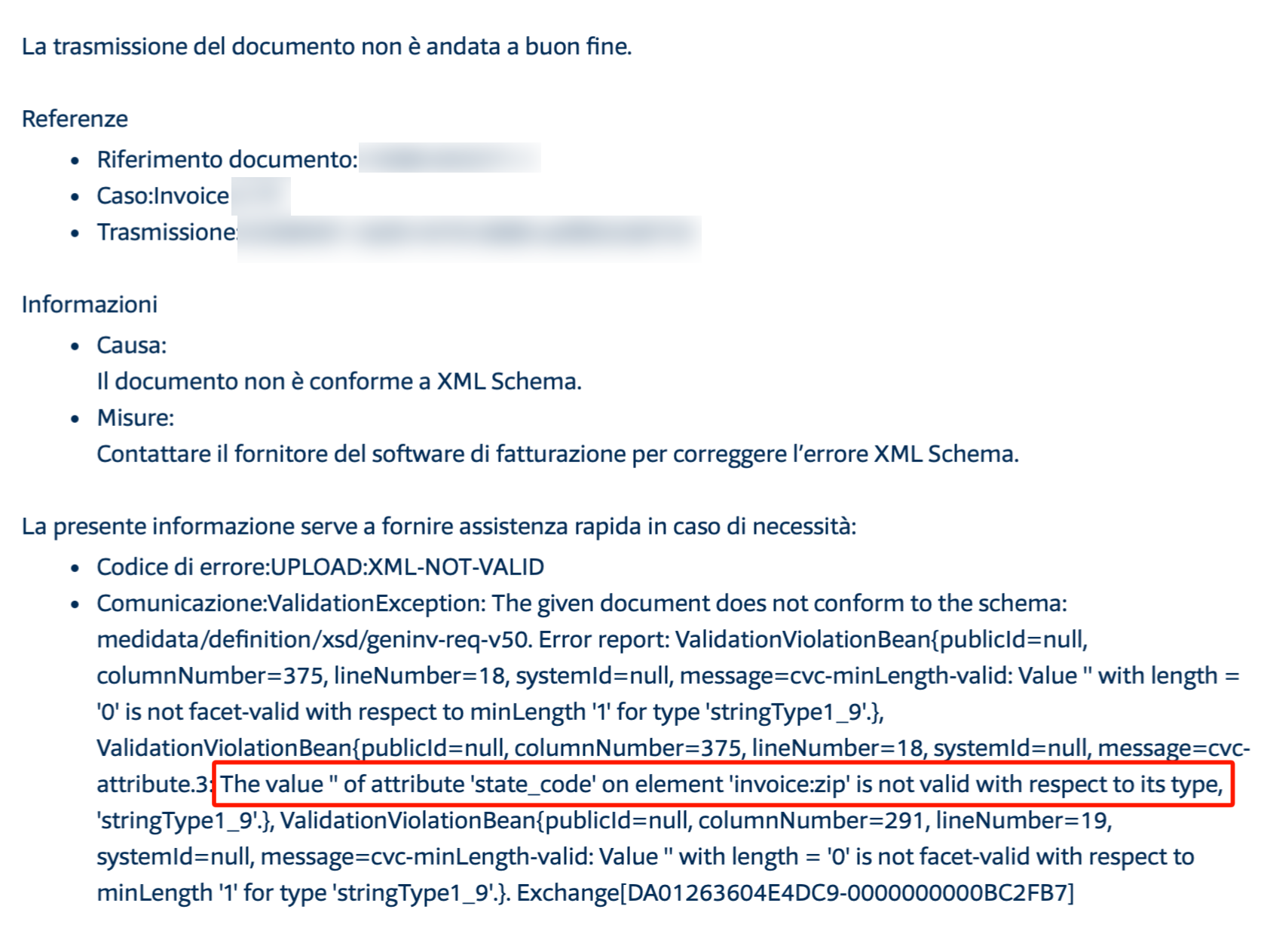
- The value 'XX' of attribute 'state_code' on element 'invoice:zip' is not valid
Problem: The field State/Canton in the Patient's profile might be incorrectly entered in a format not accepted by MediData or empty
Solution: Verify if the state/canton has been correctly entered.
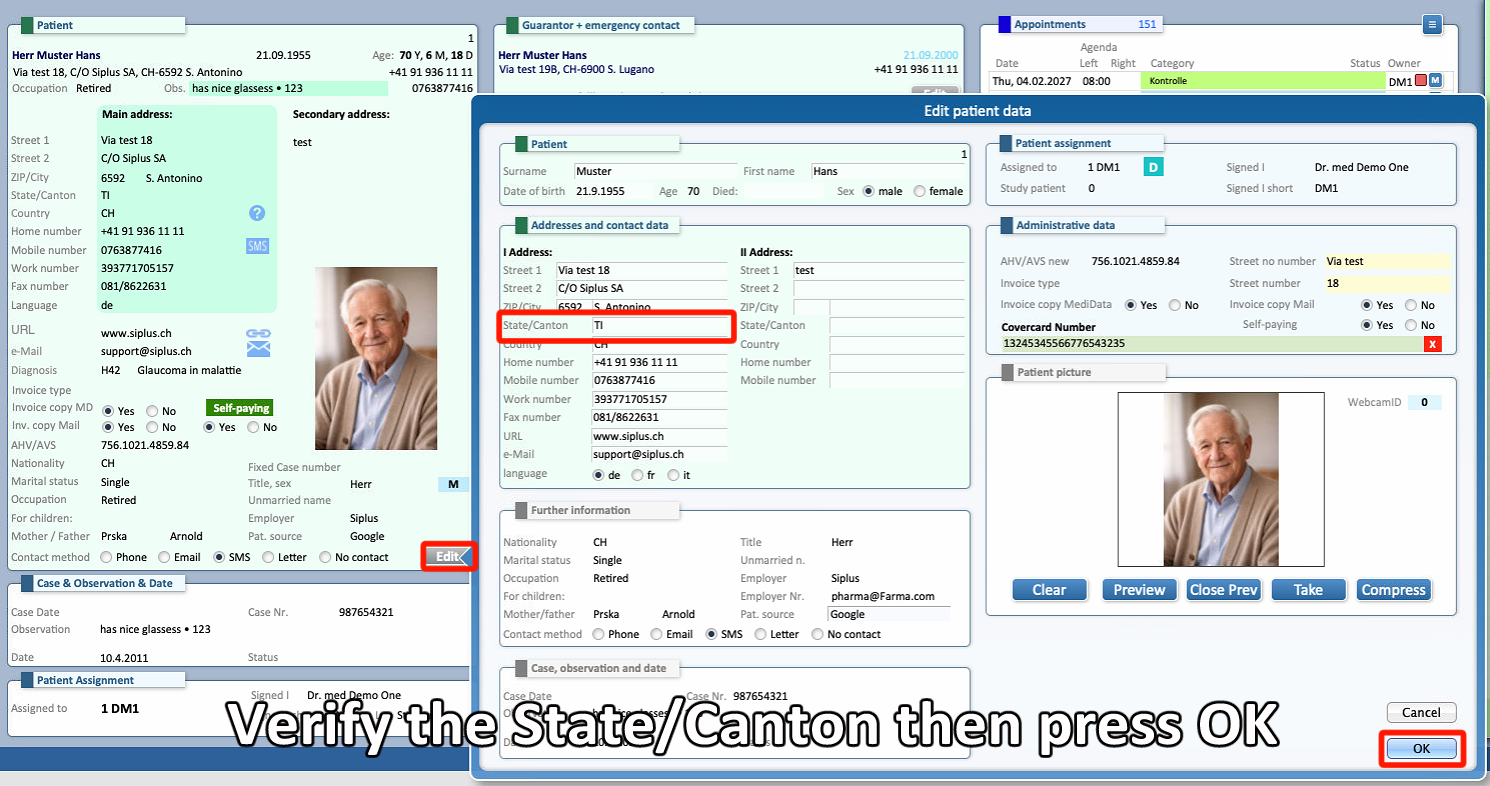
⚠ For foreign patients, the Region or Province abbreviation may be entered instead of the Canton.

