


Starting - 01. Add/Edit a patient in Eyesoft

Mar 17, 2026
 5
5
1. How to Add a New Patient
-
From the main menu, click on Patients

-
Select the New Patient button
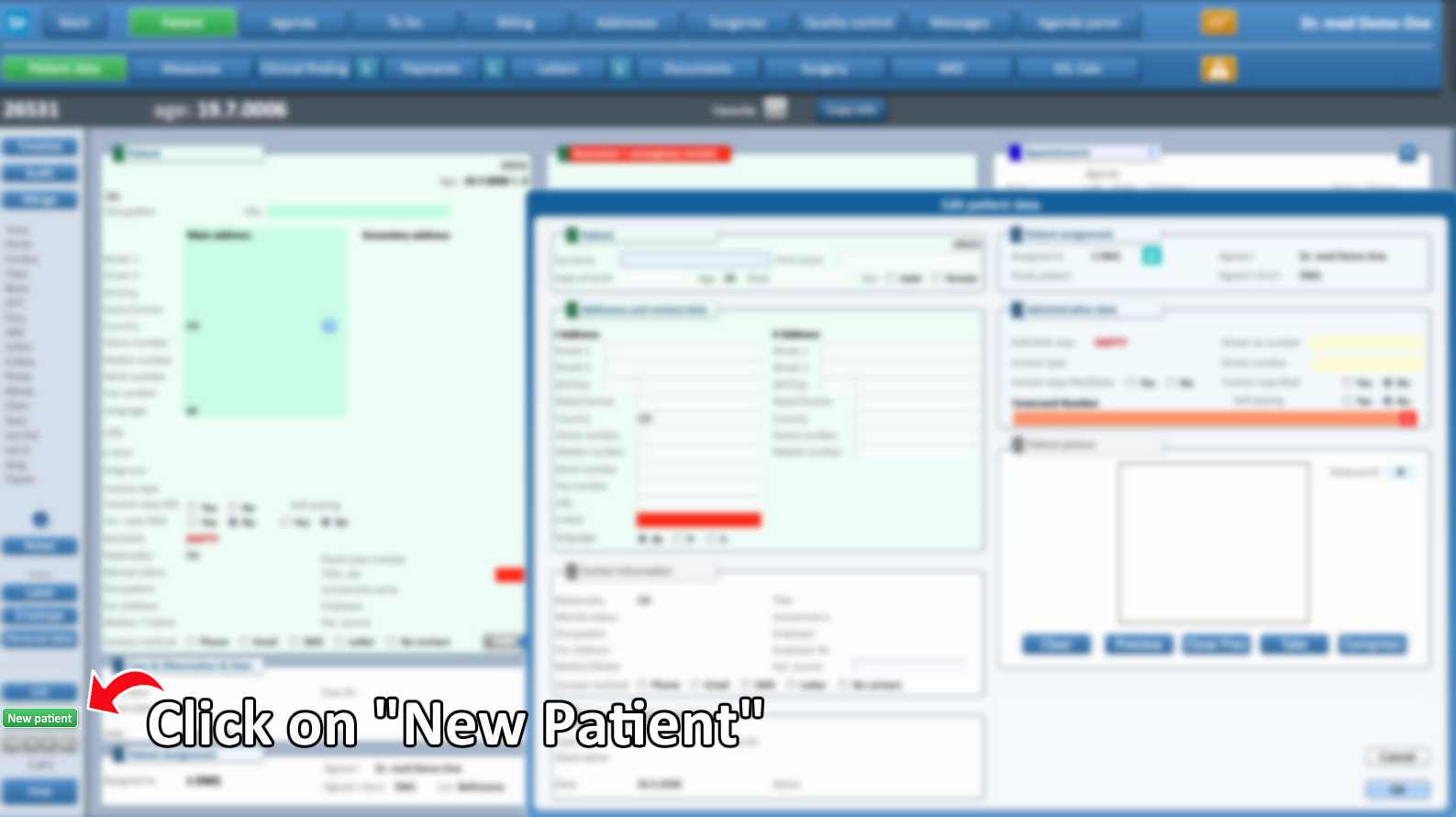
-
Carefully enter the patient’s information. Make sure to fill in the profile as completely and accurately as possible to avoid issues later during the validation phase
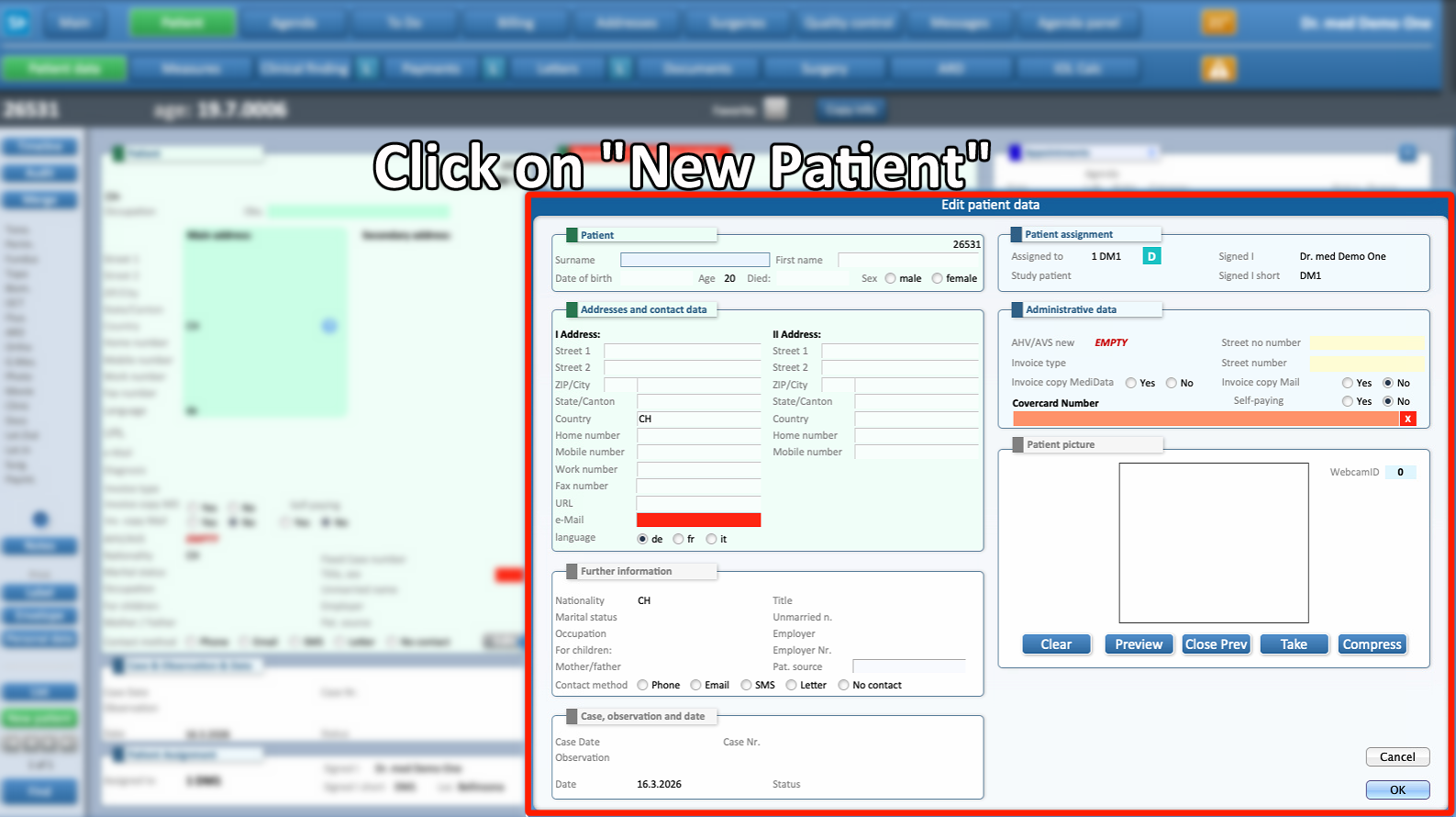
-
Once all the required information has been entered, click OK
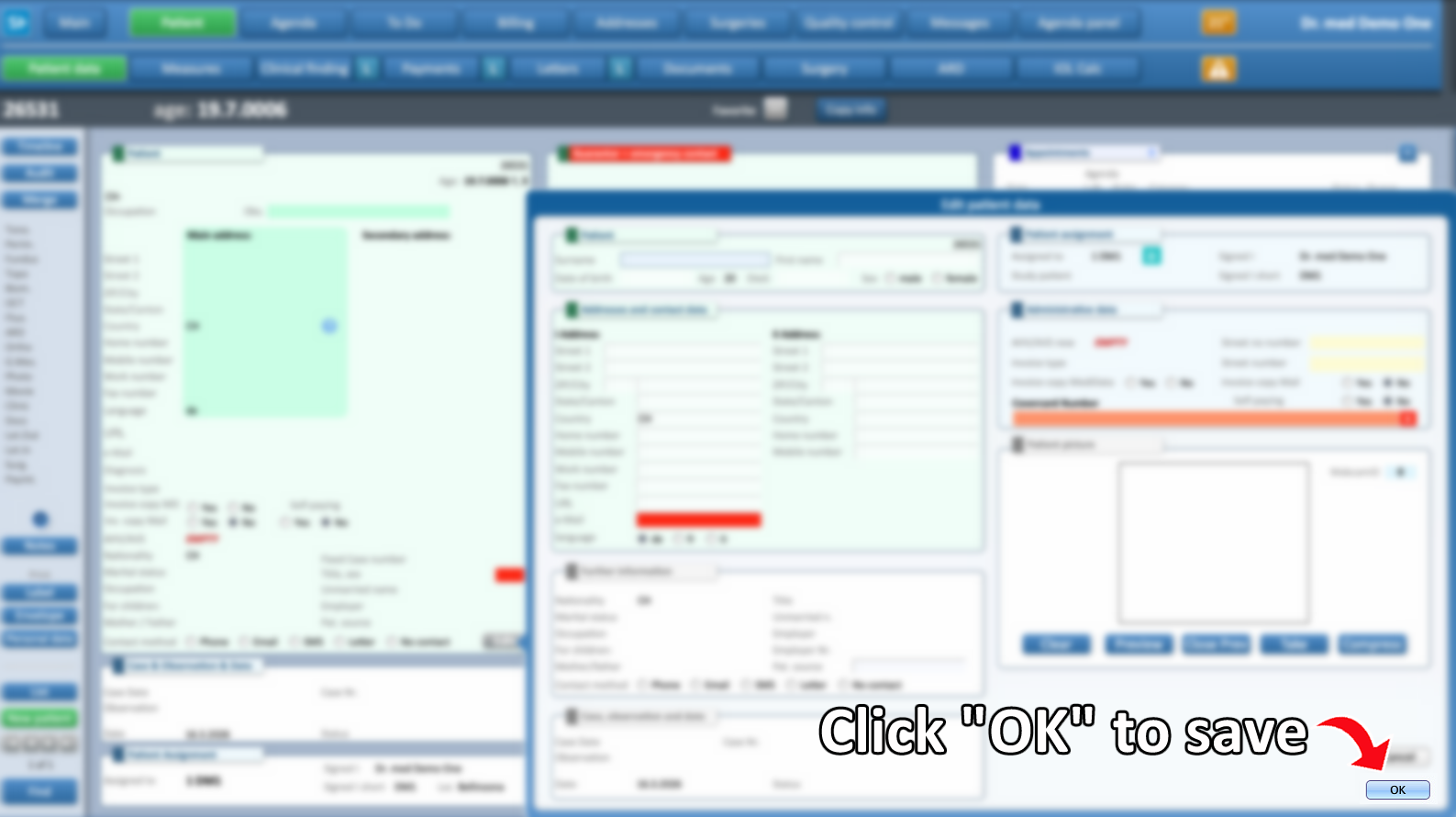
- Now the new Patient is added.
2. Edit Patient's information
- To edit a patient's info, first select Patients in the Main Menu
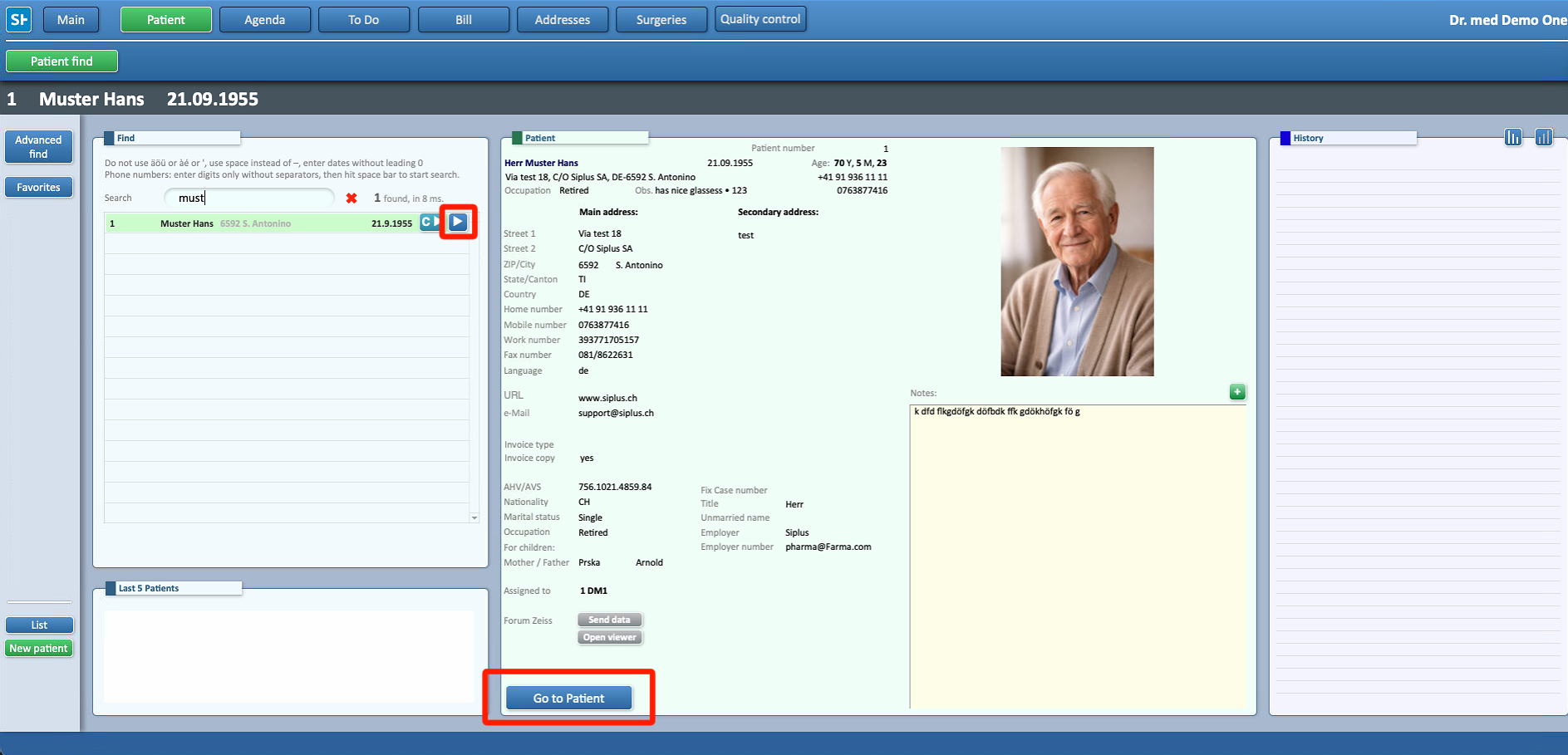
- Use the search function to locate the Patient's record to updated
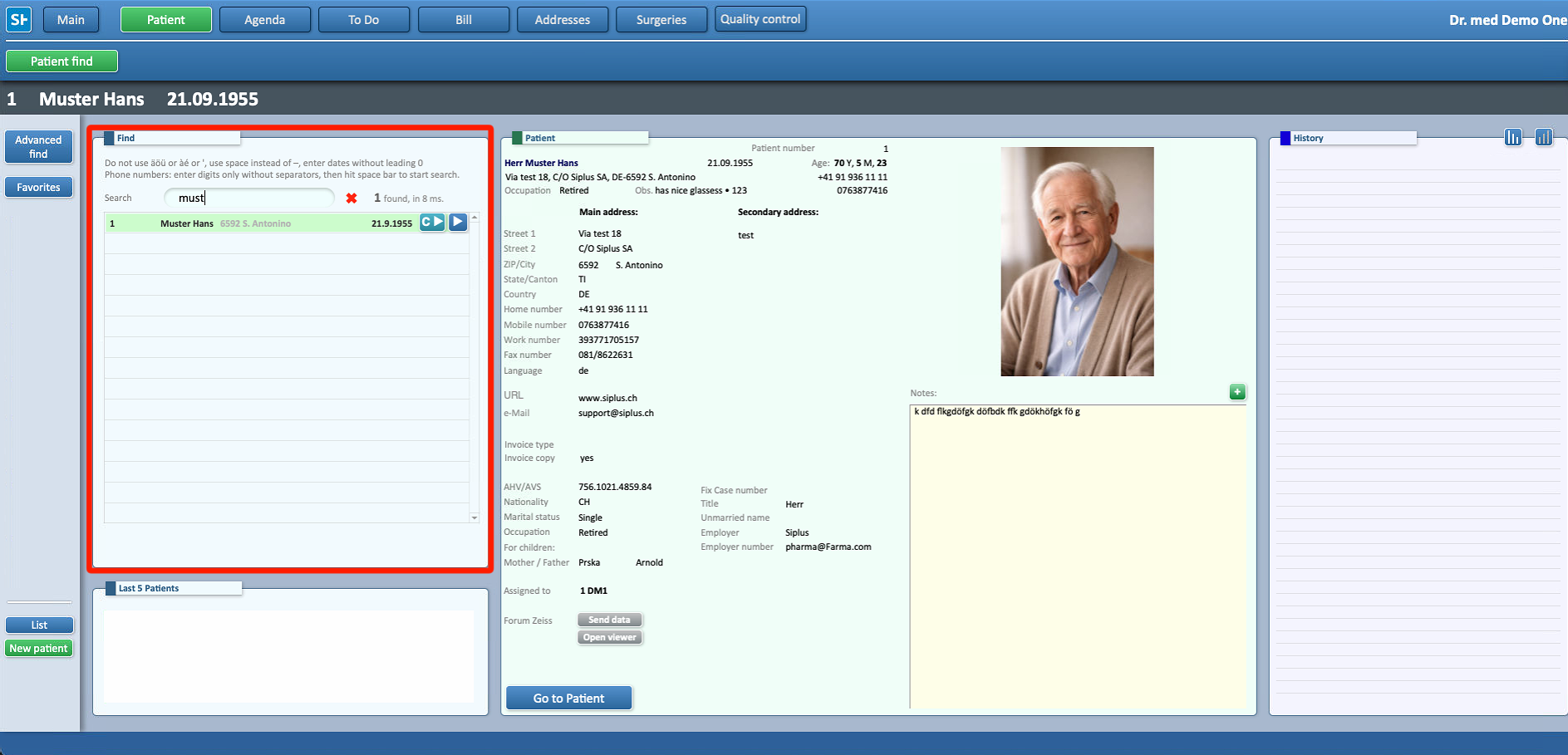
- Press on the arrow or Go to Patient on the right of the desired Patient, to open their profile
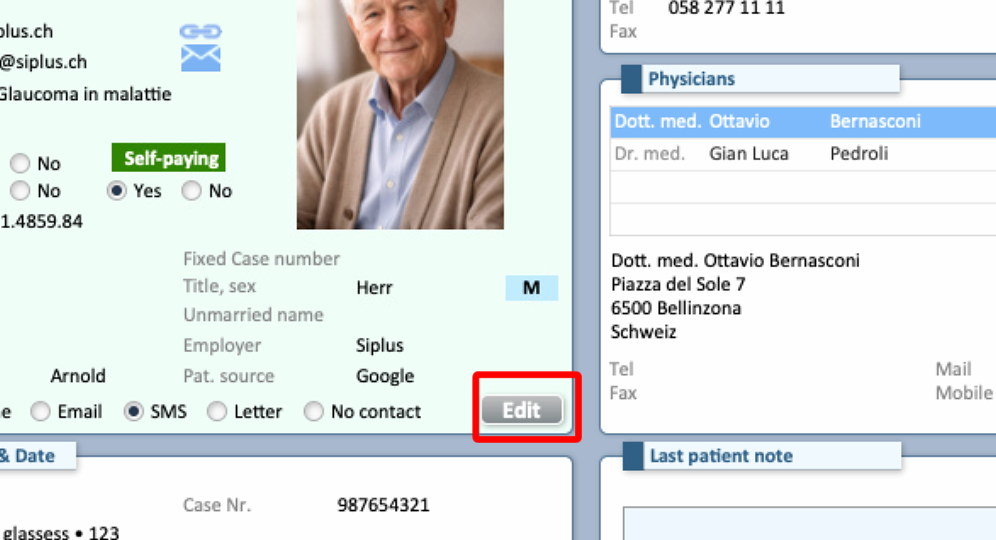
- Once on the Patient's profile, press Edit to change the patient's information
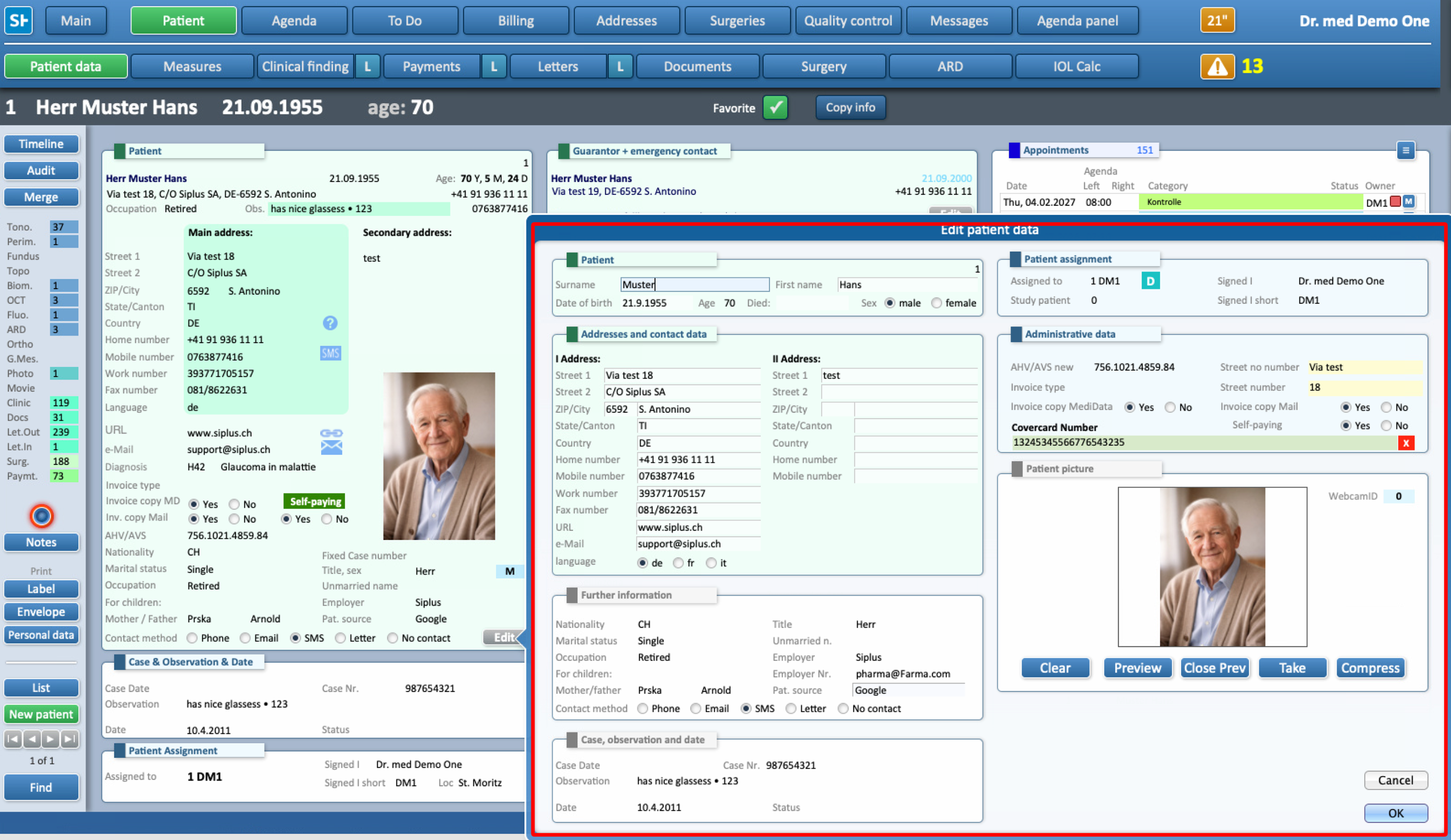
- Update all the desired fields
- Press OK to close and save
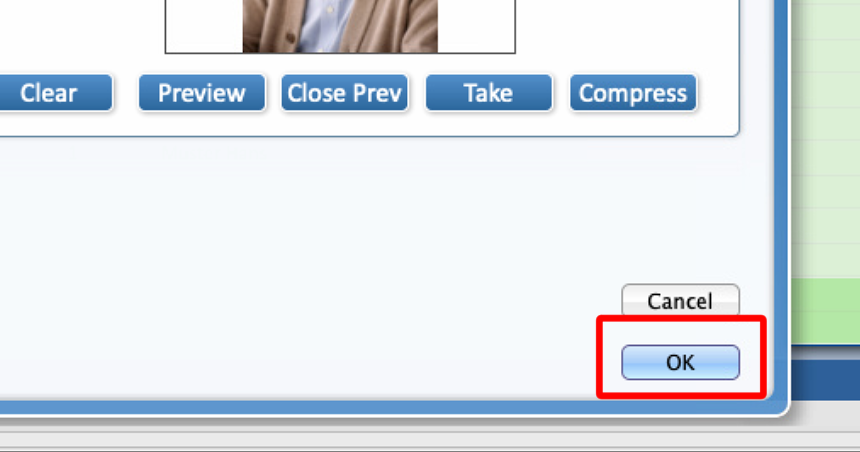
The Patient's information are now updated

